Install and update safely
Safe Android installation means getting apps from an official store, the device maker’s store, or a developer’s own release channel, then verifying the app is what it claims to be before…
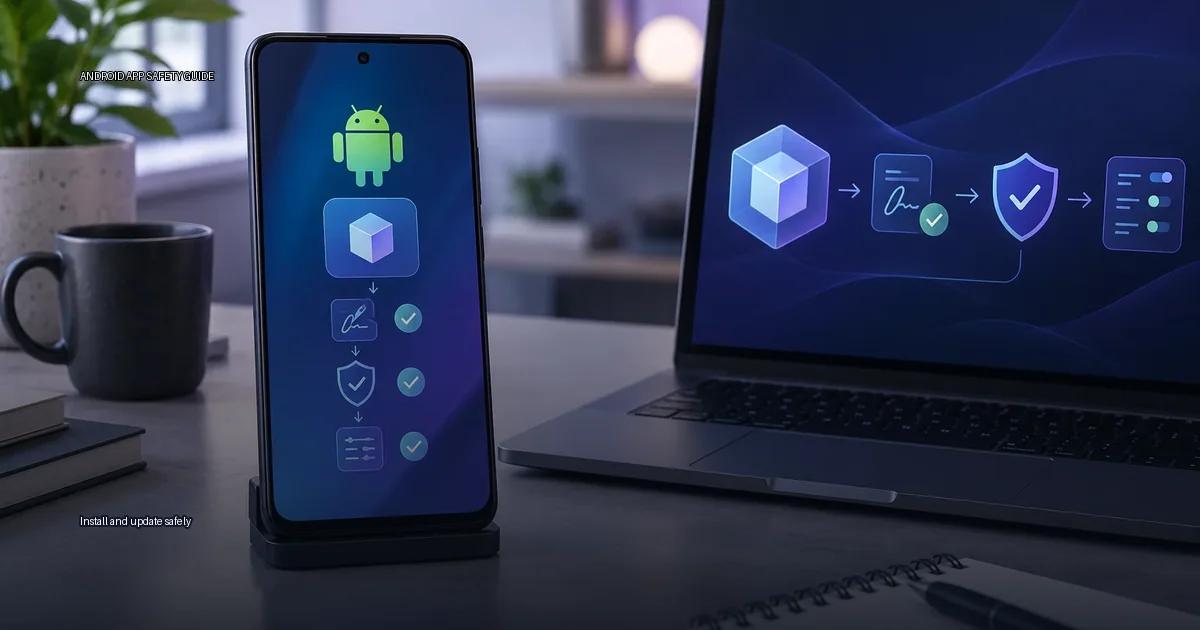
Safe Android installation means getting apps from an official store, the device maker’s store, or a developer’s own release channel, then verifying the app is what it claims to be before and after you add it. Sideloading is not inherently dangerous; the risk is determined entirely by the source of the file and the integrity of its cryptographic signing. Newcomers most often get it wrong by assuming all non-Play-Store files are malware, when the real danger is downloading from unofficial aggregators or ignoring signature mismatches.
The core question is not “store vs. sideload.” It is: can you confirm the app’s origin, and can you confirm the file has not been altered since the developer signed it?
Install and update safely: The four installation paths
Every Android app is distributed as an APK (Android Package Kit) or, for Google Play, an Android App Bundle (AAB) that the Play Store converts into an optimized APK for your device. Both formats are signed with a cryptographic key. When you install an app, Android checks that signing against the existing app with the same package name. A mismatch produces the “App not installed” error. That check is the core of installation safety, not the file extension, not the download site, and not the file size.
The default store on your device
On most Android phones, the default store is Google Play. On devices without Google services, the default store is the manufacturer’s own, such as Huawei AppGallery, Xiaomi GetApps, or the Samsung Galaxy Store. These stores are the lowest-friction path because the OS, the store client, and Play Protect are integrated.
What you should know:
- Google Play scans apps with Play Protect, but that scan is not a guarantee. Google’s automated review has repeatedly allowed malicious apps to appear and be removed later (Google Play Help, 2025).
- Some devices have a “default” store that is not Google Play. A Samsung phone defaults to Galaxy Store; a Huawei phone without Google services defaults to AppGallery. Installing from the device maker’s store is still a first-party path, but the catalog and review standards differ from Google’s.
- “Unknown Sources” is a device-level toggle, not a store. Enabling it for one installer typically applies to that installer app, not to every file on the device.
The developer’s own release channel
Some developers distribute directly from their own site or through a private path. This is normal for apps that are not on the Play Store (for example, apps banned in a region, or apps for enterprise use). The risk is not the act of sideloading; it is the source. A developer’s official site is a legitimate source. A random link on a forum is not.
Aggregators and alternative stores
Third-party stores like F-Droid, Aurora Store, and APKMirror have different trust models. F-Droid builds from source and signs with its own key; APKMirror verifies that the file’s signing matches the original developer key; Aurora Store pulls directly from Google Play servers. None of them are Google Play, and each has its own caveats. The safest path is to start with the developer’s official outlet and only use an aggregator when you can check the signing against the developer’s own key.
Verify the file before you install
A checksum alone does not prove trust. The hash tells you the file has not changed since it was published, but it does not tell you who published it. Verification must start with the developer’s authenticated outlet: the developer’s website, a store page you reached directly, or a signed update from an official source. When you download an APK, check the SHA-256 hash against the developer’s published value if one exists, and examine the app’s signing with a tool like apksigner (from Android SDK) or by comparing it to the signing of an app you already trust from the same developer.
What “safe installation” actually means
Safe installation always comes down to one question: can you verify the app is what it claims to be? There are several routes, each with different trust levels.
The official store on your device
On most Android phones, that is Google Play, but it may also be the device maker’s store: Samsung Galaxy Store, Xiaomi GetApps, or Huawei AppGallery. These stores have automated scanning and a distribution path that keeps the app’s signing intact. Google Play Help states that Play Protect scans apps before and after installation, and warns about potentially harmful apps (Google Play Help, 2024). This is the lowest-effort and lowest-risk route for the average user.
The developer’s own release outlet
Many developers distribute directly from their own site or a service like GitHub Releases. This is legitimate when the outlet is the developer’s authenticated domain or official account. The risk here is not the path itself, but whether you can verify that the file you download is actually the developer’s. You must check the signing, not just the filename or the download page.
Third-party app stores and repositories
Some stores, like Amazon Appstore, Samsung Galaxy Store, or Huawei AppGallery, are operated by known companies. Others, like F-Droid, use a different trust model based on open-source code and reproducible builds. The key question is whether the store has a verifiable relationship with the app’s developer.
Direct from a developer’s website
This is common for apps that are not allowed on the Play Store (e.g., ad blockers, region-locked apps, or apps in beta). The risk is that you must verify the file yourself, and the developer’s site must be the official one.
ADB (Android Debug Bridge)
Installing via USB debugging is a developer path, but it uses the same signing verification as a normal install, just with a different transport. It is useful when the screen is broken or when testing builds.
Enterprise or private app stores
Organizations can distribute internal apps via managed Play or a private app store. This is the safest way to distribute an app to a known group, because the device is enrolled and the app is signed with the organization’s key.
The four questions the material below routes to
- Find apps safely: where to start when you want to find new apps without stumbling into a fake or malicious clone.
- APK basics: what an APK actually is, how it is built, and why a file ending in .apk is not inherently dangerous.
- Verify an APK: how to check a file’s signing, hash, and manifest before you install it.
- Install and update safely: the practical steps for installing, updating, and keeping apps current.
- Permissions and privacy: what an app can do after installation and how to audit it.
How to verify an app before trusting it
A matching hash proves file identity and a matching signing certificate supports developer continuity; neither proves an app is harmless. Verification must combine multiple checks.
Check the signing certificate
Use apksigner verify –verbose –print-certs <app.apk> to inspect the certificate. Compare the output against a known-good certificate from the same developer, obtained from an official source or a previously trusted install. A mismatch means the file was signed by someone else.
Compare the hash
If the developer publishes a SHA-256 checksum, generate the hash of your downloaded file with sha256sum <app.apk> and compare it character by character. A match confirms the file is identical to the one the developer published. It does not confirm the developer is trustworthy.
Inspect the manifest permissions
Use aapt dump permissions <app.apk> to list the permissions the app requests. Ask yourself whether the app’s stated purpose justifies each permission. A flashlight app requesting access to your contacts is a red flag.
Keep Play Protect enabled
Play Protect scans apps from any source and warns about known harmful behaviour. Do not turn it off, and do not treat an “Install anyway” button as a resolution to a harmful-app warning. If Play Protect flags an app, stop and investigate the source before proceeding.
How to keep apps updated safely
Updates carry the same risk as initial installations because a malicious update can replace a legitimate app. Android blocks updates where the signing certificate does not match the installed version, but that protection only works if you obtain updates from a source that carries the same signed file.
Update through the original source
If you installed from Google Play, let Play handle updates. If you installed from the developer’s site, return to that site to check for new versions. If you used F-Droid, let the F-Droid client manage updates. Mixing sources can lead to signing conflicts and failed installs.
Recognise a legitimate update prompt
A genuine update notification comes from the store or app you used to install. A pop-up in a browser or a random notification urging you to “update now” is a common distribution method for malicious files. Close the prompt and open the store or the developer’s site manually to check.
Verify the update before applying it
When you download an update outside a store, repeat the verification steps: check the signing certificate against the installed version and, if available, check the hash against the developer’s published value. An update that carries a different certificate is not from the same developer and should not be installed.
Permissions and privacy after installation
Installing an app is only the beginning. A safe app can become problematic after an update, or it can request permissions that exceed its purpose.
Audit installed apps regularly
Go to Settings > Apps and review the list. Uninstall apps you no longer use. For each app, check Permissions and revoke any that seem unnecessary. Pay special attention to the “Special app access” section, which includes “Install unknown apps” and “Usage access.”
Watch for behaviour changes
An app that suddenly requests a new permission after an update, especially one unrelated to its function, should be treated with caution. Check the app’s Play Store listing or official site for a changelog that explains the new request. If no explanation exists, consider revoking the permission or uninstalling the app.
Use the Privacy Dashboard
On Android 12 and later, the Privacy Dashboard (Settings > Privacy > Privacy Dashboard) shows a timeline of which apps accessed location, camera, microphone, and other sensitive data. Review it periodically to spot unexpected access patterns.
More in this guide
How to install an APK safelySplit APK installation explainedModded apps and unofficial APKs: what the risks are.
Read next
-
 How to install an APK safely
Installing an APK outside your device’s default app store is called sideloading.
How to install an APK safely
Installing an APK outside your device’s default app store is called sideloading.
-
 Split APK installation explained
Modern Android apps rarely arrive as a single APK file. Since 2021, Google Play has required new apps and app updates to use the Android App Bundle (AAB) format.
Split APK installation explained
Modern Android apps rarely arrive as a single APK file. Since 2021, Google Play has required new apps and app updates to use the Android App Bundle (AAB) format.
-
 Update a sideloaded app
When you add an app from outside the Google Play Store, keeping it current works differently from tapping "Update” in the Play Store.
Update a sideloaded app
When you add an app from outside the Google Play Store, keeping it current works differently from tapping "Update” in the Play Store.
-
 Uninstall and clean up
Uninstalling an Android app and cleaning up what it leaves behind are separate tasks.
Uninstall and clean up
Uninstalling an Android app and cleaning up what it leaves behind are separate tasks.
-
 Permissions and privacy
Android controls what every app can reach. By default an app cannot read your contacts, see your location or open your files.
Permissions and privacy
Android controls what every app can reach. By default an app cannot read your contacts, see your location or open your files.