Permissions and privacy
Android controls what every app can reach. By default an app cannot read your contacts, see your location or open your files.
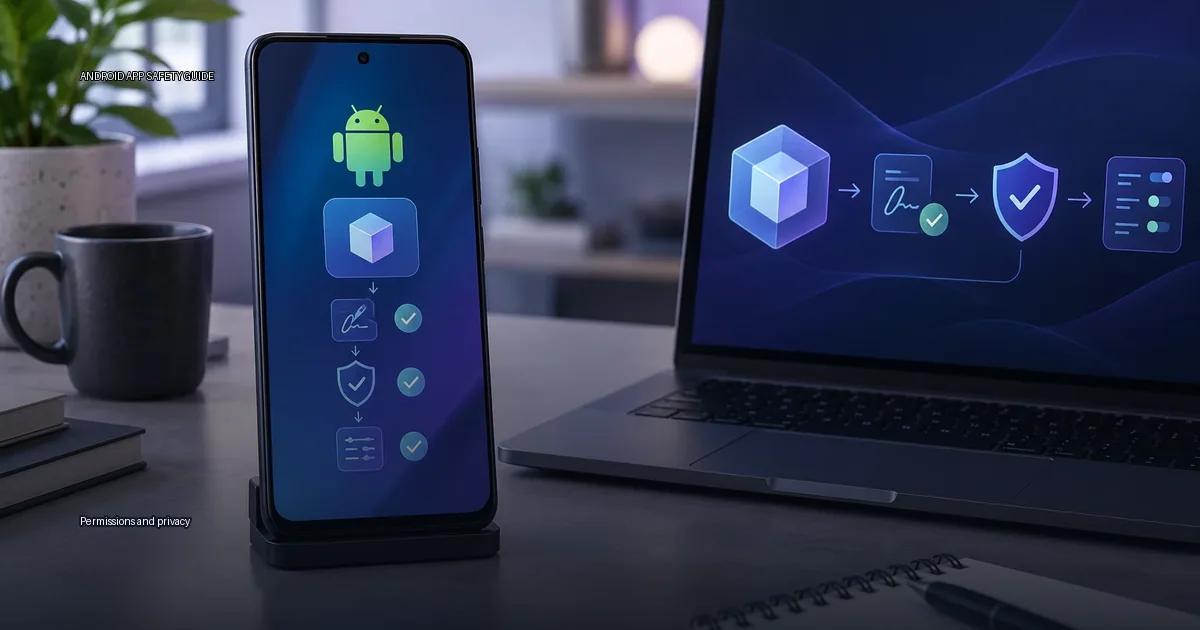
Android controls what every app can reach. By default an app cannot read your contacts, see your location or open your files. Permissions are the gates that let an app cross those boundaries, and privacy is what those gates protect. The practical question is not whether you should grant access, but whether the set of capabilities an app requests matches what the app actually does.
The four focused guides cover the details: APK basics, finding apps safely, verifying an APK, and installing and updating safely.
What a permission actually is
A permission is a labeled capability that an Android app requests from the operating system. When you install an app, the system reads the app’s manifest (the file that declares what the app intends to do) and shows you the capabilities it wants. The Android permission model is the main boundary between an app and your data. It is not a security review; it is an access control list.
Every permission maps to a concrete action:
- Location: precise GPS or approximate network location.
- Camera: access to the camera hardware and the images it captures.
- Microphone: access to audio recording.
- Contacts: read or modify the device’s contact database.
- Storage: read or write files on shared storage (on older Android versions, this can mean broad access).
- SMS: read, receive or send text messages.
- Phone: read phone state, make calls or access call logs.
- Calendar: read, create or modify calendar events.
A permission is not a data transfer. It is a capability. The app can only use that capability if it also has a technical path to the data and a server to send it to. When you review a request, ask two questions: (1) is this capability necessary for the app’s core function? (2) does the app’s privacy policy explain why it needs it? The second question matters because Android’s permission dialog shows the name of the capability but not the purpose.
Install-time, runtime and special access
Android’s permission system has two broad layers:
- Install-time permissions: granted automatically when you install an app, usually for normal capabilities.
- Runtime permissions: requested while the app is in use, for sensitive data like location, camera, microphone or contacts.
On Android 6.0 (API 23) and later, dangerous permissions are requested at runtime (Android Developers, “Request app permissions,” 2024). Apps targeting older versions get them at install time. This is why the target SDK version matters for privacy: an old target SDK can bypass runtime prompts on some Android versions, though Android 10 and later restrict background access to sensitive data regardless of target SDK.
Android 11 and later can auto-reset permissions for unused apps. Android 12 and later show an approximate location option. Android 13 introduced a photo picker that lets you grant access to selected images rather than the whole library (Android Developers, 2023).
What the Play Store listing leaves out
What the Play Store shows before you install is only part of the picture. The store lists the permissions an app requests, but not how often the app accesses them or where the data goes. A permission request is not itself proof of malice: a file manager needs storage access, a camera app needs the camera. The warning sign is scope, an app asking for access it does not need for its stated function.
Permission signals that deserve scrutiny
A calculator that asks for location is a red flag. Use these checks before you tap “Install”:
- Compare the permission list to the app’s core function. A flashlight app has no reason to read your contacts. If the connection is not obvious, search the developer’s privacy policy for an explanation.
- Check the target SDK. An app targeting an Android version older than 6.0 (API 23) gets dangerous permissions at install time without a runtime prompt, unless the OS itself blocks the access.
- Watch for permission combinations. An app that requests both contacts and SMS, or both location and camera when neither is central to its purpose, deserves a harder look.
- Look at the developer’s other apps. A developer with a history of apps that request unrelated permissions is a pattern worth noting.
Privacy controls that exist outside the permission dialog
Permissions are only one layer. Android offers several controls that limit what an app can do even after you grant access:
- One-time permissions (Android 11, API 30): grant a capability for a single session. The next time the app needs it, it must ask again.
- Photo picker (Android 13, API 33): share only the images you select, not the entire library.
- Approximate location: share your city or neighborhood instead of the precise GPS fix.
- Permission auto-reset: if you do not use an app for a few months, the system revokes its runtime permissions automatically.
- Background access restrictions (Android 10 and later): apps cannot get your location in the background without a specific prompt and a persistent notification.
What Play Protect actually does and does not do
Play Protect is Google’s on-device malware scanner, introduced with Android 5.0 in 2014 and expanded in 2017. It checks apps against known malware signatures and uses heuristics. It scans apps from the Play Store continuously and sideloaded apps once at install time. Google states that Play Protect performs billions of checks per day (Google Help, 2024).
A “clean” scan is not a guarantee of safety. Zero-day malware can still slip through. The honest framing is that Play Protect is a useful baseline, not a complete security solution.
Where you get the app changes the risk
Sideloading itself is not inherently dangerous. The risk is determined by the source of the file and the integrity of its signature. The Play Store is the default source for most users, but the device maker’s store (Samsung Galaxy Store, Xiaomi GetApps, Huawei AppGallery) is also an official channel. When an app is not available in any store, the safest path is the developer’s own release channel, for example a project’s official website or a GitHub releases page, and then verifying the file’s signature against the developer’s public key.
The practical spectrum, from lowest risk to highest:
- Curated official stores: Google Play, Samsung Galaxy Store, Xiaomi GetApps, Huawei AppGallery, Amazon Appstore.
- Developer’s own release channel: the project’s official website or a verified GitHub releases page.
- F-Droid: a repository of free and open-source apps, built and signed by the F-Droid project.
- Third-party APK aggregators: the riskiest option, because they are not controlled by the developer and may re-sign or modify files.
Android treats every source outside the default store as “unknown” and shows a warning, but the warning does not distinguish a trusted developer’s site from a random forum. The practical rule: get the file from the developer’s official release channel, verify the signature, and check the requested capabilities before and after installation.
A practical permission review routine
Run this routine on any app before you install, and repeat it after any major update:
- Open the app’s Play Store listing and tap “About this app.” Scroll to “App permissions” and read the full list. Note any capability that seems unrelated to the app’s function.
- Check the developer. Tap the developer name and look at their other apps. A pattern of unrelated permission requests across multiple apps is a signal.
- Find the privacy policy. If the app requests a sensitive capability (location, contacts, SMS, microphone, camera), open the policy and search for the permission name. The policy should state why the app needs it and where the data goes.
- Look at the target SDK. Use a tool like AppChecker (Play Store) or run
aapt dump badging app.apkon a downloaded file. The linetargetSdkVersiontells you which Android version the app was built for. Below 23 means install-time grants for dangerous permissions. - After installation, go to Settings > Apps > [app name] > Permissions. Revoke any capability you do not think the app needs. Android will prompt you if the app later requires it.
- Set the location to “approximate” for any app that does not need your exact position (weather, shopping, news).
- Enable permission auto-reset. Go to Settings > Apps > [app name] > Permissions > Remove permissions if app is unused, and toggle it on. This is on by default for apps targeting Android 11 and later.
Where to go next
The four focused guides walk through each stage in detail:
- APK basics: what an APK file contains, how signing works, and how to read a manifest.
- Finding apps safely: how to locate an app’s official release channel and cross-check store listings.
- Verifying an APK: step-by-step signature verification using
apksignerandkeytool. - Installing and updating safely: a workflow for sideloading that preserves signature checks and keeps apps current without introducing risk.
More in this guide
Android permissions explainedAccessibility-service riskUse Android privacy controls.
Read next
-
 Android permissions explained
Android permissions are access tokens an app requests for data and device functions: contacts, precise position, camera, microphone, storage, and more.
Android permissions explained
Android permissions are access tokens an app requests for data and device functions: contacts, precise position, camera, microphone, storage, and more.
-
 Accessibility-service risk
Accessibility services are among the most powerful capabilities an Android app can request.
Accessibility-service risk
Accessibility services are among the most powerful capabilities an Android app can request.
-
 Background data and battery use
The question is simple: which apps are quietly using data and battery in the background, and what can you do about it without breaking the notifications you actually need?
Background data and battery use
The question is simple: which apps are quietly using data and battery in the background, and what can you do about it without breaking the notifications you actually need?
-
 Use Android privacy controls
Android gives you a permission system that is more granular than most people use. You can see what an app has accessed, revoke individual rights, and limit sensor access.
Use Android privacy controls
Android gives you a permission system that is more granular than most people use. You can see what an app has accessed, revoke individual rights, and limit sensor access.
-
 APK troubleshooting
 is the process of diagnosing why an Android app will not install, update, or run correctly, and deciding whether the problem is a bad file, a certificate mismatch, an…
APK troubleshooting
APK troubleshooting is the process of diagnosing why an Android app will not install, update, or run correctly, and deciding whether the problem is a bad file, a certificate mismatch, an…