Fix App not installed errors
When Android refuses to install an app, the error message rarely tells you the real cause.
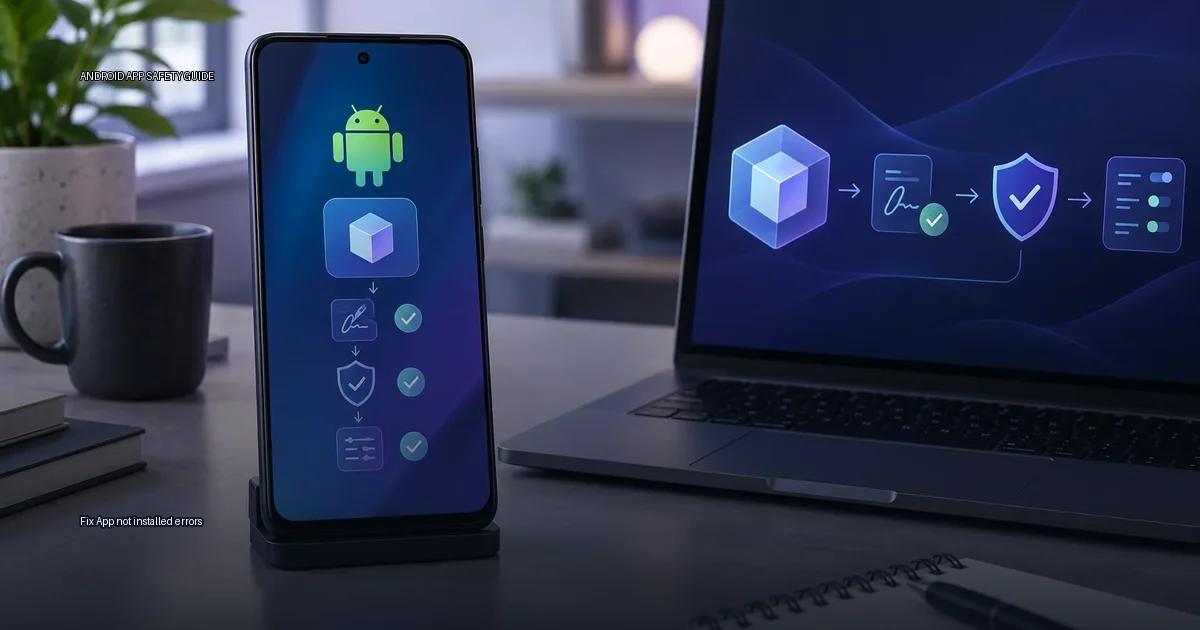
When Android refuses to install an app, the error message rarely tells you the real cause. “App not installed” is a catch-all that can come from a signing-certificate conflict, a storage problem, a build mismatch, or an incompatible bundle. the material below gives you a decision path to diagnose and fix it without resorting to unsafe APK copies.
What the error actually means
The message appears when the Android package installer cannot complete the installation. According to Google’s Android Developers documentation, the installer validates the APK’s signing certificate, checks the target SDK version, verifies the package name, and confirms there is enough storage. If any of those checks fail, you get the generic “App not installed” error. The message rarely tells you which check failed, so you have to work through them in order.
Step 1: Check the most common cause first, a signing-certificate conflict
The number one cause of “App not installed” on a device that already has the app is a signing-certificate conflict. Android refuses to update an installed app with a bundle signed by a different key. This is a security feature: it prevents a malicious actor from replacing a legitimate app with one signed by a different key (Android Developers, “APK signature scheme v2,” 2023).
Decision rule: If you are updating an existing app, the new APK must be signed with the same certificate as the installed build. If the certificate differs, Android will show “App not installed” or “Package installer keeps stopping” and will not let you proceed. This happens when: - You downloaded from a different source than the original. - The developer changed signing keys between builds (rare, but possible with v3 key rotation). - You uninstalled the original app, but the system still holds a certificate record in rare cases; a reboot often clears it.
How to check: on a computer, use apksigner verify –print-certs app.apk from Android SDK build-tools (Android Developers, 2024). Compare the signer certificate with the previous build you installed. If you do not have the old file, you cannot confirm the certificate; treat a mismatch as a reason not to install.
Why “App not installed” appears
The error is Android’s way of saying it will not complete the installation. The most common causes, in order of frequency:
- Signing-certificate conflict: an app with the same package name and a different signing certificate is already present. Android refuses to replace it. This is the leading cause when you try to update an app with an APK from a different source.
- Target SDK too old for the OS: an app built for a very old Android version may be blocked by the current OS. Android 14 and later enforce minimum target API levels; Google Play Help documents the target API level requirements for apps distributed through the store (Google Play Help, 2024).
- Insufficient storage: the installer needs space for the APK plus the unpacked app. The error message may still say “app not installed” even when storage is the cause.
- Corrupted or incomplete APK file: a truncated download fails the integrity check and the system refuses to install.
- Incompatible architecture: an APK built only for ARM will not install on an x86 device, and vice versa.
- Android version too old: the app’s
minSdkVersionis higher than the OS version on the device. - Installer conflict: the package installer itself crashes or a device policy blocks the install.
- Duplicate or conflicting package name: if an app with the same package name is already present with a different certificate, the new install fails with a signing-certificate conflict.
The four causes, in order of likelihood
When an APK fails with “App not installed,” Android has already rejected it before the installation screen finishes. The error message is generic, so you have to diagnose the cause yourself. Work through this checklist in order.
Signing-certificate conflict
If an app with the same package name is already present, Android refuses to install a new build unless it is signed with the same certificate. This is the top cause of “App not installed” on phones that already have the app.
How to check:
- Find the existing app’s package name. Open the app’s page in the Play Store or use
adb shell pm list packages | grep <partial-name>if you have ADB. - Look at the app’s certificate. On a computer with the Android SDK, run:
apksigner verify --print-certs app.apkThe output shows the signer certificate. Compare it with the certificate of the build already present. - If the certificates differ, uninstall the old version first, or get the correct build from the developer’s official channel.
Decision rule: If the error message says “App not installed” or “Package appears to be invalid,” the cause is almost always one of these: signing-certificate conflict, target SDK too old, or the APK was built for a different CPU architecture. Storage space is rarely the cause, despite what the error dialog implies.
Target SDK and OS version mismatch
Android 14 (API 34) and later enforce that apps must target a minimum API level. If an APK targets an SDK older than the minimum required by the OS, the system refuses to install it. Google Play Help documents this as “target API level” requirements, and the Android Developers documentation explains the exact minimum for each Android version.
Check the app’s listed minimum Android version against your device’s OS version. If the app’s minSdkVersion is higher than your OS, or its targetSdkVersion is lower than the OS-enforced minimum, the install fails.
Storage and file integrity
The installer needs space for the APK plus the unpacked app. A truncated download also causes a generic install failure. Re-download from the official source and compare the SHA-256 checksum if the developer publishes one. Free up space and retry.
Architecture and installer permissions
An APK built only for ARM will not install on an x86 device, and vice versa. Confirm the build matches your device’s CPU architecture. Also, on Android 8 and later, you must enable “Install unknown apps” per source app, not globally. On Android 14 and later, the installer app must hold the REQUEST_INSTALL_PACKAGES permission.
Troubleshooting checklist
If the install still fails after these checks, work through the following:
- Confirm you have enough free space and that the APK’s version code is not older than the installed build.
- Use
apksignerfrom the Android SDK to compare the certificate of the new APK with the currently installed app. A mismatch means the app was signed with a different key. - Check the target SDK: if the APK targets an Android version older than the OS, the system may refuse to install it.
- Verify “Install unknown apps” is enabled for the source app you are using.
- If a bundle with the same package name is already present under a different certificate, the system refuses the update. Uninstall the old app only if you have a backup of its data.
- If Play Protect blocks the install, it will show a warning; you can choose to ignore it, but the warning means the file’s reputation or code triggered a heuristic.
- Check the APK’s target SDK version: Android 14 (API 34) and later block installation of apps targeting very old API levels. Android Developers documentation states that apps must target a recent API level to install on newer Android versions.
- Verify the file’s certificate with
apksigner: confirm that the certificate matches the developer’s official release channel. - Check the version code: an APK with a lower
versionCodethan the installed app will not install unless you uninstall the current version first. - Check available storage: Android needs enough free space for the app and its temporary extraction; if the install fails with a generic error, free space and retry.
- Check the target SDK: if the APK’s
targetSdkVersionis lower than the OS’s minimum supported, installation fails with “app not installed.”
If the install still fails, the likely causes are a target SDK version older than the OS supports, or a hardware-specific restriction from the device maker. Check the developer’s release notes for the minimum Android version, then contact the app developer’s official support channel.
More in this guide
APK troubleshootingFix a package parse errorAndroid app sources and package formats.
Read next
-
 Fix a package parse error
A package parse error is Android’s way of saying it cannot read the APK file you are trying to install.
Fix a package parse error
A package parse error is Android’s way of saying it cannot read the APK file you are trying to install.
-
 Resolve a signature conflict
When Android refuses to install an app with an error such as “App not installed” or “There was a problem parsing the package,” the most common cause is a signature conflict.
Resolve a signature conflict
When Android refuses to install an app with an error such as “App not installed” or “There was a problem parsing the package,” the most common cause is a signature conflict.
-
 App rollback and downgrade risks
When an app update breaks a workflow, the obvious fix is to install the previous release.
App rollback and downgrade risks
When an app update breaks a workflow, the obvious fix is to install the previous release.
-
 APK basics
An APK (Android Package Kit) is the standard file format Android uses to distribute and install apps.
APK basics
An APK (Android Package Kit) is the standard file format Android uses to distribute and install apps.