Find apps safely
Every Android user eventually faces the same question: where can you get an app without putting your phone at risk? The honest answer is simpler than most advice suggests.
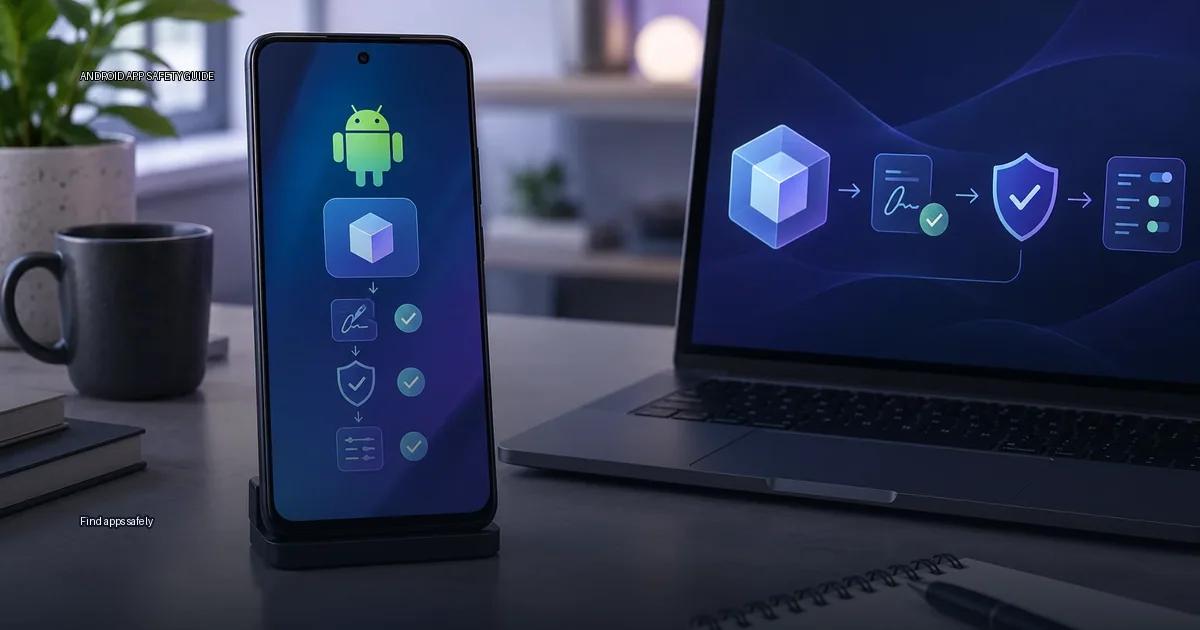
Every Android user eventually faces the same question: where can you get an app without putting your phone at risk? The honest answer is simpler than most advice suggests. Finding apps safely is not about avoiding “sideloading”; it is about knowing where a file came from and whether the app is what it claims to be. The risk is determined almost entirely by the source of the file and the integrity of its cryptographic signing, not by the act of installing outside a store.
What “safe” actually means on Android
“Safe” is not a property of a file. It is a property of the chain: who built the app, where you got the file, whether the file matches the publisher’s signing key, and whether the device verifies that key during setup. Android’s package manager enforces signing consistency at install time. If an app is already present and a new APK is signed with a different key, the system refuses the update with “app not installed.” That check is the backbone of Android’s installation security, and it is independent of any antivirus scanner.
The practical implication: an app from a random website that happens to be clean today can be replaced tomorrow with a tampered version that keeps the same name. The signing key is what ties an app to its real author. A checksum alone does not prove trust; the checksum must be published by the developer on an authenticated channel.
Safe setup comes down to three verifiable steps, in this order:
- The file came from a source you can name and verify.
- The file is signed with the developer’s key and that signing matches the app’s identity.
- The app asks for permissions that make sense for what it does.
A checksum proves the file did not change in transit, but it does not prove who made it. Key verification proves the file was signed by the same key as previous versions, but a self-signed certificate does not prove the developer is who they claim to be. The starting point is always the source.
The main routes for getting apps
You have four realistic routes to get an app onto an Android device:
- The preinstalled store. On most devices this is Google Play; on some it is the maker’s store (Samsung Galaxy Store, Xiaomi GetApps, Huawei AppGallery). This is the path most people should stay on.
- The developer’s own release location. Many developers publish APK files on their website, GitHub releases, or a self-hosted page. This is legitimate when the location is authenticated.
- A curated third-party store or repository. F-Droid for open-source apps, or an enterprise store for internal apps.
- Direct sideloading from a computer or file manager. Installing an APK you already have, via a file manager or ADB.
The safe choice is almost always the device maker’s store first, then the developer’s authenticated location, then a reputable aggregator that checks keys. The order matters less than the verification step: before installing, you need to know who signed the file and whether the signing matches the developer’s known key.
What counts as a trustworthy source
A trustworthy source is any place where you can verify that the app was published by the developer it claims to be from. In practice, that means one of the following:
- A store operated by the platform or device maker. Google Play, the device maker’s store (Samsung Galaxy Store, Xiaomi GetApps, Huawei AppGallery), or a regional store operated by a trusted organization.
- The developer’s own release location. The developer’s website, their GitHub releases page, or their store listing.
- A reputable aggregator that verifies keys. Services like APKMirror that compare the APK’s signing against the developer’s known key.
- F-Droid. A repository of free and open-source apps, with its own signing model and reproducible builds.
The least reliable places are unofficial APK aggregator sites, forums, and any page promising “modified” or “unlocked” apps. Those pages often re-sign apps with a different key, which breaks the update chain and may introduce malicious code.
How Android handles app setup
Every Android app is distributed as an APK (Android Package Kit) or, from Google Play, as an Android App Bundle (AAB) that the store converts into optimized APKs for your device. The APK contains the program code, resources, and a manifest that declares permissions and components. When you set up an APK, Android checks its cryptographic signing. If the signing is valid and matches the app’s package name, the system accepts it; if a previous version of the same package exists, the signing must match that existing version or the process fails.
This signing mechanism is the core of Android’s safety. A self-signed certificate does not prove who the developer is; it proves that the same key signed the previous update. That is why verifying the key matters more than checking a checksum. A checksum only tells you the file you downloaded matches the file the server offered; it says nothing about who created that file. The key, when verified against the developer’s published record or a store’s record, ties the file to a source you chose to trust.
What makes an app safe to install
An app is safe to install when you can answer three questions:
- Where did the file come from? The most trustworthy sources are the store that shipped with your device, the developer’s own site, or a verified release location. A store has automated scanning, but it is not a guarantee. A developer’s site is only as trustworthy as the developer’s own security.
- Is the file what it claims to be? A checksum or key that matches the developer’s published value confirms the file has not been altered. A checksum alone is meaningless if you got it from the same untrusted page as the file.
- What does the app ask for? Permissions are the clearest signal of intent. An app that asks for more than its core function needs is a red flag regardless of where it was downloaded from.
The role of Play Protect
Play Protect is Google’s on-device and cloud-based scanner that checks apps before and after they are set up. It runs on all Android devices with Google Play services, regardless of whether the app was obtained from the Play Store. It checks apps against known malware signatures and uses heuristics to flag suspicious behavior. Play Protect does not continuously monitor sideloaded apps the way it monitors Play Store apps; it performs a one-time scan at setup and can re-scan periodically, but the coverage is not identical. Google states that Play Protect “checks apps before you download them” and “may also warn you about potentially harmful apps” (Google Play Help, 2024). It is a useful baseline, not a guarantee.
Android’s open-store reality
Android is an open-source operating system, which means there is no single mandatory app store. A device maker can ship its own store (Samsung Galaxy Store, Xiaomi GetApps, Huawei AppGallery) alongside or instead of Google Play. The practical consequence is that safe setup depends on the store or location you choose, not on Android itself.
The most reliable options are:
- The store that came with your device (Google Play on certified devices, Galaxy Store on Samsung, GetApps on Xiaomi, AppGallery on Huawei).
- The developer’s own website, when you can confirm it is genuinely theirs.
- A corporate or private app store for internal apps.
- A reputable aggregator that re-checks keys against the developer’s original signing.
How to find apps safely
The safest way to find an app is to start with a store or a location you can name and check. That sounds obvious, but most unsafe setups do not begin with a bad file; they begin with a search result, a link from a chat message, or a pop-up telling you that your device is “infected” and you need an “APK” to fix it. Use the mental model below to tell the difference.
The decision rule
Every Android app you install comes from one of a few sources: a platform store, a device maker’s store, a developer’s own site, or a third-party aggregator. The risk is not in the file format; it is in the source and the signing. The key question is not “is this an APK?” but “can I verify that this APK is exactly what the developer published?”
Where to start
- Open the store that came with your device.
- Search for the app by its exact name.
- If the app is not there, go to the developer’s website. Confirm the URL directly, do not follow a link from a forum or chat.
- On the developer’s site, locate the download page or GitHub releases section.
- Before installing, check the file’s signing or checksum against the value the developer publishes on that same authenticated page.
A matching hash proves file identity and a matching signing certificate supports publisher continuity; neither proves an app is harmless.
The focused guides
The four detailed guides that cover each step:
More in this guide
Official Android app sourcesVerify a developer download pageSamsung Galaxy Store.
Read next
-
 Official Android app sources
The safest way to get an app onto an Android device is to start with a source you can verify.
Official Android app sources
The safest way to get an app onto an Android device is to start with a source you can verify.
-
 Verify a developer download page
When you decide to install an Android app from outside the Play Store, the download page is the first and most important security checkpoint.
Verify a developer download page
When you decide to install an Android app from outside the Play Store, the download page is the first and most important security checkpoint.
-
 Android apps from GitHub releases
 are APK or App Bundle files that developers publish through their own project repositories.
Android apps from GitHub releases
Android apps from GitHub releases are APK or App Bundle files that developers publish through their own project repositories.
-
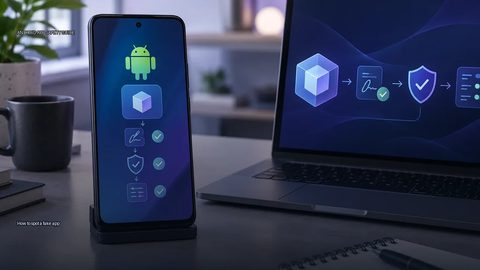 How to spot a fake app
Fake apps appear in official stores, on third-party sites, and inside messages that tell you to “update” or “load” a file.
How to spot a fake app
Fake apps appear in official stores, on third-party sites, and inside messages that tell you to “update” or “load” a file.
-
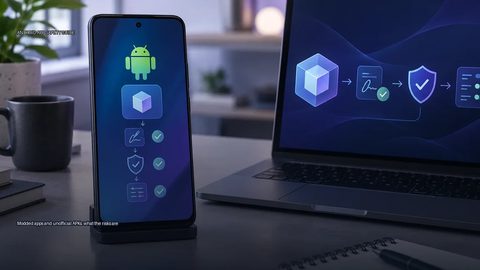 Modded apps and unofficial APKs: what the risks are
When you search for a popular Android app and the first result is a “modded” or “unlocked” version, the promise sounds appealing: extra features, removed ads, or a paid app for free.
Modded apps and unofficial APKs: what the risks are
When you search for a popular Android app and the first result is a “modded” or “unlocked” version, the promise sounds appealing: extra features, removed ads, or a paid app for free.
-
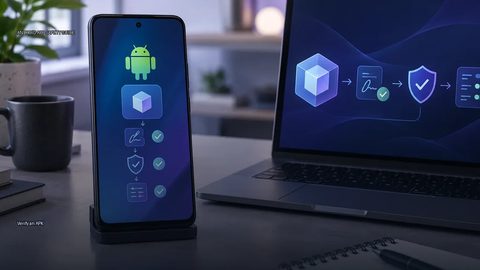 Verify an APK
To verify an APK, check its source, signing identity and requested permissions before installation.
Verify an APK
To verify an APK, check its source, signing identity and requested permissions before installation.