How to install an APK safely
Installing an APK outside your device’s default app store is called sideloading.
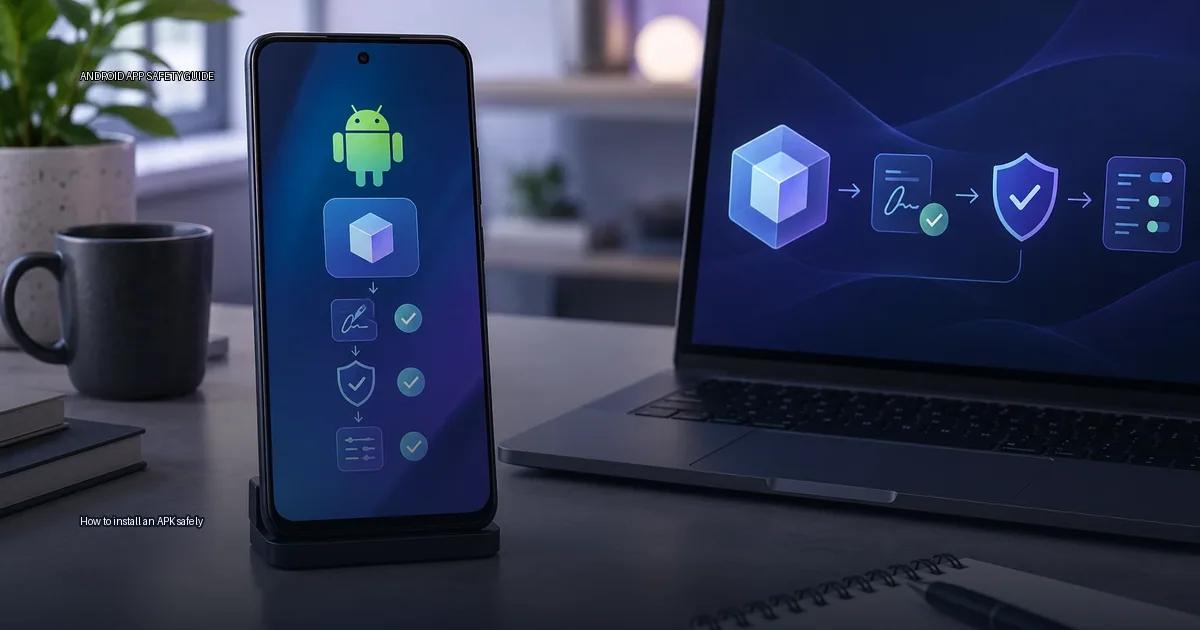
Installing an APK outside your device’s default app store is called sideloading. It is not inherently dangerous, but safety is determined entirely by two things: where the file comes from and whether its signature matches the developer’s official release. The practical rule is simple: install only from a source you can name and verify. the material below gives you a concrete method to install an APK safely on current Android versions, with the exact settings to change, the checks to run, and the red flags to avoid.
What an APK actually is
An APK (Android Package Kit) is the installable file format for Android apps. It is a compressed archive that contains the app’s code, resources, and a manifest that declares what permissions it requests. When you install an APK, Android checks the package name, the target Android version, and the app’s signature.
A related format, the Android App Bundle (AAB), is the publishing format developers upload to Google Play. The Play Store uses it to generate optimized APKs for each device model and language. You almost never install an AAB directly; the file you sideload is always an APK. A file that ends in .aab is a developer artifact, not an installable app.
The signature is the identity
Every APK is signed with a digital certificate. The signing key is the closest thing to an app’s identity on Android. When you update an app, Android checks that the new APK is signed with the same key as the installed version. If the signatures do not match, the installation fails with “App not installed.” This prevents a malicious actor from updating a legitimate app with a modified version (Android Developers, “Sign your app,” 2024).
Signature Scheme v1 (JAR signing) is legacy and can be stripped; v2 and v3 cover the entire file contents and are the current standard (Android Developers, “APK Signature Scheme v2,” 2023). A signature does not prove the developer’s real-world identity; a self-signed certificate only proves that the same key signed both files. Verification must begin with the publisher’s authenticated channel.
Understand the real risk
Sideloading is not automatically malware. The risk is decided by two factors: the source of the file and the integrity of its signature. A file from a developer’s official site that matches the developer’s published signature is far safer than a random APK from a forum, even if both are technically sideloaded. The most common mistake is treating “not from the Play Store” as equal to “malware.” The more accurate mental model is: the danger is not the format but the chain of custody, where the file came from and whether it is exactly what the developer released.
When you install an APK manually, you are bypassing the store’s review and update pipeline, so you take on the responsibility of verifying the file yourself. That verification is the entire subject of safe installation. OWASP Mobile Application Security (OWASP MASVS) guidance stresses verifying the authenticity of the app’s source and the integrity of its package before installation (OWASP, 2024).
Decide whether you need to sideload at all
The safest APK is the one you never have to find. Before you install anything outside a store, ask whether the app is available through:
- Google Play Store
- The device maker’s store (Samsung Galaxy Store, Xiaomi GetApps, Huawei AppGallery)
- The developer’s own site or an official app store they operate
If the app exists there, use that channel. Sideloading becomes relevant only when your regional store does not carry the app, you need an older version for compatibility, the developer distributes directly (such as an internal company app), or you use a device without Google services. If you are trying to get a paid app for free or a modified version of a game, stop: those files are the highest-risk category.
How to install an APK safely
The core decision rule is: install only from a source you can name and verify. The source can be the Google Play Store, the device maker’s store (Samsung Galaxy Store, Xiaomi GetApps, Huawei AppGallery), the developer’s official website, or a repository with a known signing policy (F-Droid). The moment the source is “a friend sent it” or “I found it on a forum,” the risk profile changes completely.
Step 1: Verify the source and the file
Download the APK only from the developer’s official release channel. If the developer publishes a checksum (SHA-256 or MD5), verify it after downloading. A checksum alone does not prove trust; it only confirms the file you received matches the file the publisher posted. The publisher’s authenticated channel is the foundation.
Check the file extension. The file you sideload is always an APK. If you see an .aab file, it is not an installable app file for end users.
Step 2: Enable installation from the source
Android blocks installation from unknown sources by default. The exact setting depends on your Android version and device:
- Android 8 through 11: Go to Settings > Apps & notifications > Special app access > Install unknown apps. Select the app you will use to open the APK (your file manager, browser, or messaging app) and toggle “Allow from this source.”
- Android 12 and later: Go to Settings > Apps > Special app access > Install unknown apps. Select the app and toggle the permission.
- Samsung devices: Settings > Apps > Three-dot menu > Special access > Install unknown apps.
- Xiaomi devices: Settings > Privacy protection > Special permissions > Install unknown apps.
Some device makers add an extra confirmation dialog or require you to approve the installation in their security app. Grant the permission only for the specific app you need, and only for the duration of the installation.
Step 3: Install the APK
Open the APK file using the app you granted permission to. Android will display the app’s requested permissions and the signature information. Read the permissions carefully. If a calculator app requests access to your contacts and location, stop and delete the file.
Tap “Install.” If you see a “signature mismatch” error, it means the new APK was signed with a different key than the currently installed version. This is a critical safety check: do not override it unless you are certain the developer changed signing keys and announced the change through an official channel.
Step 4: Restore the setting
After the installation completes, go back to Settings > Special app access > Install unknown apps and revoke the permission you granted. Leaving “install unknown apps” enabled for any app permanently increases your exposure to drive-by downloads and social-engineering attacks.
Step 5: Check what you installed
After installation, go to Settings > Apps and find the newly installed app. Check the app info screen for the version number, the permissions it actually requested, and whether it matches what you expected. If the app requests accessibility services access without a clear accessibility purpose, treat it as a red flag.
What to do when the installation fails
A failed installation usually produces one of a few specific errors:
- “App not installed”: The most common cause is a signature mismatch. The new APK’s signing key does not match the key of the app already on your device. Uninstall the existing app first if you are certain the new source is legitimate.
- “Parse error”: The APK file is corrupted, incomplete, or built for a newer Android version than your device supports. Download the file again and confirm the minimum Android version required.
- “Install blocked”: Your device’s security policy or a device management profile is preventing the installation. This is common on work devices or devices with a mobile device management (MDM) profile.
- “Storage full”: Free up space and try again.
If none of these apply, check that you granted the “install unknown apps” permission to the correct app. Android’s permission model ties the ability to install to the specific app that opens the file, not to a global toggle.
More in this guide
Install and update safelySplit APK installation explainedUpdate a sideloaded app.
Read next
-
 Split APK installation explained
Modern Android apps rarely arrive as a single APK file. Since 2021, Google Play has required new apps and app updates to use the Android App Bundle (AAB) format.
Split APK installation explained
Modern Android apps rarely arrive as a single APK file. Since 2021, Google Play has required new apps and app updates to use the Android App Bundle (AAB) format.
-
 Update a sideloaded app
When you add an app from outside the Google Play Store, keeping it current works differently from tapping "Update” in the Play Store.
Update a sideloaded app
When you add an app from outside the Google Play Store, keeping it current works differently from tapping "Update” in the Play Store.
-
 Uninstall and clean up
Uninstalling an Android app and cleaning up what it leaves behind are separate tasks.
Uninstall and clean up
Uninstalling an Android app and cleaning up what it leaves behind are separate tasks.
-
 Permissions and privacy
Android controls what every app can reach. By default an app cannot read your contacts, see your location or open your files.
Permissions and privacy
Android controls what every app can reach. By default an app cannot read your contacts, see your location or open your files.