Verify an APK
To verify an APK, check its source, signing identity and requested permissions before installation.
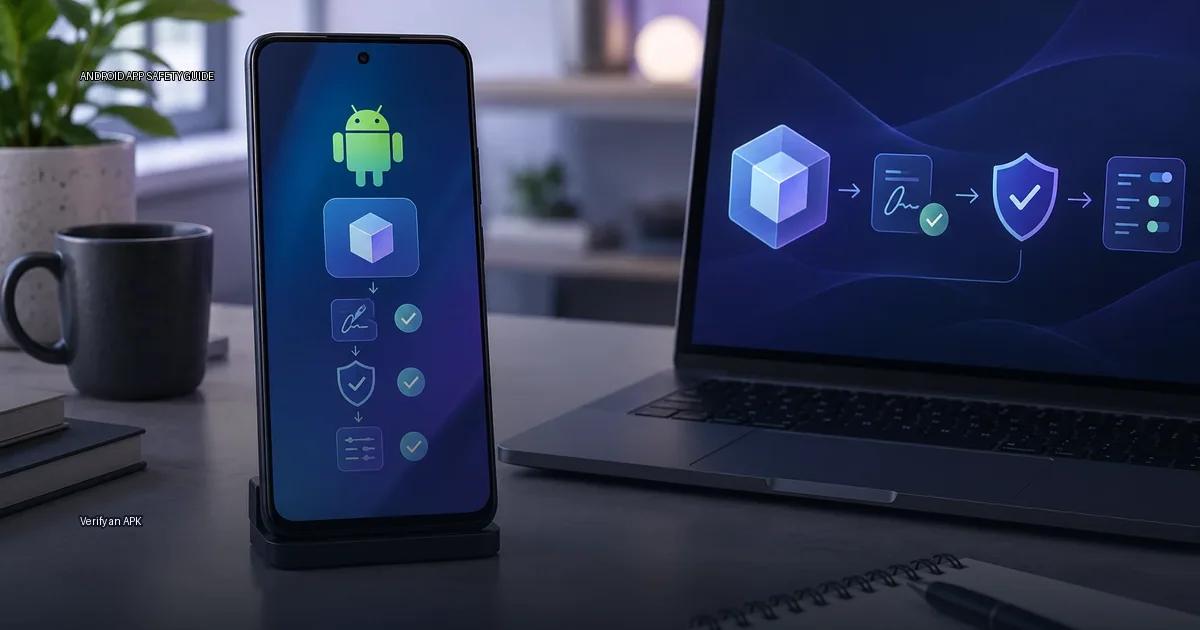
To verify an APK, check its source, signing identity and requested permissions before installation.
Every Android app you install is a package of code, resources and permissions. When that package comes from outside the Google Play Store, or even when it comes from inside it, you need a way to know that what you are about to install is what its publisher actually released. Verification is not a single badge that makes a file “safe.” It is a stack of checks: the source you download from, the cryptographic proof that the file has not been altered, the hash that confirms you received the bytes you expected, and the scanning that catches known malware. Each layer answers a different question, and no single layer answers all of them.
What you are actually verifying
An APK (Android Package Kit) is the file format Android uses to install apps. It contains the app’s code, resources and a manifest that declares what the app can do. When you install an APK, Android checks that the file is signed with a valid certificate and that it targets a compatible Android version. The signing certificate is the core of the trust model: it proves that the file you are installing was signed by the same key as the previous version of that app. It does not prove that the publisher is a known company or that the app is safe.
An app bundle (AAB) is the publishing format for Google Play; it is not installed directly on devices. When you download from the Play Store, the store generates an APK optimized for your device from the bundle. The practical difference: if you are verifying a file outside the Play Store, you are almost always verifying an APK, not an AAB.
What “verify an APK” actually means
Verification confirms three things before you install a file: where it came from, whether it was altered in transit, and whether the signing key matches the publisher’s known key.
- Source: Did the file come from a channel the publisher controls? This is the most important layer, because a checksum or certificate cannot help you if the file itself is malicious.
- Certificate: Is the file signed by the same key as previous versions of the app? A valid certificate proves the file was not modified after signing, but it does not prove the signer is the publisher you think they are.
- Hash: Does the file’s checksum match the value published by the publisher? A matching hash confirms the file you downloaded is byte-for-byte identical to the file the publisher released, but only if you fetched the hash from the publisher’s own authenticated channel.
- Scanning: Does any malware scanner flag the file? A clean scan is useful but not proof; a flagged scan is a strong reason to stop.
These four checks are layers, not badges. A file that passes one layer still needs the others. A file that fails one layer should be treated as untrusted, even if the other layers pass.
How to verify an APK
Verification is not a single action. It is a stack of checks that reduce risk but never eliminate it. The four layers are independent. A file can pass one and fail another. Treat each as a separate check, not a single “verified” badge.
Start with the source
The safest source is the publisher’s official release channel: their own site, their official store listing, or their GitHub releases page. An official store adds automated scanning, but a publisher’s own site relies on the publisher’s security practices. A random forum link or an aggregator you have never heard of is a weak source. The order matters: start from the publisher’s authenticated channel before you check anything else. To put this into practice, bookmark the publisher’s known domain and always begin your download there rather than following a link from a search result or a social post.
Check the signing identity
The APK’s cryptographic signature proves that the file was signed by the same key as previous versions. Android enforces this at install time. A mismatch causes an “app not installed” error when you try to update an app with a differently signed APK. A valid signature proves the file was not altered after signing, not that the signer is trustworthy. Before you proceed, open the APK’s details in a file manager that supports signature inspection and compare the fingerprint against the one the publisher lists on their authenticated site. If the publisher publishes no fingerprint, treat the signature check as inconclusive rather than passed.
Confirm the hash
A SHA-256 checksum confirms the file you downloaded matches the file the publisher released. A checksum alone proves nothing if you fetched it from the same untrusted page. Fetch the hash from the publisher’s own authenticated channel, then compare it against your downloaded file. On a computer, run sha256sum filename.apk in a terminal and compare the output character by character. On Android, use a file-hash utility from a trusted source and do the same visual comparison. Do not rely on a tool that fetches the expected hash from an unauthenticated URL.
Run a scan
Play Protect or a third-party scanner can catch known malware. Play Protect is Google’s on-device and cloud-based scanner. It checks apps before installation and, for apps from the Play Store, continues scanning. For sideloaded apps, it performs a one-time scan at install time. A clean scan is not a guarantee. The official documentation notes that Play Protect checks apps for harmful behavior, but it does not certify that an app is safe or that its publisher is trustworthy. Upload the file to a multi-engine online scanner and review the detection names, not just the green badge. A single detection from a reputable engine is enough reason to pause, even if twenty other engines report nothing.
How Android handles APKs
An APK is a compressed archive containing the app’s code, resources, manifest and signature. When you install an APK, Android verifies that it is signed with a valid certificate and that its contents match the manifest. The system enforces that every update to an app must be signed by the same key. This is why a signature mismatch causes an “app not installed” error.
Google Play does not distribute raw APKs to most users. It publishes apps as Android App Bundles (AABs), and the Play Store generates an optimized APK for each device. That is why you cannot simply download the same APK for every phone; the actual APK is tailored to the device’s architecture and API level. When you install an APK manually, you are bypassing the store’s optimization step, not the Android security model. The OS still checks the signature, the target SDK version and the requested permissions.
Android: the platform and its install paths
Android is an open operating system, which means there is no single gatekeeper. You can install apps from the Google Play Store, from the device maker’s own store (Samsung Galaxy Store, Xiaomi GetApps, Huawei AppGallery), from a publisher’s website, or by transferring an APK file directly. When you install a file directly, you are sideloading: installing an APK outside the default store.
When you enable “Install unknown apps” for a specific app like a browser or file manager, you are telling the OS that this source is allowed to install packages. That permission is per-app, not a global toggle. Sideloading is not inherently dangerous, but the risk is entirely determined by the source of the file and the integrity of its signature. The real danger is downloading from unofficial aggregators or ignoring signature mismatches.
What the system checks before installation
The system checks the APK’s manifest, verifies its signature, and then either installs it or rejects it. The default install channel is the Play Store, but Android also allows installation from other sources if you enable them. The APK file itself is a ZIP archive containing compiled code, resources and a manifest. An app bundle is the publishing format publishers upload to Google Play; the store generates optimized APKs from it per device.
The four layers of verification
The honest framing: verification is not a single badge. It is four layers, each answering a different question:
- Source: Where did the file come from, and can you confirm that channel is run by the actual publisher or store?
- Signature: Does the app’s signing identity match the publisher’s previous releases?
- Hash: Does the file you downloaded match the file the publisher released?
- Scanning: Does any malware scanner flag the file?
None of these layers is sufficient alone. A checksum from the wrong website proves nothing. A clean VirusTotal scan does not prove an app is safe. A signature only proves that the same key signed the file, not that the publisher is trustworthy. A file can pass all four and still be malicious if the publisher’s signing key was stolen. Verification starts with the publisher’s authenticated channel, not with a checksum.
The one decision rule that ties the layers together
If you cannot confirm the source, do not install the file, regardless of what the other layers show. A valid signature and a matching hash mean nothing when the file came from a forum you found through a search engine. If the source is confirmed but the publisher publishes no hash, you are accepting a gap in your verification stack. Decide before you download whether that gap is acceptable for the sensitivity of the data on your device. If the source is confirmed and the hash matches but a scanner flags the file, stop and research the flag before proceeding. Treat every layer as a required gate, not an optional checkbox.
The distinctive claim
Verification is not a single badge that makes a file “safe”; it is a stack of independent checks where a confirmed source is the non-negotiable first gate, and a matching signature or hash means nothing without it.
More in this guide
Check an APK signatureCompare checksumsVersions and compatibility.
Read next
-
 Check an APK signature
Every Android app you install is signed with a cryptographic certificate. That signature is the closest thing to a “maker’s mark” on the file.
Check an APK signature
Every Android app you install is signed with a cryptographic certificate. That signature is the closest thing to a “maker’s mark” on the file.
-
 Compare checksums
A checksum is a fixed-length string produced by running a file through a cryptographic hash function.
Compare checksums
A checksum is a fixed-length string produced by running a file through a cryptographic hash function.
-
 Scan an APK safely
Installing an APK outside the Play Store is not automatically dangerous, but the risk is entirely decided by two things: where the file came from and whether its signature matches the key…
Scan an APK safely
Installing an APK outside the Play Store is not automatically dangerous, but the risk is entirely decided by two things: where the file came from and whether its signature matches the key…
-
 Inspect permissions before installing
The single question that matters when you hold an APK file or an app page in front of you is not “is this app safe?” It is: does this app need the access it is asking for, given what it…
Inspect permissions before installing
The single question that matters when you hold an APK file or an app page in front of you is not “is this app safe?” It is: does this app need the access it is asking for, given what it…
-
 Install and update safely
Safe Android installation means getting apps from an official store, the device maker’s store, or a developer’s own release channel, then verifying the app is what it claims to be before…
Install and update safely
Safe Android installation means getting apps from an official store, the device maker’s store, or a developer’s own release channel, then verifying the app is what it claims to be before…