Update a sideloaded app
When you add an app from outside the Google Play Store, keeping it current works differently from tapping "Update” in the Play Store.
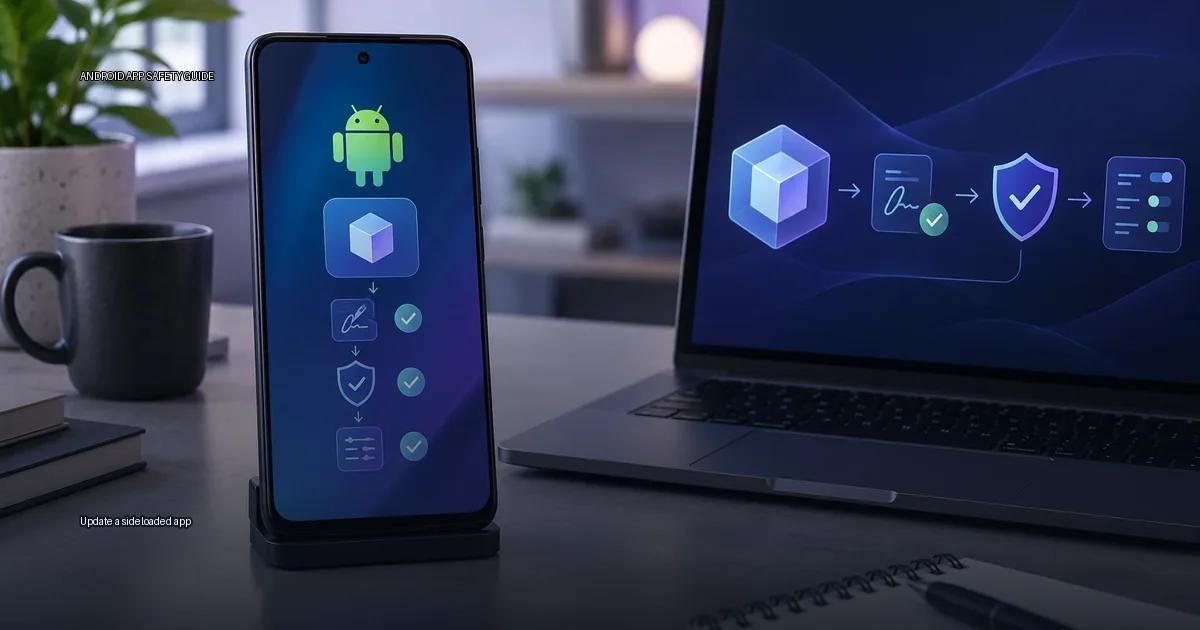
When you add an app from outside the Google Play Store, keeping it current works differently from tapping “Update” in the Play Store. The core rule is simple: get an update only from the same source you used for the original setup, and never apply a replacement that changes the app’s signing certificate.
Why sideloaded updates fail or become dangerous
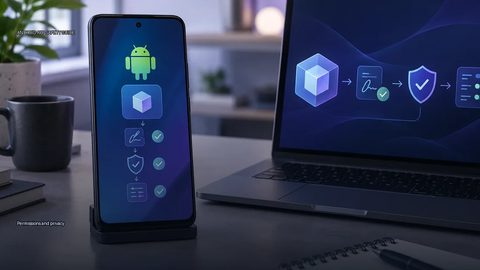
When you add an APK, Android checks the cryptographic signature of the file. If an app with the same package name is already on the device, the new release must be signed with the same certificate as the existing one. This is a hard requirement. When the signatures do not match, the process fails with a generic “App not installed” error.
The signing certificate is the only thing that ties an update to the app you already have. A self-signed certificate does not prove the developer’s legal identity; it only proves that the same private key signed both releases. The Android system treats that key as the app’s identity. If you try to apply a replacement from a different key, Android rejects it.
What counts as an update
The operating system treats an update as any attempt to add a package that shares the package name of an existing app. The package name is the app’s unique identifier, not its display name. Two apps from the same developer can have different package names; two different developers cannot normally have the same package name because the signing key must match the existing setup.
When you try to put a new APK over an existing app, Android checks whether the new APK is signed with the same certificate as the current one. If the signatures do not match, the system refuses the change and shows “App not installed” (Android Developers, “Sign your app,” 2024). This is the single most important rule in sideloading: the signing key, not the package name or app name, is what Android uses to decide whether a replacement is legitimate.
Android release constraints
Android 14 and later enforce stricter rules for apps targeting newer SDKs. If an app targets Android 14 (API level 34) or higher, the system blocks adding an APK that targets a lower SDK level than the currently present app (Android Developers, “Behavior changes: Apps targeting Android 14”, 2023). You cannot downgrade a modern app by putting an older APK on top of it, even if the signature matches. On older Android releases, this check does not exist, so a downgrade is possible if the signature matches.
The three conditions Android enforces
A replacement is only accepted if it meets three conditions:
- Same package name as the app already on the device.
- Same signing certificate as the app already on the device.
- A version code higher than the current one (or an equal version code with a higher version name, depending on the installer).
If any of these fail, the system shows “App not installed” or a signature mismatch error. The signing requirement matters most: Android refuses a replacement signed with a different key, even if the package name matches. This is the core protection against an attacker swapping in a malicious file over a legitimate app.
The practical rule: a replacement is only valid if it is signed with the same key as the app already on your device. This cannot be bypassed without removing the original app, which loses its data.
Before you apply an update: check the source and the signature
Updating a sideloaded app is only as safe as the file you add. The first decision rule is simple: if the update does not come from the same developer who signed the original app, the system will reject it with “App not installed”, and you should reject it too.
Verify the source
The only reliable sources for an update are:
- The developer’s official website or release channel (a GitHub Releases page, the developer’s own domain, or their official Telegram or Discord if they publish there).
- The device maker’s store (Samsung Galaxy Store, Xiaomi GetApps, Huawei AppGallery).
- A reputable aggregator that verifies signatures against the developer’s key (APKMirror does this, per its published process).
- F-Droid for free and open-source apps, where the repository signs all apps with its own key.
Do not download from unoficial APK aggregators, forums, or search-result ads. A checksum alone does not prove trust; verification must begin with the publisher’s authenticated channel (Android Developers, 2024).
Ask the right question
The key question is not “is this a .apk file?” but “who signed this file and can I verify that signature?” An APK that has been modifed after the developer signed it will fail signature verification when added. If the signature matches the developer’s known key, the file has not been tampered with since it was signed, but that does not prove the developer is trustworthy.
Confirm the release channel
Before you apply an update, confirm that the file is coming from the app developer’s own release channel, or from a store you trust. Google Play Help states that the safest way to get apps is through the Play Store, but if you must sideload, the risk is determined by the source of the file and the integrity of its signature (Android Developers, 2024). A developer’s official website, their verified account on a store, or a repository like F-Droid that signs its own builds are acceptable sources. A random link from a forum, a social media post, or an unofficial APK aggregator is not.
More in this guide
Install and update safelyHow to install an APK safelyVerify a developer download page.
Read next
-
 How to install an APK safely
Installing an APK outside your device’s default app store is called sideloading.
How to install an APK safely
Installing an APK outside your device’s default app store is called sideloading.
-
 Split APK installation explained
Modern Android apps rarely arrive as a single APK file. Since 2021, Google Play has required new apps and app updates to use the Android App Bundle (AAB) format.
Split APK installation explained
Modern Android apps rarely arrive as a single APK file. Since 2021, Google Play has required new apps and app updates to use the Android App Bundle (AAB) format.
-
 Uninstall and clean up
Uninstalling an Android app and cleaning up what it leaves behind are separate tasks.
Uninstall and clean up
Uninstalling an Android app and cleaning up what it leaves behind are separate tasks.
-
 Permissions and privacy
Android controls what every app can reach. By default an app cannot read your contacts, see your location or open your files.
Permissions and privacy
Android controls what every app can reach. By default an app cannot read your contacts, see your location or open your files.