Split APK installation explained
Modern Android apps rarely arrive as a single APK file. Since 2021, Google Play has required new apps and app updates to use the Android App Bundle (AAB) format.
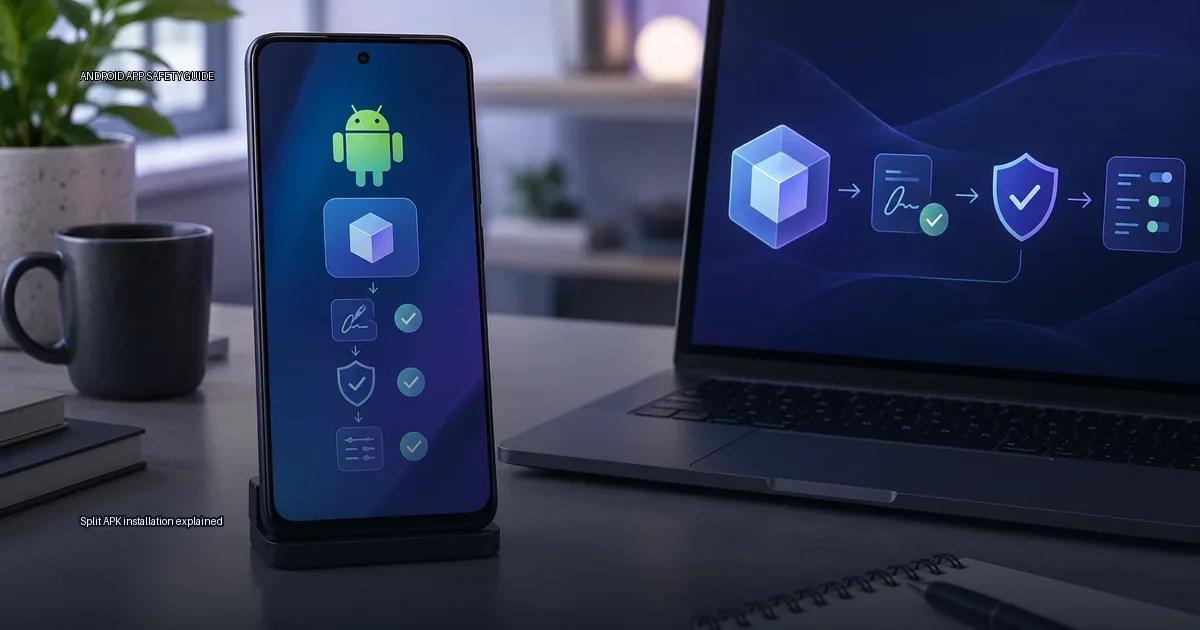
Modern Android apps rarely arrive as a single APK file. Since 2021, Google Play has required new apps and app updates to use the Android App Bundle (AAB) format. The store then generates and delivers a set of smaller APK files, split APKs, that match your specific device. Those files exist to shrink downloads and save storage, but manually installing them outside a store is risky and almost never necessary. The only route that keeps your device reasonably safe is to use an official store or the developer’s own release channel.
What a split APK actually is
An Android App Bundle is a publishing format, not an installable file. According to Android Developers documentation, when a developer uploads an AAB to Google Play, the store compiles it into a set of APKs tailored to the device requesting the app. One “base” APK contains the core code and resources; additional split APKs contain configurations for different screen densities, CPU architectures, or language resources. When you install normally, Google Play downloads and merges the relevant splits invisibly.
The key fact: you almost never need to install a split APK manually. The Play Store, the Galaxy Store, GetApps, and AppGallery all handle split APKs automatically. The only scenario where you would manually install splits is when you are using a developer tool (like bundletool) to test your own app, or when you are restoring an app from a backup that was exported as separate split files.
Why Android apps come as multiple files
How the bundle turns into splits
A single APK is a complete package. An app bundle (AAB) is the publishing format that Google Play uses to generate optimized APKs per device. When you download an app from the Play Store, you normally receive one APK, but large apps can be delivered as multiple split APKs:
- base.apk, contains the core code and manifest
- split_config.arm64_v8a.apk, native code for a specific CPU architecture
- split_config.xxhdpi.apk, resources for a specific screen density
- split_config.en.apk, language resources
If you manually install an app bundle, you must install every split file at the same time; installing only the base APK usually fails or produces an app that crashes on launch. The Play Store handles this automatically when you tap Install. The practical rule: if you see multiple .apk files that share a package name, treat them as one unit.
The trade-off: smaller downloads, no single sharable file
Google Play has delivered apps as Android App Bundles (AAB) since 2021, and the Play Store pushes only the pieces your device needs: code for your CPU type, resources for your screen density and language, and the base module. The result is smaller downloads and less wasted storage. The trade-off is that you cannot hand a friend a single “app.apk” file from the Play Store and expect it to install everywhere, because the file you download from an aggregator may be one of several split APKs.
The official route is to install from Google Play, the device maker’s store (Samsung Galaxy Store, Xiaomi GetApps, Huawei AppGallery), or the developer’s own release channel. When a bundle is used, Play generates a set of split APKs for your specific device and installs them together. Sideloading a single split APK out of that set will usually fail with “App not installed” because Android expects the other splits (base, config, architecture) to be present. Tools like adb install-multiple or bundletool can install a full set, but they require the original split set from a trusted source.
How the operating system and stores handle splits
Android is the operating system that defines how apps are packaged, signed, and installed. The official source for Android security guidance is the Android Developers documentation, and Google’s Play Help pages describe the consumer-facing controls. Device makers add their own layers: Samsung Galaxy Store, Xiaomi GetApps, and Huawei AppGallery each behave differently from Google Play, and their “unknown sources” prompts have different wording and flows. The safe-installation rules below apply to stock Android and to the major manufacturer skins, but the exact menu names change by version and vendor. When in doubt, check your device-maker support site for the wording on your model and Android version.
How to install a split APK set correctly and safely
When you should avoid split APKs entirely
For users who want to install an app outside the Play Store, the practical question is: how do you install a split APK correctly and safely? The answer has two parts: understanding the file structure, and verifying the source. A split APK set is not one file; it is a collection of APKs that together form one app. The base APK contains the core code, and configuration APKs contain resources for specific screen densities, languages, or CPU architectures. Installing only the base APK will fail on most modern Android versions because the system expects the full set.
The safer route is to avoid split APKs entirely. Use the Play Store, the device maker’s store, or the developer’s own official release channel. If you must install a split APK set, use the official bundletool from Android Studio to convert an app bundle into device-specific APKs, or use a trusted store that handles the split automatically. The command-line method is: java -jar bundletool.jar build-apks –bundle=/path/to/app.aab –output=/path/to/output.apks –ks=/path/to/keystore.jks –ks-pass=pass:storepass –ks-key-alias=alias –key-pass=pass:keypass. This is the developer route. For a normal user, the practical route is to use the official app store or the developer’s own website, not random APK sites.
A practical checklist before you sideload anything
- Understand the file: A single APK is one complete installable package. An Android App Bundle (AAB) is a publishing format, not an installable file; Google Play generates optimized APKs from it. If you see a “.xapk” or “.apks” file, it is a bundle of multiple split APKs, not a standard APK.
- Check the source: Only download from the developer’s official site, the device maker’s store, or a reputable aggregator that verifies signatures against the developer’s key. Google Play Help (2023) states that apps from unknown sources carry higher risk.
- Verify the signature: use
apksignerfrom the Android SDK to check the signer certificate. The command isapksigner verify –print-certs app.apk. Compare the certificate’s SHA-256 digest with the value published by the developer, if they publish one. - Compare the hash: download the file from the official channel, compute SHA-256, and compare against the value published on the developer’s site or release notes. A checksum alone does not prove trust; it only proves the file you received is the same as the file the source intended to publish.
- Check target SDK: apps that target an old Android version may lack security patches. The Android Developers documentation explains that new apps must target a recent API level, and Play Store policy enforces a minimum target for updates.
- Review requested permissions before install. Compare against the app’s core function. If a flashlight app asks for contacts and location, that is a red flag regardless of the store.
- Keep Play Protect enabled and use “Scan device for security threats” after sideloading. Google Play Help states that Play Protect checks apps for harmful behavior when you install them from outside the Play Store, but it is not a substitute for source verification.
- For developers distributing internally, use a private app store or enterprise signing; do not ask employees to toggle “Unknown sources” for a single app. Google Play’s private app publishing and managed Play options are the safer routes.
More in this guide
Install and update safelyHow to install an APK safelyUpdate a sideloaded app.
Read next
-
 How to install an APK safely
Installing an APK outside your device’s default app store is called sideloading.
How to install an APK safely
Installing an APK outside your device’s default app store is called sideloading.
-
 Update a sideloaded app
When you add an app from outside the Google Play Store, keeping it current works differently from tapping "Update” in the Play Store.
Update a sideloaded app
When you add an app from outside the Google Play Store, keeping it current works differently from tapping "Update” in the Play Store.
-
 Uninstall and clean up
Uninstalling an Android app and cleaning up what it leaves behind are separate tasks.
Uninstall and clean up
Uninstalling an Android app and cleaning up what it leaves behind are separate tasks.
-
 Permissions and privacy
Android controls what every app can reach. By default an app cannot read your contacts, see your location or open your files.
Permissions and privacy
Android controls what every app can reach. By default an app cannot read your contacts, see your location or open your files.