GitHub Releases
GitHub Releases is a distribution point on a software project’s repository where maintainers publish tagged builds for download.
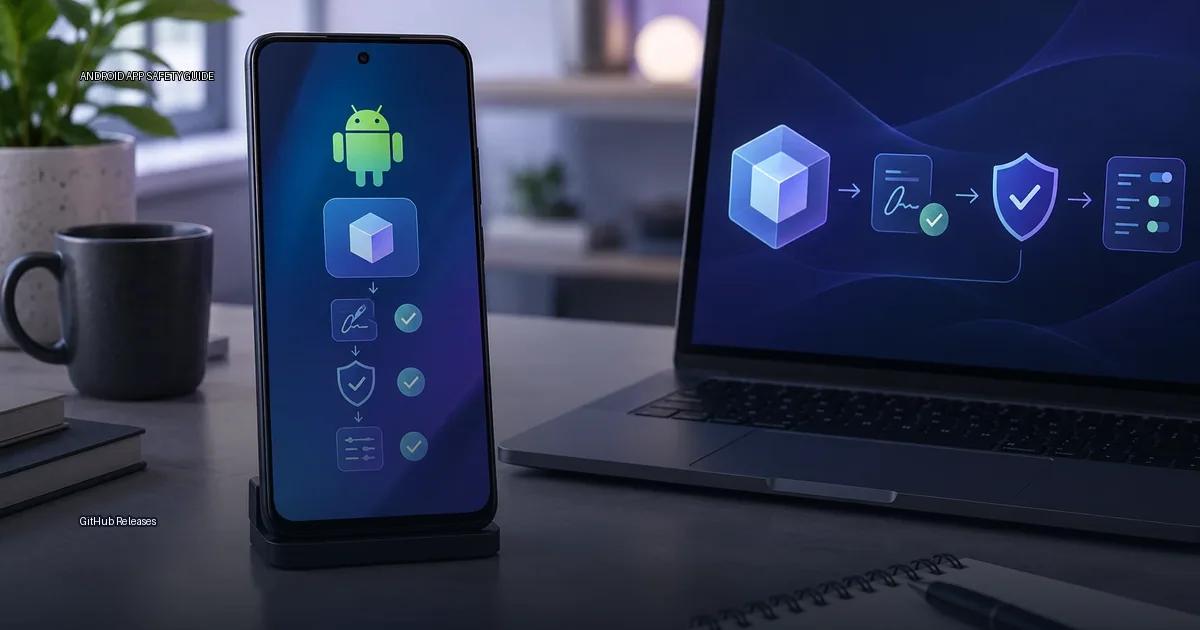
How to Verify an Android APK from GitHub Releases
GitHub Releases is a distribution point on a software project’s repository where maintainers publish tagged builds for download. For Android apps, this usually means APK files or app bundles, and it is one of the few places outside an app store where a developer can distribute a signed binary directly to users. The page answers one question: how do you verify that a build you find on GitHub is actually from the project’s maintainers and safe to install?
The honest starting point is that a GitHub release page is not a safety guarantee. Anyone can create a repository and publish an APK. What makes a build trustworthy is not the GitHub URL, but the identity of the publisher and the integrity of the file’s signature.
What a GitHub Release Actually Contains
A GitHub Release is a publishable snapshot of a repository. The maintainer attaches files to a tag, writes release notes, and optionally marks the release as “Latest.” The files attached to a release are not automatically built by GitHub; they are uploaded by a person or by a CI pipeline (GitHub Actions, for example) that the maintainer controls. That distinction matters: the release page tells you what the maintainer says they published, but it does not prove that the file was built from the source code shown in the repository.
For Android, a release page usually offers one or more of these file types:
- APK: the installable package for Android.
- AAB: the Android App Bundle, which is not directly installable on a device; it is meant for distribution through Google Play.
- Checksums: a list of SHA-256 hashes for each file, often in a separate
.sha256file. - Signatures: a detached signature file (
.asc) that can be checked with a PGP key, or the APK’s embedded code-signing certificate.
The checksum alone does not prove trust. A checksum only proves that the file you downloaded matches the file the publisher uploaded; it says nothing about whether the publisher is the real developer. Verification must begin with the publisher’s authenticated channel, such as the developer’s site, verified social account, or a store listing you can confirm through another channel.
What GitHub Releases Actually Are
GitHub Releases is a distribution feature attached to a repository. A maintainer can publish a release with release notes, source code archives, and binary files such as an Android APK or app bundle. The page lists releases by tag and date, and each release can include multiple assets. GitHub does not scan APK files for malware, and it does not verify that the developer who published the release is the same person or company that owns the project name. The only cryptographic guarantee GitHub provides is that the file you download is byte-for-byte identical to the file the maintainer uploaded; that guarantee is delivered through the release asset’s checksum, not through any safety review. (Source: GitHub Docs, “About releases,” accessed 2025.)
The risk is not GitHub itself; the risk is which repository you download from. A release page under github.com/someone/some-app/releases is only as trustworthy as the account that uploaded it. An attacker can create a repository with a name similar to a well-known app, publish a release with a similar-looking APK, and rely on search engines to deliver victims. The signature check is what reveals the difference.
Start with the Publisher, Not the Download Button
Before you download anything from a GitHub Releases page, verify that the repository is the developer’s genuine one. Open the app’s site or the developer’s profile on a trusted store like Google Play, and look for a link to the GitHub repository. A repository that appears in search results is not proof of ownership; anyone can create a repository with a similar name.
Check the repository owner’s handle, not just the repository name. For example, if the app is published by a company, the repository should live under that company’s verified organization account, not a personal account with a similar name. Look for a verified badge on the GitHub organization or user profile (GitHub’s verification for organizations, as documented by GitHub in 2024). If the app has a site, that site should link to the repository, and the repository should link back to the site.
Release Assets: What You Are Actually Downloading
A GitHub Release page lists assets under each tagged version. For Android, the asset you want is usually named with .apk or .aab. An APK is the installable file; an AAB is a publishing format that Google Play uses to generate per-device APKs, and you cannot install an AAB directly on a phone.
Before downloading, check the asset name against the project’s naming convention. A release asset for an app called “Example” should contain that name, a version number, and a target architecture or universal flag. A file named example-2.1.0-universal.apk is plausible; a file named example-final-v2.apk from a random link is not.
Verify the Repository Before You Trust the Release Page
The release page is only as trustworthy as the account that publishes it. Before downloading anything, confirm that the repository is the developer’s genuine one.
- Check the URL and owner. The owner name appears before the slash in
github.com/OWNER/REPO. Look for the developer’s site or documentation and compare the account name. A repository named “whatsapp” under a user called “whatsapp-update-2025” is not the same as the authentic account. - Look for the verified badge. GitHub displays a “verified” badge on the profile of organizations that have confirmed their identity. This badge does not guarantee the code is safe, but it confirms the account belongs to a real organization.
- Check the developer’s authenticated channel. Most developers link their GitHub repository from their site, app store listing, or support page. A link from the developer’s own domain is stronger evidence than a search-engine result.
- Check the release author. On the GitHub Releases page, the “author” label shows who uploaded the asset. Compare it with the repository owner. A release uploaded by a different account than the repository owner is a warning sign.
- Check the repository’s fork count and stars with suspicion. High numbers do not prove safety; a popular project can be compromised, and a fork can carry the same name with a different signature.
Confirm the Repository Through Multiple Channels
The release page you are on must be the project’s genuine repository. Open the developer’s site, documentation, or the “About” section of the app’s page, and confirm the GitHub URL. Do not trust a search engine result that says “GitHub” if the user name or repository name is slightly misspelled (for example, github.com/ExampleApp/ instead of github.com/Example-App/). Check that the repository has the developer’s verified domain in the “Website” field, and look for the developer’s own link to the repository from their site or store listing. GitHub shows a “Verified” badge for domains the owner has confirmed; treat the badge as helpful but not sufficient on its own.
On the release page itself, look at the “Releases” section, not the “Code” section. A release is a tagged, packaged snapshot; a source-code zip is not a release. The release page shows the version tag, the publication date, and the assets attached to that release. The safest assets are those the developer uploaded and signed, not the auto-generated “Source code” archives.
Verify the APK Signature
The APK signature is the strongest cryptographic proof you can check without access to the developer’s private infrastructure. Android requires every APK to be signed with a certificate before installation. A legitimate developer signs every build with the same key. If you already have a version of the app installed from a trusted source, Android will block an update signed with a different key. That built-in check is your most reliable safety net.
To verify the signature manually:
- Obtain the APK file you want to check.
- Use the
apksignertool (part of the Android SDK build-tools) orkeytoolto inspect the certificate. - Compare the certificate fingerprint against a fingerprint the developer has published through a separate, authenticated channel. The developer’s site, a pinned post on a verified social account, or a statement in a signed README inside a repository you have already verified are all reasonable channels. A fingerprint posted only on the same GitHub release page you are trying to verify adds no security.
The command apksigner verify –print-certs my-app.apk prints the certificate details. Look for the SHA-256 fingerprint and confirm it matches the one the developer publishes elsewhere. If the developer does not publish a fingerprint, you are relying entirely on the repository’s identity, which is weaker.
When the Developer Uses a Different Signing Key
Some projects intentionally change signing keys between major versions, or use a separate key for beta and stable channels. A key change is not automatically malicious, but it must be announced through a channel you already trust. If a new key appears without explanation on a release page, treat the build as untrusted until you confirm the change through the developer’s site, mailing list, or another authenticated channel.
Checksums and Detached Signatures
A checksum file (usually SHA-256) lets you confirm that the APK you downloaded is bit-for-bit identical to the one the maintainer uploaded. It does not confirm who the maintainer is. Use checksums as a download-integrity check, not an identity check.
A detached PGP signature (a .asc file) is stronger, provided you have already obtained the developer’s public PGP key through a separate channel and have reason to trust it. Verify the signature with gpg –verify file.apk.asc file.apk. If the key is not in your keyring from a prior trusted exchange, the signature adds no meaningful assurance.
Red Flags on a Release Page
- The repository owner is a newly created account with no other public activity.
- The release assets include an APK with a generic name like
update.apkorapp-release.apk. - The release notes are copied from a legitimate project’s changelog but the version tag does not match.
- The repository has no link to or from the developer’s site.
- The “Verified” badge is missing on an organization account that should have one, or the domain shown does not match the developer’s known domain.
- The release was published by an account different from the repository owner, and no explanation is given.
What to Do When You Cannot Verify
If you cannot confirm the repository’s authenticity or the APK’s signature through a second channel, do not install the file. Alternatives include building the APK from source yourself using the published build instructions, waiting for the developer to publish the build on a store you trust, or asking the developer through a public issue or verified contact method to provide a signed checksum or fingerprint. A responsive maintainer who values their users will understand the request and provide a verifiable path.
More in this guide
Read next
-
 Google Play
 is the default app store on most Android devices, but it is one distribution channel among several.
Google Play
Google Play is the default app store on most Android devices, but it is one distribution channel among several.
-
 F-Droid
 is a software repository and installation client for Android that focuses exclusively on free and open-source software (FOSS).
F-Droid
F-Droid is a software repository and installation client for Android that focuses exclusively on free and open-source software (FOSS).
-
 Samsung Galaxy Store
The Samsung Galaxy Store is the default application storefront on Samsung Galaxy phones and tablets.
Samsung Galaxy Store
The Samsung Galaxy Store is the default application storefront on Samsung Galaxy phones and tablets.
-
 Amazon Appstore
 is an official Android app marketplace operated by Amazon.
Amazon Appstore
Amazon Appstore is an official Android app marketplace operated by Amazon.
-
 APKMirror
 hosts Android APK files for people who need to install an app outside the Play Store.
APKMirror
APKMirror hosts Android APK files for people who need to install an app outside the Play Store.
-
 Obtainium
 is an Android app that lets you fetch and update apps directly from the publisher’s own distribution page, bypassing app stores.
Obtainium
Obtainium is an Android app that lets you fetch and update apps directly from the publisher’s own distribution page, bypassing app stores.