APK vs Android App Bundle
If you have ever obtained an Android app outside the Play Store, you have likely seen two file formats: APK and Android App Bundle (AAB).
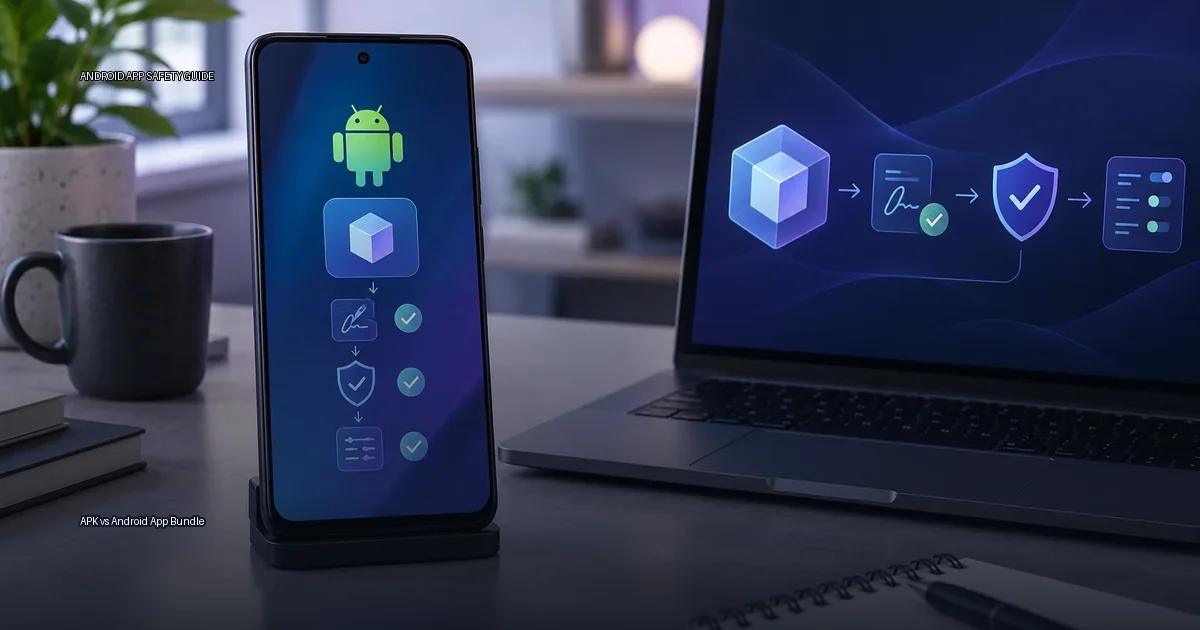
If you have ever obtained an Android app outside the Play Store, you have likely seen two file formats: APK and Android App Bundle (AAB). They look interchangeable, but they solve different problems. An APK is the final installable file; an AAB is a publishing format that Google Play uses to generate device-specific APKs. Understanding the difference changes how you verify what you install and why a file from a publisher’s site may not behave like the same app from the Play Store.
APK vs Android App Bundle: The one decision rule
Use this rule when you meet an unfamiliar file:
- If you are downloading from Google Play, you are not downloading an APK at all. You are receiving a split APK that Play generated from an App Bundle. You do not need to verify anything manually.
- If you are downloading from a publisher’s official site, you are downloading a single APK (or a set of split APKs). Verify the signature before installing, and check the version code against the publisher’s release notes.
- If you are downloading from a third-party site that is not the publisher, the publisher’s own channel, or a store you already trust, stop. No checksum or VirusTotal result can replace a trusted source.
That decision rule is the core of the page. Everything below explains why, and how to apply it.
What an APK actually is
An APK (Android Package Kit) is the compiled file that contains everything an Android app needs: code, resources, manifest, and certificate. When you install an APK manually, you are applying the same package format that the Play Store delivers, but without the store’s delivery and scanning layer.
An Android App Bundle (AAB) is a publishing format, not an installable file. When a publisher uploads an AAB to Google Play, the Play infrastructure generates optimized APKs for each device configuration (screen density, CPU architecture, language). The bundle itself is never installed on a device; the generated APKs are. This is why a single AAB can be smaller than a universal APK: the device only downloads the pieces it needs. Google Play Help refers to the app bundle as “a publishing format” that includes all compiled code and resources, while the Play Store “builds and serves optimized APKs for each device configuration” (Google Play Help, 2023).
What the two formats actually are
- APK (Android Package Kit) is the compiled, installable file that Android devices run. It contains code, resources, and a manifest. You can install an APK directly, but the signature must match the app’s original signing certificate if an existing version is already installed.
- AAB (Android App Bundle) is a publishing format. It is not directly installable on a device. When you upload an AAB to Google Play, Play generates a set of optimized APKs for each device configuration (screen density, CPU architecture, language). Users never see the AAB; they receive the generated APKs.
- Split APKs: when you download an app from Google Play, the store may deliver several APKs (base, config splits for density, language, or CPU). This is normal and is not the same as a “modded” file. The Play Store installs and updates these splits as a group.
- An APK you download from a publisher’s site is a single, universal package that contains all resources for all device configurations. It is larger but simpler to install.
Signature checks and schemes
- Signature schemes: v1 (JAR) is the legacy scheme; v2 and v3 cover the whole file and are more resistant to tampering. Android 7.0 (API 24) introduced v2; Android 9 (API 28) introduced v3 with key rotation. Source: Android Developers, “APK Signature Scheme v2” and “v3” documentation, 2018.
- Signature verification: A signature does not prove the publisher’s identity, only that the same key signed the file. A self-signed certificate is not a certificate authority. Source: Android Developers, “App signing”, accessed 2024.
- Practical check: use apksigner (from Android SDK build tools) with
apksigner verify –verbose –print-certs app.apk. If the output shows “Verified using v2 scheme” or “v3 scheme,” the whole file is covered. A v1-only signature is easier to tamper with.
Play Protect behavior and limits
- Play Protect is Google’s built-in malware protection for Android. It checks apps from the Play Store before download and scans sideloaded apps at install time (Google Play Help, 2024).
- Play Protect can send unknown apps to Google for scanning, and can warn or disable harmful apps. It is not a substitute for checking the source of an app.
- On-device scanning uses a local list of known threats plus heuristics; the cloud-based scanner can catch newer threats but requires network access.
- Play Protect has a setting “Improve harmful app detection” that sends unknown apps to Google; this is optional and can be disabled.
- Play Protect does not replace the need to verify an app’s signature; it checks behavior, not identity.
Permissions and what they signal
- Android permissions are the primary access-control mechanism; an app’s requested permissions are listed on the Play Store page and in the package manifest.
- Dangerous permissions (e.g., camera, microphone, location, contacts) require runtime approval on Android 6.0 (API 23) and higher; older apps may request them at install time.
- The OWASP MASVS (Mobile Application Security Verification Standard) provides a framework for verifying an app’s permission usage, but it is aimed at developers and security testers, not end users (OWASP, 2023).
- A permission is not proof of malice; an app may legitimately need broad permissions, but the combination of permissions and the app’s stated purpose is what matters.
- Android’s permission model changed over versions: Android 6.0 introduced runtime permissions, Android 10 introduced scoped storage, Android 11 added one-time permissions, Android 13 added granular media permissions, and Android 14 added a photo picker that allows partial access.
- The Play Store’s “Data safety” section (since 2022) requires publishers to declare data collection and sharing practices; this is a self-reported form, not a verified audit.
- Android’s “unknown sources” warning, which appears when installing from outside the Play Store, is a generic warning and does not distinguish between a trusted publisher’s site and a random forum link.
- The “Install unknown apps” permission is per-app on Android 8.0 and later, so a browser or file manager can be granted the ability to install APKs without enabling a global toggle.
Trust, keys and distribution channels
- APK signatures are self-signed certificates; a signature proves that the same publisher key signed the update, not that the publisher is a known entity. First installs rely on the certificate chain, and updates must match the existing signature.
- An APK’s signature does not verify the identity of the author; it only verifies that the same key signed the file. To verify identity, users must cross-check the signing certificate against the publisher’s official channel.
- Google Play’s app signing (Play App Signing) means the key held by Google is the upload key, not necessarily the same as the publisher’s original key; this is an important distinction when verifying an APK from a publisher’s site versus the Play Store.
- F-Droid’s signing model is different: the F-Droid repository signs apps with its own key when the upstream publisher does not provide a signature, meaning the F-Droid signature does not always match the upstream publisher’s key.
- A checksum alone does not prove trust; verification must begin with the publisher’s authenticated channel.
- Play Protect can scan sideloaded apps on demand, but its continuous scanning behavior is strongest for apps installed through the Play Store. The official documentation (Google Play Help, 2024) states that Play Protect checks apps “when you install them” and “from time to time” on device.
- “Unknown sources” toggles are a one-time warning, not a per-file check; once enabled, the O.S does not continuously assess the source of each APK.
Verified research sources
- Google Play Help: “About Android App Bundles”, explains that app bundles are a publishing format, not an installable file.
- Android Developers: “About Android App Bundles”, states that Google Play uses the app bundle to generate optimized APKs for each device configuration.
- Android Developers: “Application signing”, explains that all APKs must be signed and that the system will not install an unsigned APK.
- Android Developers: “Signature Schemes”, covers v1, v2, and v3 signing schemes and their security properties.
- Android Developers: “Play App Signing”, explains that Google Play manages and protects the app signing key.
- Android Developers: “Internal app sharing”, covers a way to share APKs with testers via Play Console.
- Android Developers: “Use the Play Console to upload an app bundle”, covers the upload and delivery process.
- Google Play Help: “About Google Play Protect”, covers Play Protect’s scanning behavior and its “harmful app” warnings.
- Google Play Help: “Install apps from unknown sources”, covers the Unknown Sources setting and its warnings.
- Google Play Help: “Find apps safely”, covers official sources and warning signs.
- OWASP Mobile Application Security Verification Standard (MASVS), defines verification requirements for mobile app security, including code signing and integrity.
- Android Developers: “App bundle” documentation, covers the AAB format, how it is built, and how Google Play uses it to generate optimized APKs.
- Android Developers: “APK signature scheme v2” documentation, covers the v2 signing scheme and its security benefits over v1.
- Android Developers: “Update your app” documentation, covers signing keys and key rotation.
- Android Developers: “Manage your app signing key” documentation, covers the importance of keeping the signing key safe.
- Android Developers: “Verify your Android app’s signature” documentation, covers how to verify an APK signature.
- Google Play Help: “Use Google Play Protect to help keep your device safe”, covers how Play Protect works.
- Android Developers: “Overview of app signing by Android Studio”, covers signing options.
- Android Developers: “Target API level requirements”, covers target SDK requirements for Play.
- Android Developers: “App install and update flow”, covers install-time checks.
- Android Developers: “Unknown sources”, covers sideloading settings.
More in this guide
Read next
-
 What an APK file is
An APK (Android Package Kit) is the file format Android uses to distribute and install apps.
What an APK file is
An APK (Android Package Kit) is the file format Android uses to distribute and install apps.
-
 Android app signatures
When you install an Android app, you are not just copying files onto your device. You are accepting a chain of identity checks that starts with a cryptographic signature.
Android app signatures
When you install an Android app, you are not just copying files onto your device. You are accepting a chain of identity checks that starts with a cryptographic signature.
-
 Versions and compatibility
When you install an Android app outside the Play Store, three technical details decide whether the install succeeds and whether the file is what its creator actually shipped: the version…
Versions and compatibility
When you install an Android app outside the Play Store, three technical details decide whether the install succeeds and whether the file is what its creator actually shipped: the version…
- Inside an APK: manifest and resources Inside an APK: manifest and resources. Walk through the AndroidManifest.xml, resources.arsc, and the res/ folder to show how an app declares its identity, permissions, and UI.
-
 Find apps safely
Every Android user eventually faces the same question: where can you get an app without putting your phone at risk? The honest answer is simpler than most advice suggests.
Find apps safely
Every Android user eventually faces the same question: where can you get an app without putting your phone at risk? The honest answer is simpler than most advice suggests.