Verify a developer download page
When you decide to install an Android app from outside the Play Store, the download page is the first and most important security checkpoint.
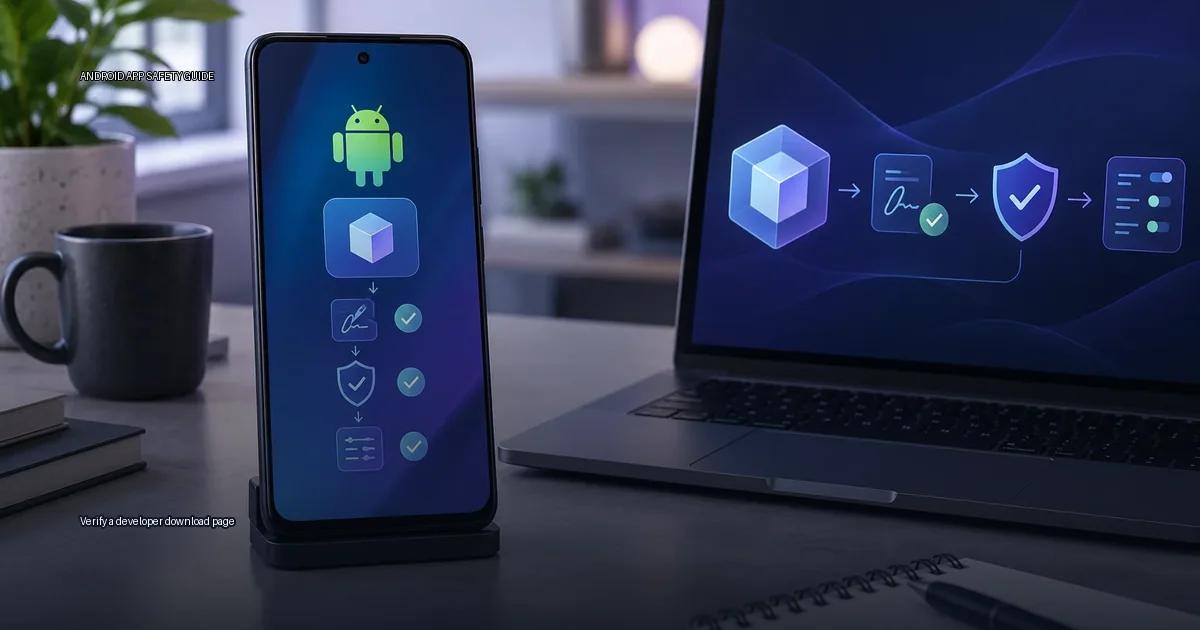
When you decide to install an Android app from outside the Play Store, the download page is the first and most important security checkpoint. The page itself, not the file name, not the download button, not the checksum, is where you verify that you are dealing with the actual publisher. A legitimate download page has a specific structure: it is hosted on a domain the publisher controls, it uses HTTPS, it links to the publisher’s authenticated profiles, and it shows a history of releases. If a page fails any of those checks, treat the file as untrusted.
Start from the publisher, not the file
Do not start with the APK file. A file name, a download button, or even a checksum does not tell you who published it. A checksum or a virus scan only confirms that the file you downloaded matches the file you checked; it does not identify the creator. The Android Developers documentation (developer.android.com) states that app signing is how Android identifies the author of an app, but a self-signed certificate only proves that the same key signed two versions. It does not prove the publisher is a specific person or company.
The same documentation also states that apps distributed outside Google Play should be signed with the publisher’s own release key and that the signature must be consistent across updates. If an app update is signed with a different key than the previous version, the update is not from the same publisher, regardless of where it came from.
To verify identity, follow this order:
- Find the publisher’s authenticated channel. This can be their website, their Google Play listing, or their page on the device maker’s store (Samsung Galaxy Store, Xiaomi GetApps, Huawei AppGallery). The authenticated channel is the one listed on the publisher’s own site or in their app’s “About” section.
- Check the domain. The download page should be on the publisher’s own domain, not a subdomain like “downloads.example-news-site.com” or a URL shortener. If the site is a blog or forum, do not treat it as authenticated.
- Look for the publisher’s verified badge or “developer” link on the store listing. On Google Play, the publisher name is shown under the app title; the publisher’s website link in the listing should match the download page domain.
- Check the HTTPS certificate. The URL should start with
https://and the certificate should be valid. A valid certificate does not prove the site is trustworthy, but its absence is a strong warning. - Compare the download page URL with the publisher’s authenticated site. If the download page is on a subdomain like
downloads.example.com, that is normal. If it is on a lookalike domain likeexample-downloads.com, stop. - Look for the publisher’s release history. A page that only offers a single APK with no version history, no changelog, and no link to the authenticated site is a red flag.
- Cross-check the signing certificate. If the app is already installed, compare the certificate of the installed app with the new APK. If installing for the first time, check whether the publisher publishes a fingerprint or uses a consistent signing key across known releases.
The three-layer verification method
Layer 1: Check the publisher’s identity
- Confirm the publisher’s authenticated channel: their website, their Google Play listing, or a verified account on a platform they control (for example, a GitHub repository under the publisher’s organisation, or a Mastodon or Twitter account linked from the publisher’s site).
- Verify that the download page domain matches the publisher’s authenticated domain.
- Look for cross-links between the download page and the publisher’s other authenticated profiles.
Layer 2: Check the download page itself
- Confirm the page uses HTTPS with a valid certificate.
- Check that the page shows a version history or changelog, not just a single APK link.
- Look for a published signing-key fingerprint or checksum that you can verify independently.
- Avoid pages that use URL shorteners, lookalike domains, or third-party file lockers as the primary download source.
Layer 3: Verify the APK or app bundle
- Compare the signing certificate of the downloaded APK with a previously installed version from the same publisher.
- If the publisher publishes a certificate fingerprint, verify it against the downloaded file.
- Check that the app’s package name matches the one listed on the publisher’s authenticated store page.
- Scan the file with a reputable malware scanner, understanding that a clean scan does not guarantee safety.
What to do after installation
- Disable “Install unknown apps” for the source you used immediately after installation.
- Check the installed app’s permissions in Settings. Revoke any that do not match the app’s function.
- Monitor the app’s data usage and battery consumption for the first few days.
- Watch for unexpected behaviour such as pop-ups, redirects, or requests for sensitive permissions.
When a download page is not safe
Stop and delete the file if any of these conditions apply:
- The download page is not on a domain the publisher controls.
- The page uses HTTP without a valid certificate.
- The page offers no release history, changelog, or link to the publisher’s authenticated profiles.
- The signing certificate does not match a previously installed version from the same publisher.
- The page is linked from an unverified forum post, a random search result, or a social media account with no connection to the publisher.
Checklist: before you install
- I found the download link from the publisher’s authenticated channel.
- The download page domain matches the publisher’s authenticated website.
- The page uses HTTPS with a valid certificate.
- The page shows a version history or changelog.
- The page links back to the publisher’s authenticated profiles.
- I have a known-good signing certificate fingerprint to compare, or I have verified the certificate against a previously installed version.
- I have a plan to disable “Install unknown apps” for the source after installation.
More in this guide
Read next
-
 Official Android app sources
The safest way to get an app onto an Android device is to start with a source you can verify.
Official Android app sources
The safest way to get an app onto an Android device is to start with a source you can verify.
-
 Android apps from GitHub releases
 are APK or App Bundle files that developers publish through their own project repositories.
Android apps from GitHub releases
Android apps from GitHub releases are APK or App Bundle files that developers publish through their own project repositories.
-
 How to spot a fake app
Fake apps appear in official stores, on third-party sites, and inside messages that tell you to “update” or “load” a file.
How to spot a fake app
Fake apps appear in official stores, on third-party sites, and inside messages that tell you to “update” or “load” a file.
-
 Modded apps and unofficial APKs: what the risks are
When you search for a popular Android app and the first result is a “modded” or “unlocked” version, the promise sounds appealing: extra features, removed ads, or a paid app for free.
Modded apps and unofficial APKs: what the risks are
When you search for a popular Android app and the first result is a “modded” or “unlocked” version, the promise sounds appealing: extra features, removed ads, or a paid app for free.
-
 Verify an APK
To verify an APK, check its source, signing identity and requested permissions before installation.
Verify an APK
To verify an APK, check its source, signing identity and requested permissions before installation.