Scan an APK safely
Installing an APK outside the Play Store is not automatically dangerous, but the risk is entirely decided by two things: where the file came from and whether its signature matches the key…
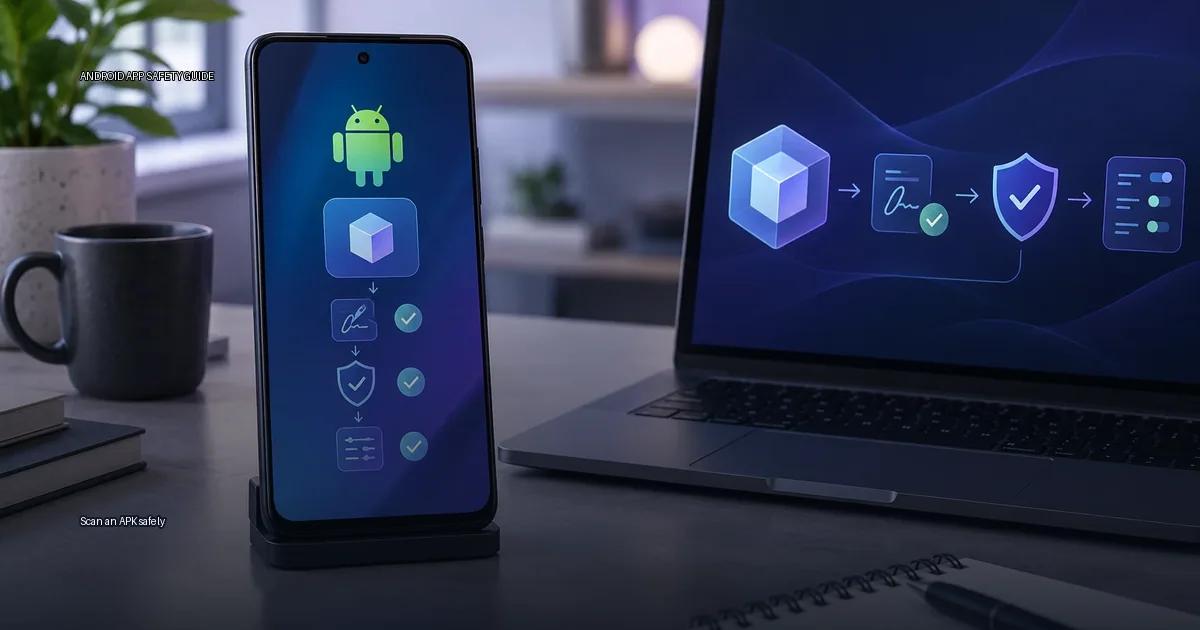
Installing an APK outside the Play Store is not automatically dangerous, but the risk is entirely decided by two things: where the file came from and whether its signature matches the key that built it. A clean VirusTotal result, a familiar app name, or a small file size are not verdicts. They are layers in a decision.
What follows is a repeatable method: check the source, check the signature, check the hash, then scan. None of these steps alone proves safety, but together they let you make an informed call.
Scan an APK safely: What an APK actually is
An APK (Android Package Kit) is the file format Android uses to distribute apps. It contains compiled code, resources, and a manifest that describes permissions and components. The key point for safety is that an APK is not a document you open; it is executable code that the Android system installs and runs with the permissions it requests. Treating an APK as a “file to download” rather than as code you are about to execute is the first mistake.
A related format, the Android App Bundle (AAB), is the publishing format for Google Play. When you download from the Play Store, you receive an APK generated from the bundle, optimized for your device. A bundle is not directly installable; the store’s build system produces the APK you install. When you sideload, you get a raw APK that may be built for a different device configuration, and that can cause “app not installed” errors even when the file is legitimate.
How Android handles sideloading
Android allows installation from outside its default store. The system calls this “unknown sources” and warns you about it. The warning is generic: it does not distinguish between a publisher’s own site and a random forum link. Sideloading is not inherently dangerous; the risk is determined by the source of the file and the integrity of its signature.
When you enable unknown sources, you are telling the OS to trust the installer (usually a browser or file manager) to install APKs. This is a one-time consent per app, not a permanent bypass of all checks. On recent Android versions, you grant this permission to a specific app, not globally.
The distribution path you use to install matters more than the act of sideloading. An APK obtained from a publisher’s own site is a different risk from one pulled from a random forum or mirror.
What Android checks at install time
When you install an APK manually, Android checks several things: the file’s integrity, whether it was signed, and whether the signature matches the app’s existing signature if the app is already installed. The Android system performs signature verification at install time. If the signature does not match an existing app with the same package name, the installation fails with “App not installed.” This is the most common cause of that error, not storage space (Android Developers, 2024).
The two layers that decide APK safety
A safe APK decision has two layers, and neither one alone is enough.
Layer 1: Where the file came from. The source determines the initial risk. An APK from a publisher’s own site or a trusted store has a different risk profile than a file from a random forum. This is the layer you control before you download.
Layer 2: What the file actually is. The signature and hash determine whether the file is exactly what the publisher released. A checksum alone is not proof of trust; you must verify it against the publisher’s authenticated distribution path, not a mirror site.
If both layers check out, the app is reasonably safe to install. If either fails, stop.
The decision rule
Use this order of operations before installing any APK:
- Source. Where did the file come from? Official store, publisher’s own site, or a verified repository? If it is a random forum or aggregator, stop.
- Signature. Does the APK’s signing certificate match the publisher’s key? If you have an existing install, the signature must match exactly.
- Hash. Compare the SHA-256 of the downloaded file against the value published on the publisher’s authenticated distribution path.
- Scan. Run Play Protect or a multi-engine scanner as a final check, not as a verdict.
- Permissions. Review what the app asks for before granting it.
Do not treat any single layer as proof. A file with a valid signature can still be malicious if the publisher’s key was compromised. A clean VirusTotal scan does not prove an app is safe. A matching hash only proves the file you downloaded is the same file the publisher released, not that the publisher is trustworthy.
The four layers in detail
Treat these as layers, not magic badges. One clean result from any single layer is not a verdict. The method is to stack them and look at the whole picture.
Layer 1: Source
The source of an APK is the strongest single signal. The Android Developers documentation and Google Play Help both state that official stores and the app publisher’s own release path are the safest sources. Google Play Help (2024) explicitly advises installing apps only from the Play Store or the publisher’s own website. A publisher’s authenticated distribution path is any page they control and announce from their own app, website, or verified social account.
Check three things before you download:
- Is the URL the publisher’s own domain, not a subdomain like
downloads-company.com? - Does the site use HTTPS and show a consistent name in the certificate?
- Does the page come from the publisher’s authenticated release path, not from a forum or a third-party “APK site”?
If you cannot confirm the source, stop. The source is the first layer; a checksum or scan cannot rescue a file from an untrusted distribution path.
Layer 2: Signature
Android apps are signed. The signature proves that the APK was signed with the same key as previous versions of that app. It does not prove the publisher is a specific person or company. A self-signed certificate only shows continuity of the signing key, not the identity of the signer. Signature Scheme v1, v2, and v3 are the three versions; v2 and v3 cover the entire file contents, while v1 alone is weaker. You can check the signature with apksigner from the Android SDK.
Layer 3: Hash
A SHA-256 hash lets you compare the file you downloaded against the hash published on the publisher’s authenticated distribution path (their own site, GitHub release page, or store listing). A matching hash means the file is byte-for-byte identical to what the publisher released. Verification must begin with the publisher’s authenticated path; a checksum from a mirror proves nothing.
Layer 4: Scanning
Upload the APK to a multi-engine scanner such as VirusTotal. A clean result is not a guarantee, but a detection from multiple engines is a strong warning. Play Protect on your device is one signal, not a verdict.
Start with the safest distribution paths
The safest way to get an APK is to avoid random download sites entirely. The trusted distribution paths are:
- Google Play Store. The default store on most Android devices.
- The device maker’s store. Samsung Galaxy Store, Xiaomi GetApps, Huawei AppGallery, or whatever store is preinstalled on your device.
- The app publisher’s own release path. A publisher’s website, their GitHub releases page, or their verified account on a platform like F-Droid.
If an app is not available on any of these, the next step is not “search for the APK”; it is “find the publisher’s own site and check how they distribute it.” A random download page is not a source.
After installation
After verifying, install the APK and check the permissions screen before granting anything. Revisit permissions after installation. If an app asks for access to contacts or SMS when its function does not require it, that is a red flag regardless of the store.
Post-install checks to run:
- Check Play Protect status.
- Review the app’s permission usage in Settings.
- Monitor for unexpected battery or data usage.
- Uninstall apps that show signs of abuse.
More in this guide
Verify an APKCheck an APK signatureResolve a signature conflict.
Read next
-
 Check an APK signature
Every Android app you install is signed with a cryptographic certificate. That signature is the closest thing to a “maker’s mark” on the file.
Check an APK signature
Every Android app you install is signed with a cryptographic certificate. That signature is the closest thing to a “maker’s mark” on the file.
-
 Compare checksums
A checksum is a fixed-length string produced by running a file through a cryptographic hash function.
Compare checksums
A checksum is a fixed-length string produced by running a file through a cryptographic hash function.
-
 Inspect permissions before installing
The single question that matters when you hold an APK file or an app page in front of you is not “is this app safe?” It is: does this app need the access it is asking for, given what it…
Inspect permissions before installing
The single question that matters when you hold an APK file or an app page in front of you is not “is this app safe?” It is: does this app need the access it is asking for, given what it…
-
 Install and update safely
Safe Android installation means getting apps from an official store, the device maker’s store, or a developer’s own release channel, then verifying the app is what it claims to be before…
Install and update safely
Safe Android installation means getting apps from an official store, the device maker’s store, or a developer’s own release channel, then verifying the app is what it claims to be before…