Official Android app sources
The safest way to get an app onto an Android device is to start with a source you can verify.
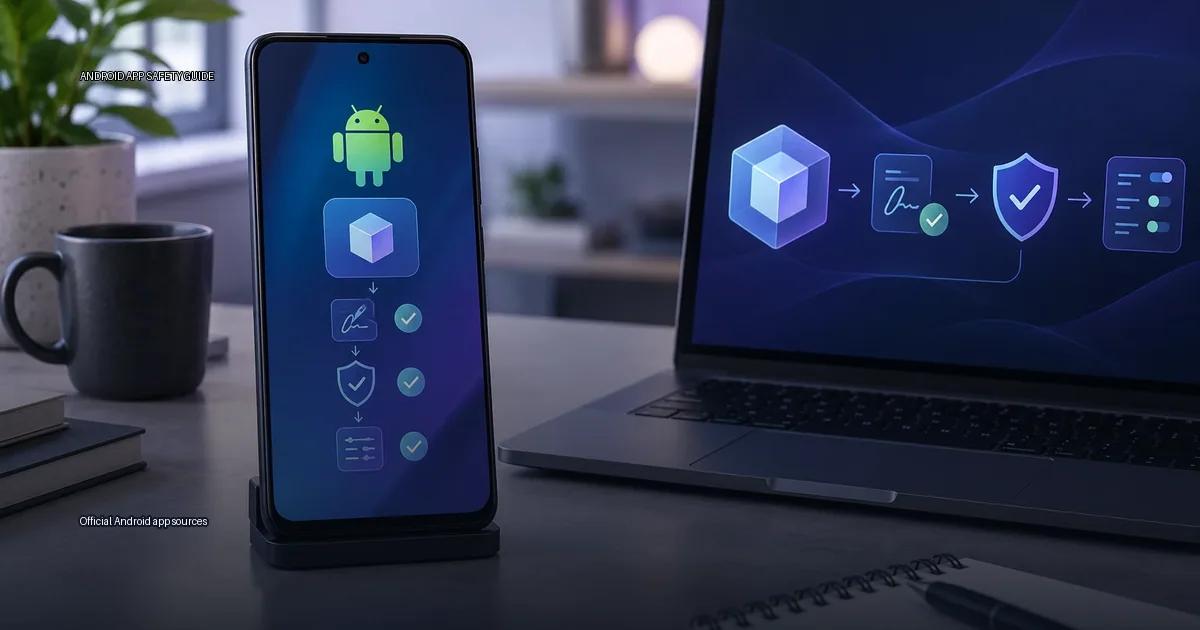
The safest way to get an app onto an Android device is to start with a source you can verify. “Official” does not automatically mean “Google Play.” It means a distribution point that the app’s creator or the device maker controls and that you can confirm with a cryptographic signature. The core question is simple: who signed this file, and how did it reach you? If you can answer that with confidence, you have done the essential work of safe installation. Everything else, Play Protect, permissions, app size, is secondary.
The decision rule
Use this order of preference, highest first:
- The store that shipped on your device, Google Play on Pixel and most devices, Samsung Galaxy Store on Samsung, Huawei AppGallery on Huawei, Xiaomi GetApps on Xiaomi. These stores have automated scanning, publisher identity checks, and a single update path.
- The creator’s own authenticated release point, the official website, GitHub releases page, or a private enterprise store. The distribution point must be linked from the creator’s official site or a verified social account, and the file must be signed with the creator’s key.
- A reputable aggregator that verifies signatures, services such as APKMirror or F-Droid that check the APK signature against the creator’s known key. These are not official sources, but they are a step above random download sites.
- Anything else, treat as untrusted until you can verify the signature yourself.
The decision rule: if you cannot confirm the file’s signature matches the creator’s published key, treat it as untrusted. A checksum alone does not prove trust.
What counts as an official source
An official source is one you can verify as belonging to the app’s creator or the device maker. In practice, four categories exist:
- Managed stores: Google Play, Samsung Galaxy Store, Huawei AppGallery, Xiaomi GetApps, Amazon Appstore, and the device maker’s own store on your phone. These stores run automated scanning, enforce signing requirements, and handle updates.
- The creator’s own release point: an official website, a self-hosted server, or a page on a platform like GitHub Releases. The file is official if the distribution point is authenticated (HTTPS, a verified domain, or a cryptographic signature you can check).
- Open-source repositories: F-Droid and similar repositories build apps from source and sign them with their own keys. This model is different from the Play Store: the repository, not the original creator, controls the signing key for many apps.
- Enterprise distribution: a company’s private app store or MDM (mobile device management) system, used to install internal apps. This is a controlled path but only as trustworthy as the organization’s device management.
- Third-party stores: device-maker stores (Samsung Galaxy Store, Huawei AppGallery, Xiaomi GetApps) and alternative clients (Aurora Store). They vary in review rigor and update speed, and they are not interchangeable with Google Play.
The risk of a given source is not binary. An app is safe to install when you can independently verify that the file was published by the party you think it came from, and when the permission request matches the app’s stated function. A checksum alone does not prove trust; verification must begin with the creator’s authenticated distribution point.
Verification checklist
Before installing any Android app outside the store that shipped on your device, work through these steps:
- Identify the creator. Who made the app? Find the official website or a verified social account that links to the download location you intend to use.
- Check the distribution point. Is the download page served over HTTPS from a domain the creator controls? For GitHub, is the repository the one linked from the creator’s own site?
- Confirm the signature. Android requires every APK to be signed. The signature must match the creator’s known certificate fingerprint. If the creator publishes their fingerprint (common on a website or a GitHub README), compare it with the file you downloaded. On a device, you can check an installed APK’s signature with tools like
apksignerorkeytool. - Match the hash if a hash is published. A SHA-256 checksum published on the creator’s authenticated distribution point gives you a second factor. It proves the file was not altered after the creator generated the hash. A hash alone, posted on a forum or a mirror, proves nothing.
- Review the permission requests. Before you tap install, look at the list. A flashlight app that asks for your contacts is a red flag regardless of where it came from.
- Keep the update path intact. If you install from a source other than a managed store, you are responsible for checking for updates. Bookmark the creator’s release page and check it on a schedule.
Understanding signatures and keys
Every Android APK carries a digital signature created with the creator’s private key. The Android system checks this signature during installation and refuses to update an app unless the new version is signed with the same key. This is the mechanism that prevents a third party from slipping a malicious update onto your device.
A signature check answers one question: was this file signed by the same key that signed the version I already trust? If you have never installed the app before, you need an out-of-band way to learn the correct key fingerprint. The creator’s website, served over HTTPS and linked from a verified social account, is the most common out-of-band path. Some creators also publish their certificate fingerprints on their GitHub organisation page or in their documentation.
Managed stores handle this verification for you. When you download from Google Play, the store checks that the APK is signed with a key that matches the creator’s registered identity. When you download from a creator’s own release point, you take on that verification work.
Open-source repositories: a different trust model
F-Droid and similar repositories operate on a model where the repository maintainers build the app from publicly available source code and sign the resulting APK with the repository’s own key. This means the signature does not match the original creator’s key. You are trusting the repository to build the app faithfully from the published source and not to introduce changes.
This model has advantages. The build process is public, the source is available for audit, and the repository signs with a key you can verify independently. The trade-off is that you lose the direct chain of trust to the original creator. If you use F-Droid, confirm that you have added the correct repository signing key to your device and that you are fetching from the official F-Droid.org server, not a lookalike.
Enterprise and private distribution
Organisations distribute internal apps through MDM systems or private app stores. These paths rely on the organisation’s device management infrastructure. The trust you place in them is only as strong as the organisation’s own security practices. If your employer requires you to install an app through an MDM profile, ask whether the profile enforces verified signatures and whether the organisation audits the apps it distributes.
What “sideloading” actually means
The term “sideloading” lumps together two distinct actions: obtaining an APK from a source other than a managed store, and enabling the Android setting that permits installation from that source. Neither action is inherently risky. The risk lives entirely in the provenance of the file and whether its signature can be verified.
Android’s “install unknown apps” permission is a gate, not a guarantee. It asks you to name one source you trust. If you name a source you have not authenticated, you have opened the gate without checking who is on the other side.
Common traps and how to avoid them
The checksum that travelled with the file
A checksum proves only that the file you downloaded matches the file the mirror hosted. If the mirror was compromised, the checksum was compromised too. Always obtain the checksum from the creator’s authenticated distribution point.
The lookalike domain
A website that looks like the creator’s but has a slightly different domain. Check the URL character by character. Bookmark the real site after you verify it once.
The message that brought the app
An app that arrived as a link in a message, email, or social media post. Even if the sender is someone you know, their account may be compromised. Navigate to the creator’s known distribution point independently and search for the app there.
The too-good-to-be-true store
An app store you have never heard of that claims to offer paid apps for free. These stores often repackage apps with modified signatures and added code. There is no shortcut around paying for software that costs money.
When you cannot verify the signature
If you have a file and you cannot trace it back to a creator you can authenticate, do not install it. This applies even if the app appears to work normally after installation. Malicious code often activates later, after a delay or on a trigger. If you need the app, find it through the creator’s official distribution point and compare the signatures of the two files. The work is worth the time.
More in this guide
Find apps safelyVerify a developer download pageFix a package parse error.
Read next
-
 Verify a developer download page
When you decide to install an Android app from outside the Play Store, the download page is the first and most important security checkpoint.
Verify a developer download page
When you decide to install an Android app from outside the Play Store, the download page is the first and most important security checkpoint.
-
 Android apps from GitHub releases
 are APK or App Bundle files that developers publish through their own project repositories.
Android apps from GitHub releases
Android apps from GitHub releases are APK or App Bundle files that developers publish through their own project repositories.
-
 How to spot a fake app
Fake apps appear in official stores, on third-party sites, and inside messages that tell you to “update” or “load” a file.
How to spot a fake app
Fake apps appear in official stores, on third-party sites, and inside messages that tell you to “update” or “load” a file.
-
 Modded apps and unofficial APKs: what the risks are
When you search for a popular Android app and the first result is a “modded” or “unlocked” version, the promise sounds appealing: extra features, removed ads, or a paid app for free.
Modded apps and unofficial APKs: what the risks are
When you search for a popular Android app and the first result is a “modded” or “unlocked” version, the promise sounds appealing: extra features, removed ads, or a paid app for free.
-
 Verify an APK
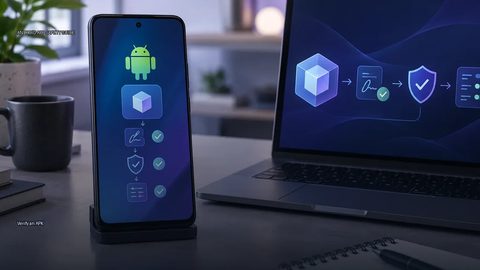
To verify an APK, check its source, signing identity and requested permissions before installation.
Verify an APK
To verify an APK, check its source, signing identity and requested permissions before installation.