APK troubleshooting
APK troubleshooting is the process of diagnosing why an Android app will not install, update, or run correctly, and deciding whether the problem is a bad file, a certificate mismatch, an…
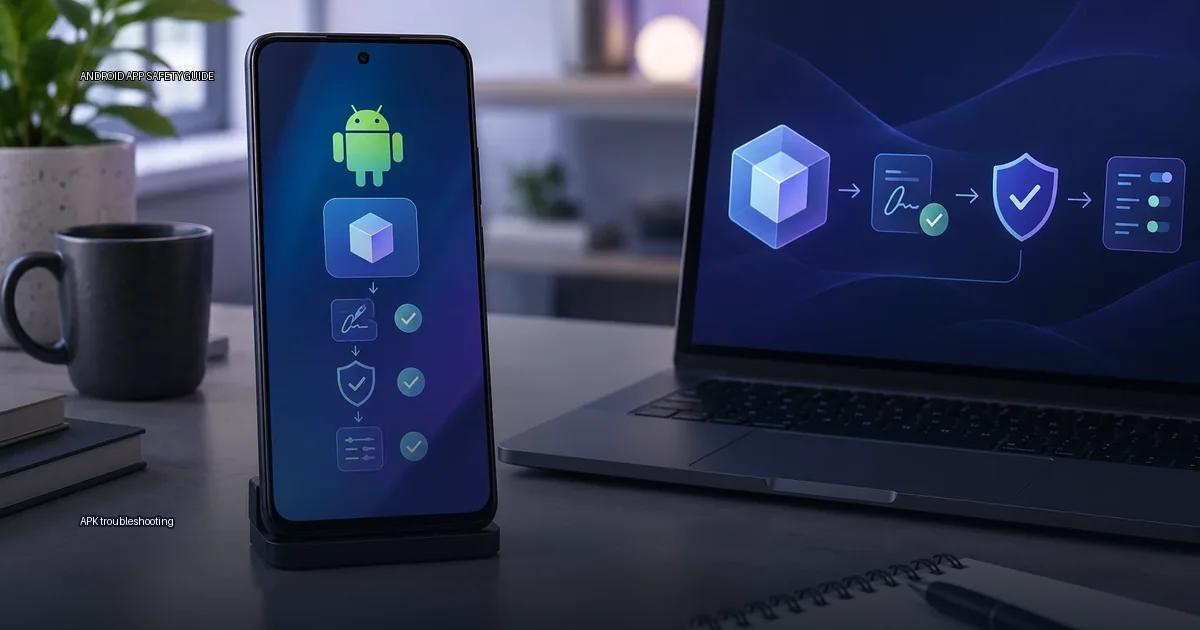
APK troubleshooting is the process of diagnosing why an Android app will not install, update, or run correctly, and deciding whether the problem is a bad file, a certificate mismatch, an outdated target, or a permissions issue. The four focused guides in this pillar own the step-by-step detail; here you get the map.
If you are reading this, you likely fall into one of three situations: an app you tried to sideload failed to install, an installed app stopped updating, or you are trying to decide whether a file you found online is safe to open. All three are APK troubleshooting problems, but they are different problems. The fastest way to solve them is to first understand what an APK actually is, how Android decides whether to install it, and what each error message means.
What an APK is and how it fits into Android
APK stands for Android Package Kit. It is the file format Android uses to distribute and install apps. An APK contains the app’s code, resources, and a manifest that declares what the app can do. When you install an APK, the Android system checks the file’s certificate, compares it with any existing installation of the same package name, and then places the app in a sandboxed environment.
A related format, the Android App Bundle (AAB), is the publishing format for Google Play. It is not installed directly on devices. Instead, Google Play uses the AAB to generate optimized APKs for each device configuration, so a single bundle produces many different APKs. This is why you rarely see a single universal APK from the Play Store anymore; the store delivers a version tailored to your device.
How Android verifies an APK before installation
APK files are signed with a digital certificate. The certificate serves two purposes: it proves the file has not been modified since signing, and it links the update to the same developer key as the previous version. Android enforces certificate consistency at install time. If the signing key of an update differs from the installed app’s key, the system refuses the update. Certificate Scheme v1 (JAR signing) is the legacy format and is vulnerable to certain manipulation if used alone; Scheme v2 covers the whole file and is more robust; Scheme v3 adds key rotation. The Android Developers documentation describes these schemes and their protections.
Android requires that an app update be signed by the same key as the installed version; otherwise, the system refuses to install it. This is why “app not installed” errors often happen when someone tries to install a different version of an app over an existing one. The schemes have evolved: v1 (JAR signing) covers individual files but can be manipulated; v2 covers the entire file; v3 adds key rotation.
“App not installed” errors have several causes: certificate mismatch, target SDK version too old for the OS, or the app being built for a different CPU architecture. The most common cause is a certificate mismatch when updating an existing app with an APK signed with a different key. Android 14 (API level 34) requires apps to target API 23 or higher to install. Android 11 (API level 30) and higher restrict access to package visibility, which affects some sideloaded apps.
What Play Protect does and does not do
Play Protect is Google’s on-device and cloud-based malware scanner. It checks apps before installation from the Play Store and performs a one-time scan when you sideload an APK. It does not continuously monitor sideloaded apps the way it monitors Play-installed apps, and it can be disabled. A Play Protect warning is a heuristic, not a definitive verdict; it can flag legitimate apps and miss new malware.
Google states that Play Protect checks apps before and after installation, and it runs “billions of checks daily.” It does not guarantee that every sideloaded app is continuously monitored; a one-time scan happens at install, but continuous monitoring applies mainly to apps from the Play Store. A clean Play Protect result is a good sign, but it is not a certificate of safety. Google Play Help documentation also warns that “some third-party apps may not be scanned,” so your own verification remains essential.
Google Play’s review process is automated and not exhaustive; malicious apps have repeatedly appeared on the Play Store and been removed after the fact. This is documented by Google’s own “enhanced” review efforts and by independent security research.
The “unknown sources” setting and OS-level blocks
The “unknown sources” toggle is a generic warning. It does not distinguish between a trusted developer’s site and a random link. The Android Developers documentation describes it as a warning that the device is allowing installs from sources other than the default store; it is not a malware verdict. The real risk is not the toggle itself but the file you install through it.
Android 8.0 and later changed the setting from a single global toggle to a per-app “Install unknown apps” permission, which gives you more control over which apps can trigger installations. On Android 14, the system blocks installation of apps targeting Android 5.1 (API 22) or lower unless you have a good reason, and it warns about outdated target SDKs. These are the OS-level checks that complement Play Protect.
Google Play requires new apps and updates to target a recent API level (Android 14, API 34, as of August 2023). Apps targeting below Android 6.0 (API 23) cannot be installed on Android 14+ devices because the OS blocks them. This is a hard block, not a warning.
The permission model and security standards
The Android permission model is the main line of defense after installation. Android 6.0 (API 23) introduced runtime permissions, so apps request access while running, not at install. A useful baseline is the OWASP MASVS, which recommends the principle of least privilege: an app should only request permissions that are necessary for its core function. If a flashlight app asks for contacts and location, that is a red flag regardless of where you got it.
OWASP MASVS (Mobile Application Security Verification Standard) defines security requirements for mobile apps, including code integrity and anti-tampering. It is the reference standard for verifying that an app’s code has not been modified after release. Version 2.0 was released in 2023. It does not certify individual APKs, but it provides a checklist for verifying app security. The standard defines verification requirements (V1.1, V2.1) that emphasize the need to verify the integrity of the app and its source before installation.
Where to get APKs and what each source verifies
The main installation routes are:
- Official app store (Google Play on most devices, or the device maker’s store such as Samsung Galaxy Store, Xiaomi GetApps, Huawei AppGallery).
- Developer’s own site or release channel (e.g., a project’s official website or GitHub Releases).
- A reputable aggregator that mirrors official files and verifies certificates (APKMirror is one example; F-Droid is another for open-source apps).
- ADB from a computer (Android Debug Bridge), used mainly by developers.
Aggregators and third-party stores
APKMirror states that it verifies the certificate of every APK against the original developer certificate and only hosts apps that match.
F-Droid’s own documentation states that apps are built from source by the F-Droid build server and signed with the F-Droid signing key, so certificate verification is centralized.
Aurora Store pulls app details and download links from Google Play servers; it does not host APKs itself.
How to verify an APK yourself
Android requires all APKs to be signed, but a self-signed certificate only proves the update chain, not the developer’s identity. Android Developers documentation states that a certificate “identifies the author of an app” in the sense of key continuity, not legal identity.
Use apksigner from the Android SDK to verify which schemes an APK uses. Android 7.0 (API 24) introduced v2; Android 9 (API 28) introduced v3. v1-only certificates are vulnerable to certain manipulations, so modern apps should use v2 or higher. Google Play requires v2 signing for apps targeting Android 14 (API 34).
Quick-reference: error causes and OS requirements
| Error or requirement | Likely cause | What to check |
|---|---|---|
| “App not installed” | Certificate mismatch with existing app | Compare signing keys; uninstall old version first if safe |
| “App not installed” | Target SDK too old for OS | Check app’s target API against your Android version |
| “App not installed” | Invalid APK structure or wrong CPU architecture | Verify file integrity; confirm ABI match |
| Android 14+ blocks install | App targets API 22 or lower | Find a build targeting API 23+ |
| Play Protect warning | Heuristic flag, not a definitive verdict | Cross-check with VirusTotal or a reputable aggregator |
| Update refused | Different signing key from installed version | Confirm both APKs share the same developer certificate |
More in this guide
Fix App not installed errorsFix a package parse errorUninstall and clean up.
Read next
-
 Fix App not installed errors
When Android refuses to install an app, the error message rarely tells you the real cause.
Fix App not installed errors
When Android refuses to install an app, the error message rarely tells you the real cause.
-
 Fix a package parse error
A package parse error is Android’s way of saying it cannot read the APK file you are trying to install.
Fix a package parse error
A package parse error is Android’s way of saying it cannot read the APK file you are trying to install.
-
 Resolve a signature conflict
When Android refuses to install an app with an error such as “App not installed” or “There was a problem parsing the package,” the most common cause is a signature conflict.
Resolve a signature conflict
When Android refuses to install an app with an error such as “App not installed” or “There was a problem parsing the package,” the most common cause is a signature conflict.
-
 App rollback and downgrade risks
When an app update breaks a workflow, the obvious fix is to install the previous release.
App rollback and downgrade risks
When an app update breaks a workflow, the obvious fix is to install the previous release.
-
 APK basics
An APK (Android Package Kit) is the standard file format Android uses to distribute and install apps.
APK basics
An APK (Android Package Kit) is the standard file format Android uses to distribute and install apps.