Android app sources and package formats
Every Android app you install comes from one of a handful of source types, and the package format it arrives in determines how you can verify what you are actually getting.
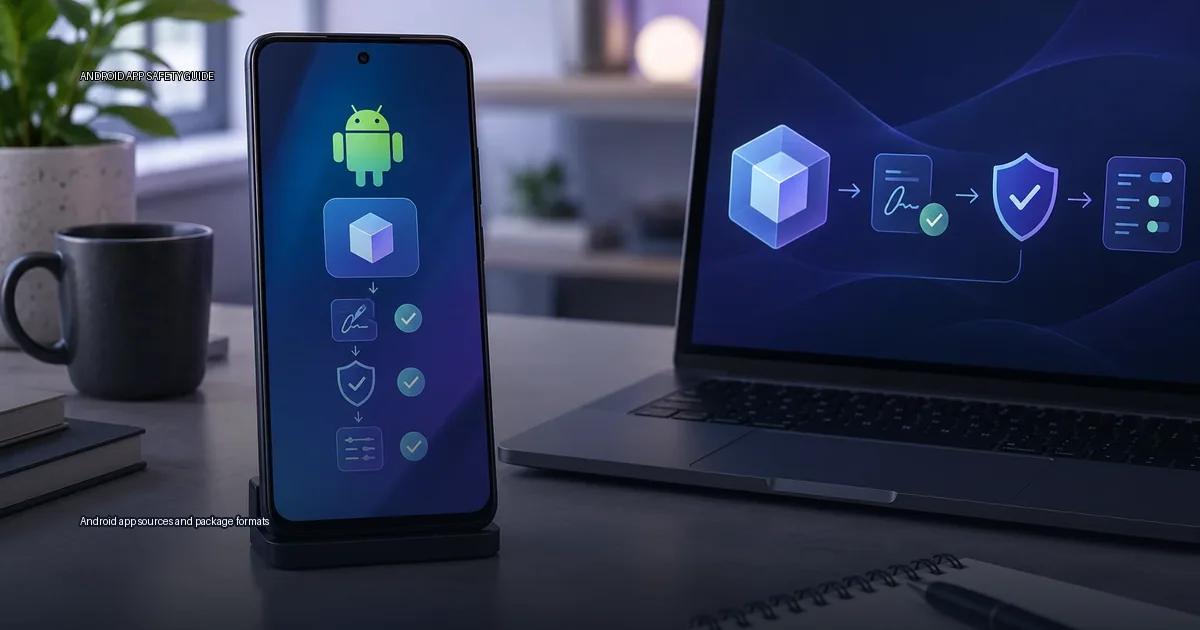
Every Android app you install comes from one of a handful of source types, and the package format it arrives in determines how you can verify what you are actually getting. The difference between a safe installation and a compromised one is almost never whether you “sideloaded”; it is whether the source of the file and the integrity of its cryptographic signing can be trusted. Android app sources and package formats shape every installation decision, so the method below lets you check any source and any package before you tap install.
The sources you will encounter
The device maker’s default store
Google Play Store, Samsung Galaxy Store, Huawei AppGallery, Xiaomi GetApps, and similar pre‑loaded stores are the most convenient sources. They scan apps with their own automated systems; Google’s Play Protect, for example, scans apps at install time and periodically afterwards (Google, 2023). The store itself handles updates, and the publisher’s identity is linked to a registered account. However, no store catches everything; malicious apps have repeatedly appeared on Google Play and been removed after the fact (Google, 2023). The store is a filter, not a guarantee.
A publisher’s own website or release channel
Many legitimate publishers offer direct APK downloads on their official site. This is common for apps that cannot or will not use Google Play (e.g., Signal, Telegram, or region‑restricted banking apps). The risk here is that the publisher’s server or download page could be compromised. To mitigate this, the publisher should publish the APK’s SHA‑256 hash on an authenticated channel (such as their official social media or a signed blog post). You then verify the hash after downloading. Without that hash, you have no cryptographic proof that the file you downloaded is the one the publisher released.
Third‑party aggregators (reputable and otherwise)
Reputable aggregators such as APKMirror verify that an APK’s signing block matches the original publisher’s key before hosting it. This is a meaningful check: a valid cryptographic identity that matches a known publisher key means the file has not been tampered with since the publisher signed it. Aggregators without verification, or that host “modded” or “cracked” APKs, provide no such guarantee and should be avoided.
F‑Droid and other open‑source repositories
F‑Droid is a repository of free and open‑source apps. It uses its own signing model: the F‑Droid project signs apps with its own key, not the publisher’s. This means the app you install is not the same binary the publisher released, though the source code can be independently audited. The trade‑off is transparency of code versus a different chain of trust for the binary.
Direct installation via ADB (Android Debug Bridge)
ADB installs an APK from a computer without needing the “Unknown Sources” toggle. The source of the APK file itself is still the deciding factor; ADB is just a delivery method. The same verification steps (cryptographic check, hash check) apply.
Android app sources and package formats: what the container tells you
APK (Android Package Kit)
The APK is the standard installable file. It contains the app’s code, resources, and a manifest. An APK can be signed with one of three schemes:
- Scheme v1 (JAR signing): Legacy method. It does not protect the entire file; parts of the APK can be modified without invalidating the signing block.
- Scheme v2: Covers the whole file contents. Tampering after signing is detectable.
- Scheme v3: Adds key rotation, allowing a publisher to change their signing key without requiring users to uninstall the app.
From a safety standpoint, an APK signed with v2 or v3 is harder to tamper with than one signed only with v1. You can check the scheme with the apksigner tool from Android Studio (Android Developers, 2023).
AAB (Android App Bundle)
An AAB is not installable directly. It is the publishing format used on Google Play; the Play Store generates an optimized APK for your device from the AAB. When you download an app from the Play Store, you are receiving a split APK, not the original AAB. For safety, the AAB itself is signed, but the user never verifies it directly; the store handles that.
A verification method for any source or package
1. Identify the source
Ask: Is this the publisher’s own release channel, the device maker’s store, or a third party? If it is a third‑party site, does it verify cryptographic identities before hosting files? If it does not, treat the file as untrusted.
2. Verify the signing block
For an APK you have downloaded, use apksigner verify -v file.apk (requires the Android SDK). This tells you the scheme version and whether the signing block is valid. A valid block means the file has not been modified since it was signed; it does not mean the publisher is trustworthy.
3. Check the hash against an official source
If the publisher publishes a SHA‑256 hash on their official website or social media, compute the hash of your downloaded file (e.g., sha256sum file.apk) and compare. If they match, the file is identical to what the publisher released. If no hash is published, you have no cryptographic proof.
4. Examine the permissions
Before installing, review the permissions the app requests. A calculator app that asks for location and contacts is a red flag, regardless of the store it came from. The permission list is shown in the install dialog and in the app’s Play Store listing.
5. Understand what a clean scan means
Services like VirusTotal run the file through dozens of antivirus engines. A zero‑detection result does not mean the app is safe; it means no known pattern matched. New or targeted malware often passes all engines. A single detection may be a false positive. VirusTotal is a data point, not a verdict.
The common pitfalls
- Assuming the Play Store is risk‑free: Malicious apps appear on the store regularly. Play Protect reduces the risk but does not eliminate it.
- Confusing “sideloading” with “danger”: Sideloading is the act of installing an APK manually. The risk is determined entirely by the source of that APK and whether its cryptographic identity can be verified.
- Trusting a valid signing block as proof of good intentions: A valid block only proves the file has not been altered after signing. The publisher could still have built malware.
- Relying on file size or app name as safety cues: A repackaged APK can have the same name and similar size but a different signing identity. Only the cryptographic block and hash can confirm authenticity.
The bottom line for safe Android app installation
Safe Android app installation is not about avoiding sideloading. It is about verifying that the app came from a source you can identify and that the file you install matches what that source released. The method is the same for every source: check the signing block, check the hash against an authenticated channel, and review the permissions. No source is universally safe, and no scanner catches everything. The verification is in your hands.
More in this guide
Security-focused guides to stores, release channels and Android package types.
Android app sources and package formats
App stores
Open-source sources
Developer release channels
Manufacturer stores
Third-party stores
APK archives
Update tools
Package formats
Frequently Asked Questions
What is the difference between an APK and an AAB?
An APK is a single installable file. An AAB is a publishing format used by Google Play; it is not directly installable on a device. The Play Store generates an optimized APK from the AAB for each device.
Does a valid VirusTotal result mean an APK is safe?
No. A clean scan means no known malware signature was detected. New or targeted malware can evade all engines. VirusTotal is a data point, not a guarantee.
Why does “App not installed” appear when I try to update a sideloaded app?
This is most often a signature mismatch. The new APK is signed with a different key than the installed version. You must use the same signing key, or uninstall the existing app first.
Is it safe to install apps from F‑Droid?
F‑Droid hosts open‑source apps and signs them with its own key. The source code can be audited, but the binary you install is not the same one the developer signed. The safety depends on your trust in the F‑Droid signing process and the app’s code.
Read next
-
 Google Play
 is the default app store on most Android devices, but it is one distribution channel among several.
Google Play
Google Play is the default app store on most Android devices, but it is one distribution channel among several.
-
 F-Droid
 is a software repository and installation client for Android that focuses exclusively on free and open-source software (FOSS).
F-Droid
F-Droid is a software repository and installation client for Android that focuses exclusively on free and open-source software (FOSS).
-
 GitHub Releases
 is a distribution point on a software project’s repository where maintainers publish tagged builds for download.
GitHub Releases
GitHub Releases is a distribution point on a software project’s repository where maintainers publish tagged builds for download.
-
 Samsung Galaxy Store
The Samsung Galaxy Store is the default application storefront on Samsung Galaxy phones and tablets.
Samsung Galaxy Store
The Samsung Galaxy Store is the default application storefront on Samsung Galaxy phones and tablets.
-
 Amazon Appstore
 is an official Android app marketplace operated by Amazon.
Amazon Appstore
Amazon Appstore is an official Android app marketplace operated by Amazon.
-
 APKMirror
 hosts Android APK files for people who need to install an app outside the Play Store.
APKMirror
APKMirror hosts Android APK files for people who need to install an app outside the Play Store.