Android app signatures
When you install an Android app, you are not just copying files onto your device. You are accepting a chain of identity checks that starts with a cryptographic signature.
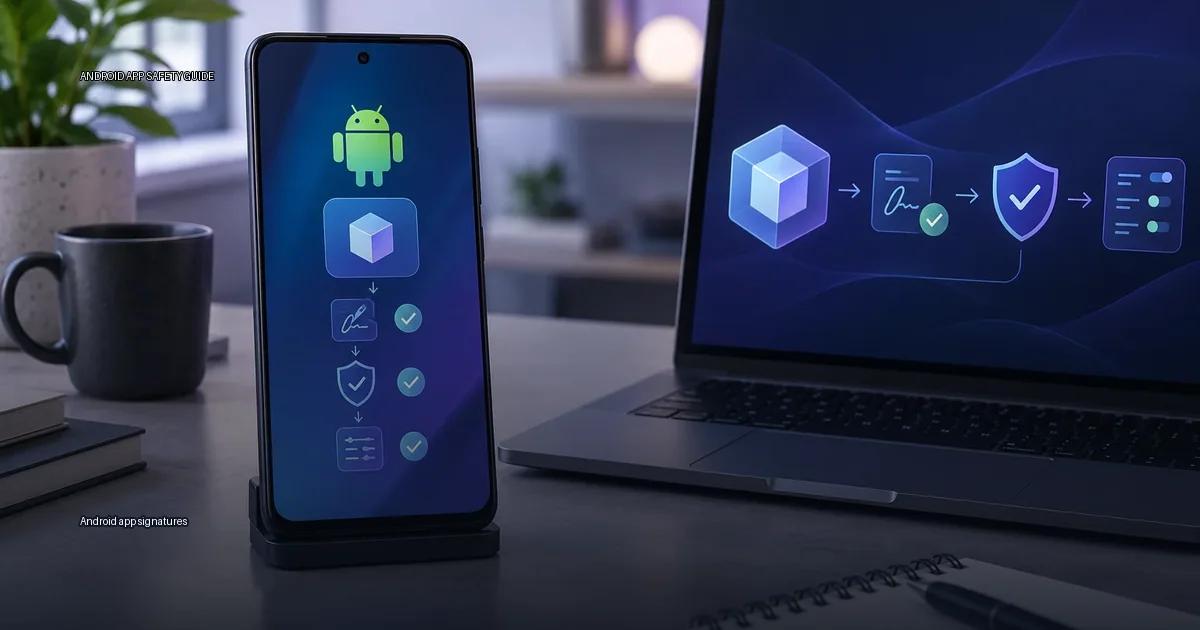
When you install an Android app, you are not just copying files onto your device. You are accepting a chain of identity checks that starts with a cryptographic signature. An Android app signature is a digital certificate embedded in the app’s package that ties a specific file to a specific signing key. It does not tell you who the developer is in the real world; it tells you that the file you are installing was signed by the same key as previous versions of that app. That distinction matters more than almost anything else in safe installation.
The Android system uses this signature for two things: verifying the app’s integrity, and checking that an update comes from the same developer. When you install an app, Android checks whether the signature of the new file matches the signature of the app already on the device. If they do not match, the system refuses the update with an “App not installed” error. That is the core of Android’s identity model: the signature is not proof that the developer is a specific company; it is proof that the same key signed the file you are about to install. Google’s Android Developers documentation describes signing as the way to identify the author of an APK, but the certificate is usually self-signed, so the real guarantee is continuity, not identity.
What an Android signature actually is
An Android app signature is a digital certificate embedded in the APK or app bundle. When a developer builds an app, they sign it with a private key. The device checks the corresponding public key during installation. If the key matches the one that signed an already-installed version of the same package, the update is accepted. If it does not match, the system refuses the installation with an “app not installed” error. This is why a signature is not a statement of who the developer is in the legal sense; it is a statement of who holds the private key. The Android Developers documentation (Google, 2024) states that all APKs must be signed with a certificate, and the certificate must be held by the developer who will issue future updates.
Self-signed certificates and continuity
Self-signed certificates are the norm. A signature proves that the same key signed the file, not that the developer is a known company. Anyone can generate a certificate with any name. The practical implication: the signature is a continuity marker, not a reputation badge. When you install an app and later update it, the new version must carry the same signature as the installed one. If it does not, Android refuses the update and shows “App not installed.” That refusal is the signature system doing its job: it prevents an unrelated or tampered package from replacing a legitimate one.
The signature also determines whether an app can be updated over an existing install. An APK signed with a different key cannot update an app that is already installed; the system treats it as a different application. That is why a developer who loses their signing key cannot update their own app and must publish a new package with a new package name. Google Play Help (2024) notes that the app signing key is the basis for app identity and updates. Android Developers documentation states that the signing key is what ties an update to the original app, and that a lost key means the developer cannot update the app under the same package name (Android Developers, 2024). In practice, this means the signature is not a certificate of quality; it is a certificate of continuity.
The decision rule for APK sources
The practical decision rule is: when you install an APK, the signature is the only thing that tells you whether the file is exactly what the developer released. A checksum alone proves nothing about the publisher. The Android OS checks the signature when you install an update over an existing app; if the new APK is signed with a different key, the system rejects it with an “app not installed” error. This is why signature mismatches are the most common cause of update failures when people try to install an APK downloaded from a random site over an app already installed from the Play Store.
Signatures do not prove the developer is a specific legal entity. A self-signed certificate only proves that the same private key signed the file; the name in the certificate is not verified by a central authority. That is why the source of the APK matters as much as the signature. A signature from a known developer, checked against the developer’s own published fingerprint, is strong evidence. A signature on a file from a random forum is just a signature.
Signing schemes v1, v2, and v3
Android uses three signing schemes. v1 (JAR signing) covers the files inside the APK but not the whole archive, so an attacker can reorder or remove entries without breaking the signature. v2 and v3 cover the entire file contents, making tampering detectable. v3 adds key rotation, so a developer can switch signing keys without losing update continuity. When you see an “App not installed” error on an update, the most common cause is a signature mismatch: the new APK’s signing certificate does not match the one that signed the installed app, and Android refuses to update over a different signature (Android Developers, “App signing,” 2024).
The signature does not identify the developer. A self-signed certificate only proves that the same key signed both the current file and the previous update. Anyone can generate a certificate with any name, so a signature is a continuity marker, not an identity document. Google Play Help (2024) states that an app’s signature must match the signature of the app being updated; if it does not, the system will not install the update. This is the core rule for updates.
APK vs. app bundle
An APK (Android Package Kit) is the compiled file that Android installs. An Android App Bundle (AAB) is the publishing format that Google Play uses to generate optimized APKs for each device configuration. If you receive an .aab file directly, it is not installable on a phone; it is a developer artifact for upload to Play. For the reader, the practical rule is: if you are installing, you should be looking for an APK, not an AAB. AAB files are for distribution, not for sideloading. If a site offers you an “.aab” to install, it is either a developer file or a mislabeled package; the format is not designed for direct installation.
Play Protect and permission checks
Play Protect scans apps from the Play Store continuously, and it also performs a one-time scan when you first launch a sideloaded app (Google Play Help, 2024). It does not continuously monitor sideloaded apps the way it monitors Play Store apps. That distinction is important: a sideloaded app that passes the one-time scan is not under the same ongoing review as a Play Store app.
Permission checks are separate from signature checks. A valid signature does not mean the app will not misuse permissions. Even a signed APK from a well-known developer can request permissions that are broader than its function needs. The Android permission model is the last line of defense, and it only works if you read the permission prompt before granting access.
Signature checks, on the other hand, verify that the APK file has not been altered since the developer signed it. Android uses the app’s signing certificate to verify updates: an update must be signed with the same key as the installed app, or the system refuses to install it. This is why a “signature mismatch” error appears when you try to update an app with a differently signed APK.
APK: the file you actually install
An APK (Android Package Kit) is the file format Android uses to distribute an app. It contains the compiled code, resources, and a manifest that declares the app’s name, permissions, and components. When you download an APK from a website, you are getting a single file that you can install directly. The signature is embedded in that file, and it is what ties the file to a specific developer key. If a developer signs an update with a different key, Android treats it as a different app, and the update fails with an “app not installed” error unless the old app is uninstalled first.
The practical rule: never install an APK from a source that does not show you the file’s signature or checksum, and never install an APK that claims to be an update for an app you already have but is signed with a different key.
App bundle
An Android App Bundle (AAB) is the publishing format used by Google Play. It contains compiled code and resources but not a final APK; Google Play generates optimized APKs from the bundle for each device configuration. You never install an AAB directly on a phone. When you download an app from the Play Store, you receive a device-specific APK or a set of APK files, not the bundle. For users, the practical difference is invisible: the signature is applied to the generated APK, and Play Protect checks it during install. The AAB format matters for developers, not for someone installing an app, except that it explains why the Play Store sometimes delivers different file sizes to different devices.
What an Android app signature is
An Android app signature is a digital certificate embedded in the app package. It is generated from a private key held by the developer. When you install an APK, Android checks that the certificate matches the one used to sign the file. If a later update is signed with a different key, the system treats it as a different app and refuses to install it over the existing one unless the app is uninstalled first. This is why the signature is the core of identity on Android: it is not a statement that the developer is a known company, only that the same key signed the file. Android Developers documentation (2024) describes the signature as the app’s identity for updates and permissions.
APK file structure
APK (Android Package Kit) is the file format that carries the app code, resources, and a manifest. The manifest lists the permissions the app requests, the components it exposes, and the minimum Android version it supports. An APK is signed with a certificate whose private key is held by the developer. When you install an update, the system compares the new APK’s signature to the installed app’s signature. If they do not match, the update is rejected with “App not installed.” This is not a bug; it is the OS enforcing that only the same developer identity can update an app.
AAB publishing format
Android App Bundles (AAB) are the publishing format for Google Play. The Play Store generates optimized APKs from the bundle for each device configuration. You do not install an AAB directly on a device; you install the APKs that the store produces from it. For this reason, signature checks happen on the generated APKs, not on the bundle file itself.
Play Protect scanning scope
Play Protect is Google’s on-device and cloud-based scanner. It checks apps before installation when you install from the Play Store and performs a one-time scan when you sideload an APK. It does not continuously monitor sideloaded apps. A “harmful app” warning from Play Protect is a heuristic result, not a definitive malware verdict.
Permissions and signature separation
Permissions are the access rights an app requests at install time or runtime. They are separate from the signature. A signed APK from a trusted source can still request dangerous permissions; the signature proves the file’s integrity, not the app’s behavior.
Sideloading risk factors
Sideloading means installing an APK outside the default store. The risk is determined by the source and the signature, not by the act itself. A sideloaded APK from a developer’s official site is different from a random download page.
Sources and further reading
Android Developers (Google, 2024) documents the official signing schemes and the APK file structure. Google Play Help (2024) explains Play Protect’s scanning scope and the “unknown sources” warning. OWASP MASVS (2023) provides the verification standard for mobile app security. Android Studio’s apksigner tool is the reference implementation for verifying signatures. APKMirror states that it verifies signatures against the original developer key. F-Droid signs all apps in its repository with its own key and verifies them against upstream source. Aurora Store pulls apps directly from Google Play servers. Huawei AppGallery, Samsung Galaxy Store, and Xiaomi GetApps are the device-maker stores on devices without Google services. The Android Developers documentation describes signature schemes v1, v2, and v3, and notes that v2 and v3 protect the entire file contents. Google Play Help documents Play Protect’s on-device scanning and the “unknown sources” warning. OWASP MASVS covers verification of platform interaction and code quality, not installation-channel security.
More in this guide
Read next
-
 What an APK file is
An APK (Android Package Kit) is the file format Android uses to distribute and install apps.
What an APK file is
An APK (Android Package Kit) is the file format Android uses to distribute and install apps.
-
 APK vs Android App Bundle
If you have ever obtained an Android app outside the Play Store, you have likely seen two file formats: APK and Android App Bundle (AAB).
APK vs Android App Bundle
If you have ever obtained an Android app outside the Play Store, you have likely seen two file formats: APK and Android App Bundle (AAB).
-
 Versions and compatibility
When you install an Android app outside the Play Store, three technical details decide whether the install succeeds and whether the file is what its creator actually shipped: the version…
Versions and compatibility
When you install an Android app outside the Play Store, three technical details decide whether the install succeeds and whether the file is what its creator actually shipped: the version…
- Inside an APK: manifest and resources Inside an APK: manifest and resources. Walk through the AndroidManifest.xml, resources.arsc, and the res/ folder to show how an app declares its identity, permissions, and UI.
-
 Find apps safely
Every Android user eventually faces the same question: where can you get an app without putting your phone at risk? The honest answer is simpler than most advice suggests.
Find apps safely
Every Android user eventually faces the same question: where can you get an app without putting your phone at risk? The honest answer is simpler than most advice suggests.