Android apps from GitHub releases
Android apps from GitHub releases are APK or App Bundle files that developers publish through their own project repositories.
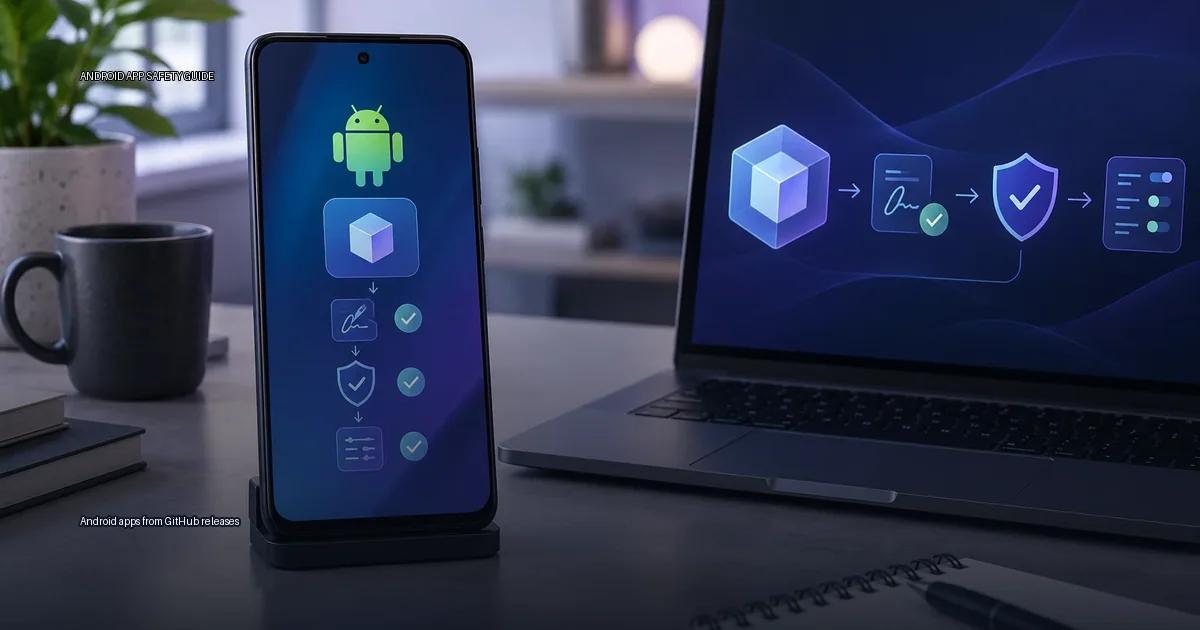
Android apps from GitHub releases are APK or App Bundle files that developers publish through their own project repositories. They are not inherently unsafe, but the entire risk depends on one question: did the file actually come from the developer who owns the project, and can you verify its signature? The practical method below gives you a decision rule you can apply in under five minutes.
Android apps from GitHub releases: The one question to answer
How do you install an Android app from a GitHub release without installing malware or a tampered copy?
The answer is a three-step decision rule:
- Confirm the repository is the developer’s authentic one.
- Confirm the release asset matches the developer’s published signature and checksum.
- Confirm the app’s permissions and source before installing.
If you cannot confirm all three, treat the file as untrusted. There is no shortcut that replaces step 1.
Verify the real repository
The biggest risk with GitHub releases is not the file itself; it is downloading from a project that only looks authentic. A checksum alone does not prove trust. Verification must begin with the publisher’s authenticated distribution point.
Find the developer’s authenticated distribution point
The developer’s authenticated distribution point is the only source you should trust. That point is usually one of these:
- The developer’s own website, linked from the app’s official page or documentation.
- The developer’s GitHub account, confirmed by their profile or website.
- A store listing that the developer explicitly links to from their own site or social media.
Do not trust a GitHub project just because it has the app’s name. Anyone can create a repository called “Signal” or “WhatsApp”. Check the URL, the account name, and the link from the developer’s official site. If the developer’s site does not link to a GitHub repo, treat the repo as unverified.
How to confirm the repository
- Open the app’s official website (found via a search engine, not via a link from the download page).
- Look for an “Open Source” or “GitHub” link on that site. The link must point to the developer’s own account or organization, not a mirror.
- Check the repository owner name. For example, the official Signal Android repository is under the “signalapp” organization, not a personal account with a similar name.
- Check the project’s “Releases” page. A real project usually has release notes, tags, and assets that match the app’s version numbers.
- Check whether the developer’s site links to the release page, or the release page links to the developer’s site. A one-way link from a forum post is not enough.
- If the app is open source, compare the signing certificate of the APK with the project’s published signing key if available; if not, at least confirm the release was published by the account that maintains the repository.
- Check the project’s age, commit history, and maintainer activity. A brand-new repository with a single release and no history is a red flag even if the name matches.
- On the repository page, the “About” section should contain the official website or support links. On GitHub, an authentic developer account often shows a verified domain or a link to the app’s website.
- The number of stars and forks should be consistent with the app’s popularity; a brand-new repo with thousands of stars is a red flag.
If you cannot confirm the repository is the developer’s authentic distribution point, stop. Do not download.
Understand the file formats
APK
An APK (Android Package Kit) is the standard file format for Android apps. It contains the app’s code, resources, and manifest, and is the file you download when you install outside a store. The file is a ZIP archive, but you should not try to open it manually for verification; instead, check the publisher, the signature, and the checksum.
The practical rule: only download an APK from the developer’s authenticated distribution point (their website, GitHub repository, or store page), and confirm the file’s hash against a value published on that same distribution point. A checksum alone does not prove trust, because a malicious file can be distributed with a matching checksum if the attacker controls the download page. Verification begins with the publisher’s authenticated distribution point, not with the hash.
App Bundle
An Android App Bundle (.aab) is the publishing format developers upload to Google Play. It is not installable directly on a device. When you see an AAB on a GitHub release page, it is for the developer’s own testing or for distribution through a private path, not for normal sideloading. If you are downloading an app from a GitHub release, you want the .apk asset, not the .aab. The AAB is relevant because some developers publish only the bundle and expect you to use a tool like bundletool to generate a device-specific APK; that process requires the same signature verification as a normal APK.
Verify the signature
A developer signs an APK with a private key. The public certificate is embedded in the APK. When you install an update, Android compares the signature of the new APK with the signature of the already-installed app. If they do not match, the installation fails. This is the core safety mechanism for sideloading. A self-signed certificate does not prove the developer’s real-world identity; it only proves that the same key signed both files. Signature Scheme v2 and v3 cover the whole file and are far harder to tamper with than v1.
Tools for checking a signature include apksigner from the Android SDK, or a third-party app like APK Analyzer. To check a signature manually, run apksigner verify –print-certs app.apk from the command line (Android Developers, 2024).
GitHub’s own documentation (2025) explains that a release is a version of the project you can package and make available; the release page shows tags, assets, and release notes. A release that appears suddenly with no history, no tags, and no discussion is a red flag.
More in this guide
Find apps safelyOfficial Android app sourcesGitHub Releases.
Read next
-
 Official Android app sources
The safest way to get an app onto an Android device is to start with a source you can verify.
Official Android app sources
The safest way to get an app onto an Android device is to start with a source you can verify.
-
 Verify a developer download page
When you decide to install an Android app from outside the Play Store, the download page is the first and most important security checkpoint.
Verify a developer download page
When you decide to install an Android app from outside the Play Store, the download page is the first and most important security checkpoint.
-
 How to spot a fake app
Fake apps appear in official stores, on third-party sites, and inside messages that tell you to “update” or “load” a file.
How to spot a fake app
Fake apps appear in official stores, on third-party sites, and inside messages that tell you to “update” or “load” a file.
-
 Modded apps and unofficial APKs: what the risks are
When you search for a popular Android app and the first result is a “modded” or “unlocked” version, the promise sounds appealing: extra features, removed ads, or a paid app for free.
Modded apps and unofficial APKs: what the risks are
When you search for a popular Android app and the first result is a “modded” or “unlocked” version, the promise sounds appealing: extra features, removed ads, or a paid app for free.
-
 Verify an APK
To verify an APK, check its source, signing identity and requested permissions before installation.
Verify an APK
To verify an APK, check its source, signing identity and requested permissions before installation.