How to spot a fake app
Fake apps appear in official stores, on third-party sites, and inside messages that tell you to “update” or “load” a file.
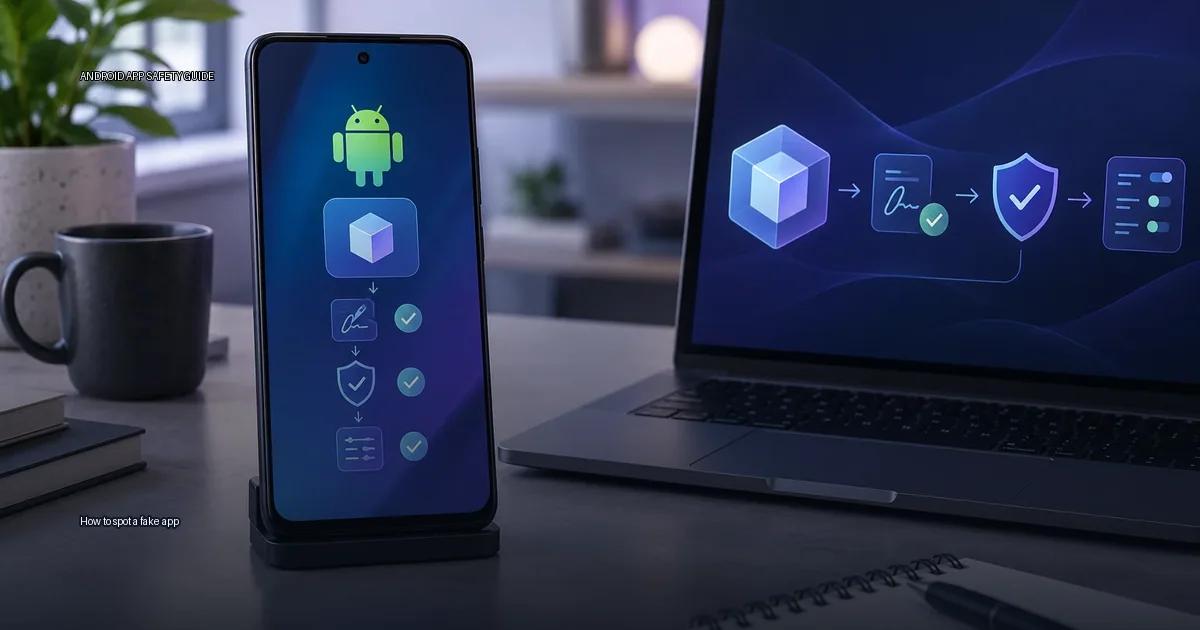
Fake apps appear in official stores, on third-party sites, and inside messages that tell you to “update” or “load” a file. The practical question is how you verify that a specific app is the one its developer actually released. The method below works whether you get an app from Google Play, a developer’s site, or a direct APK link.
How to spot a fake app: Start with the source, not the file
The most reliable signal is not the app’s name, icon, or review score. It is the developer’s identity. Android apps are signed with a cryptographic key; when you install an app, the system checks that the signing key matches the package name. If an app claims to be WhatsApp but is signed by a key that has never signed a WhatsApp update, the installation fails or triggers a warning. That is why the first question is always: where does the file come from?
The decision rule: only load an app from:
- The store on your device (Google Play, Samsung Galaxy Store, Xiaomi GetApps, Huawei AppGallery, or your device maker’s store).
- The app developer’s own authenticated release channel (their website, a verified link from their social media, or their page in the developer console).
- A repository with a known signing model, such as F-Droid for open-source apps.
If a file comes from a random website, a search-result ad, a messaging-app link, or a third-party “APK download” site, do not install it. That single rule removes the majority of fake and malicious apps.
The core checklist: verify an app before you install
Use this checklist in order. If any check fails, stop.
- Identify the real developer. Search the developer’s site or the app’s listing in the official store page. The Play Store listing shows the developer name, website, and email. A fake app often uses a similar name with extra characters (e.g., “WhatsApp Inc.” vs. “WhatsApp Inc.” with a space, or “Telegram FZ-LLC” vs. “Telegram Messenger LLP”). Check the exact spelling.
- Check the developer identity, not just the app name. On Google Play, tap the developer name under the app title. The developer page lists all apps from that account. A fake app is often published by a random personal account with a name like “Tools Studio” and only one app. The Android Developers documentation states that the developer name and the signing certificate are the two identity markers to verify.
- Inspect the permissions. Compare what the app asks for against what it should need. A flashlight app asking for contacts, SMS, or location is a red flag. OWASP MASVS (2023) recommends treating excessive permissions as a risk signal regardless of the store.
- Check the reviews and install counts with a filter. Sort reviews by “newest” and look for reports of sudden behavior changes, battery drain, or ads after install. A low install count for a supposedly popular app is a warning.
- Verify the developer’s official channel. If the app is listed on the developer’s own website, compare the package name and signing key with the version on the store. For a small developer, the official channel might be a GitHub releases page or a personal site, not a store.
- Use Play Protect, but do not treat it as a guarantee. Play Protect scans apps before and after install from supported channels (Google Play Help, 2025). It can flag known malware and some heuristics, but it is not a substitute for checking the source.
- Check the target SDK version. An app that targets an old Android version may miss security patches. OWASP MASVS (2023) recommends verifying that the app’s target SDK is recent and that permissions match the app’s core function.
- Check the signing key. If you have the APK, use apksigner (from Android SDK build tools) to verify the certificate, and compare the signer certificate against the developer’s official release channel. A mismatch means the file was not built by the same key.
- Prefer the device maker’s store and the Play Store. Google Play Help (2024) states that apps from the Play Store are scanned by Play Protect; the same page also warns that apps from outside the store “may contain code that can put your data and device at risk.”
- Match the developer identity across channels. The developer name on the app listing must match the website, support email domain, and the privacy policy. A developer with a Gmail address for a large company is a red flag.
- Use the Play Store “About this app” section and the “App info” screen to check the app’s target SDK version, data safety section, and the developer’s verified contact details.
- Verify the signing key again on the APK. On Android, every APK is signed with a certificate. If the signing key of a downloaded APK does not match the developer’s release, the file is not authentic.
- Run apksigner from Android SDK build tools to verify the signing key of an APK file. The command
apksigner verify –print-certs file.apkprints the certificate details. - Check the SHA-256 hash against the developer’s release notes or website if they publish one. A hash only proves file integrity, not identity; the hash must come from the developer’s authenticated channel.
- Understand Play Protect’s limits. Play Protect scans apps before and after installation, but its coverage is not absolute; it performs a one-time scan on sideloaded apps and does not continuously monitor them (Google Play Help, 2024).
- Treat Unknown Sources as a risk gate, not a risk. Android does not distinguish between a trusted developer’s site and an unknown forum when you enable installation from outside the store. The risk is determined by the source and the signing key, not by the toggle itself.
- Signing-key verification is the strongest single check you can perform. A valid signing key proves the APK was signed by the same key as the developer’s previous releases, but it does not prove the developer’s identity. A self-signed certificate is not a certificate authority.
- Play Protect scans apps before and after installation from the Play Store, and performs a one-time scan on sideloaded apps; it does not continuously monitor sideloaded apps. Google states that Play Protect “checks apps on your device before you download them” and warns about “potentially harmful apps” (Google Play Help, accessed 2025).
Key terms you will encounter
File formats and publishing
APK (Android Package Kit) is the standard file format for Android apps. An APK contains the app’s code, resources, certificate, and manifest. When you install an APK manually, you are bypassing the store’s review and delivery pipeline, so the source of the file and its signing key matter more.
App bundle (AAB) is the publishing format for Google Play. It is not directly installable; Google Play generates optimized APKs from it per device. If you see an “app bundle” file from a random site, it is not a normal installation file.
App signing by Google Play means Google manages the signing key for apps distributed through the Play Store, so the key used for the store version may differ from the key used for a directly downloaded APK.
Identity and verification
Signing key in Android is a cryptographic certificate that signs the APK. It proves the same developer key signed the file. It does not prove the developer is honest or that the app is malware-free.
Play Protect is Google’s on-device and cloud-based malware scanner. It checks apps before and after installation, but it does not continuously monitor sideloaded apps after the first scan.
VirusTotal is a multi-engine scanner that checks an uploaded file against dozens of antivirus engines. A zero-detection result is not a guarantee of safety, especially for new or niche apps. A positive result is a strong warning.
Play Integrity API checks whether an app is genuine and untampered, used by developers to verify their own apps.
SHA-256 is a cryptographic hash that verifies file integrity, not authenticity; a matching hash only proves the file is identical to the one hashed, not that the file is safe.
System components and settings
Unknown Sources is the Android setting that allows installation from outside the default store. It is not a single toggle on modern Android; each source app may be granted permission individually.
App installer is the system component that parses the APK, checks the signing key, and installs the app.
Package manager is the Android system service that handles installing, updating, and removing apps.
Developer mode is a set of options hidden by default; enabling it is not required for normal sideloading.
Install from USB is an option that allows installing via ADB; this bypasses some on-screen warnings but still requires you to enable developer options.
Signing schemes and versioning
Signature scheme v1 (JAR signing) is a legacy signing method; vulnerable to certain manipulation if not combined with v2.
Signature Scheme v2 is an APK signing scheme that covers the entire file contents, more secure than v1.
Signature Scheme v3 adds key rotation capability, allowing developers to change signing keys.
Target SDK version is the Android API level the app was built against; apps targeting very old API levels may be blocked by modern Android versions.
Version code is an integer that increases with each release; a mismatched version code can cause “app not installed” errors.
Tools and standards
apksigner is a tool from Android SDK that verifies an APK’s signing key and certificate.
OWASP MASVS is a standard for mobile app security verification; it does not certify individual apps but provides a framework for testing.
The one test no competitor can run for you: only a matching signing key, verified against the developer’s own authenticated release channel, proves that the APK in your hand is the same file the developer built. Every other signal (name, icon, store listing, review score, or hash from an unverified source) can be copied.
More in this guide
Find apps safelyOfficial Android app sourcesAPK troubleshooting.
Read next
-
 Official Android app sources
The safest way to get an app onto an Android device is to start with a source you can verify.
Official Android app sources
The safest way to get an app onto an Android device is to start with a source you can verify.
-
 Verify a developer download page
When you decide to install an Android app from outside the Play Store, the download page is the first and most important security checkpoint.
Verify a developer download page
When you decide to install an Android app from outside the Play Store, the download page is the first and most important security checkpoint.
-
 Android apps from GitHub releases
 are APK or App Bundle files that developers publish through their own project repositories.
Android apps from GitHub releases
Android apps from GitHub releases are APK or App Bundle files that developers publish through their own project repositories.
-
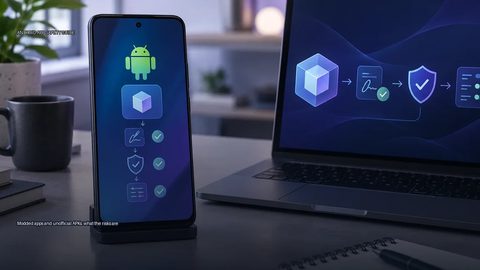 Modded apps and unofficial APKs: what the risks are
When you search for a popular Android app and the first result is a “modded” or “unlocked” version, the promise sounds appealing: extra features, removed ads, or a paid app for free.
Modded apps and unofficial APKs: what the risks are
When you search for a popular Android app and the first result is a “modded” or “unlocked” version, the promise sounds appealing: extra features, removed ads, or a paid app for free.
-
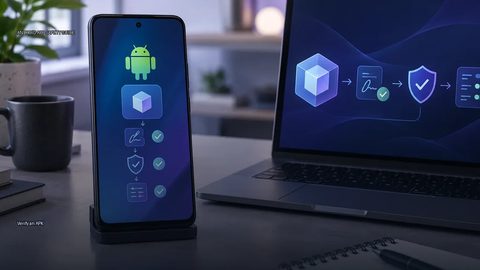 Verify an APK
To verify an APK, check its source, signing identity and requested permissions before installation.
Verify an APK
To verify an APK, check its source, signing identity and requested permissions before installation.