Android permissions explained
Android permissions are access tokens an app requests for data and device functions: contacts, precise position, camera, microphone, storage, and more.
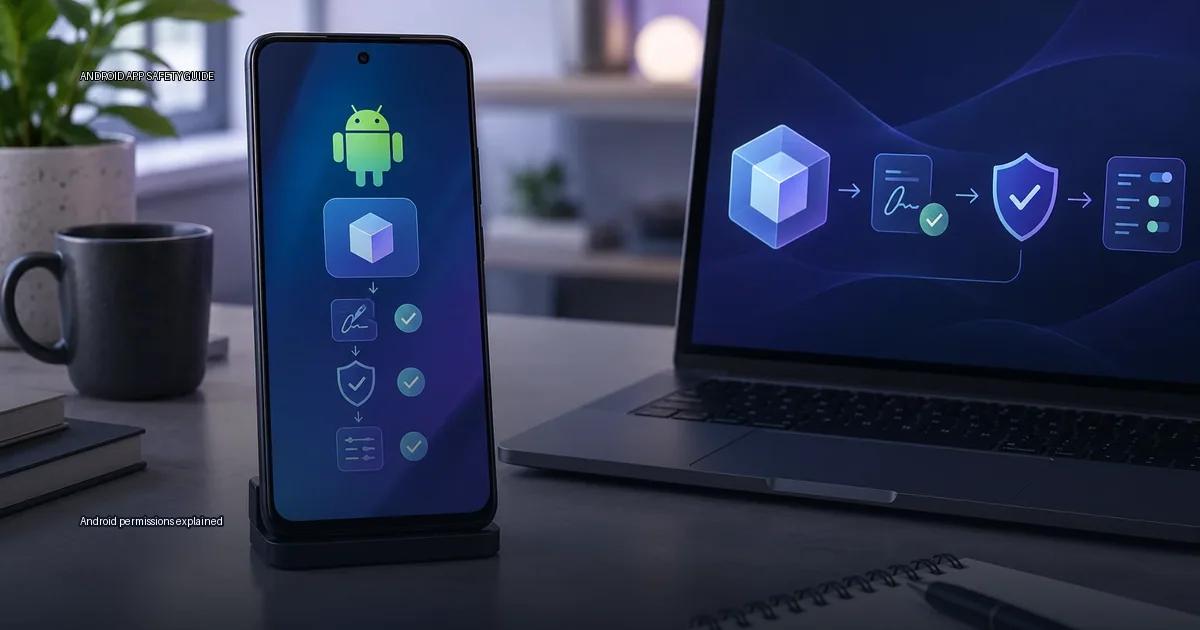
Android permissions are access tokens an app requests for data and device functions: contacts, precise position, camera, microphone, storage, and more. The permission system is the main gate between an app and your personal data. the material below names what each token unlocks, groups them by sensitivity, and gives you a repeatable review routine.
What a permission actually unlocks
A permission is a declaration in the app’s manifest that the app intends to touch a protected resource or action. When you install an app, Android checks the declarations against your grant state. Normal permissions are assigned automatically. Dangerous permissions prompt you at run time. Some permissions that protect sensitive hardware or system capabilities are still assigned at install time.
A permission is not a description of what the app does. It is an access token. When an app asks for the camera token, it is asking for the ability to use the camera hardware. What it does with that access is not described in the permission dialog. The token only tells you what the app can touch, not what it does with what it touches.
The practical question is not “why does this app need this permission?” but “does this permission match the app’s stated function?” A calculator that asks for your position has no reason to know where you are. A navigation app asking for it is expected. This is the core decision rule.
What each token actually opens
Each permission maps to a specific data source or hardware action. When you approve a permission, you are approving a concrete data access. READ_CONTACTS lets the app read the device’s contact database, not just “contacts-related features.” ACCESS_FINE_LOCATION lets the app read the device’s precise GPS position, not “location services.”
Android groups permissions into three broad categories:
- Normal permissions: assigned automatically, no user prompt. These include
INTERNET,ACCESS_NETWORK_STATE, andVIBRATE. They pose minimal risk to privacy or device function. - Dangerous permissions: require explicit user consent at run time. These include camera, microphone, precise position, contacts, storage, and body sensors. Android 6.0 (API 23) and later request these at run time; earlier versions asked at install.
- Signature permissions: assigned only to apps signed with the same certificate as the defining app. The user cannot grant these manually.
android.permission.BIND_ACCESSIBILITY_SERVICEis a signature-level token that only the system or apps signed with the platform key can hold; a third-party app that claims to be an accessibility service cannot silently grant itself that token.
Special access settings such as “Display over other apps” or “Usage access” are not in the normal permission list. They are controlled in separate system menus and are a stronger signal of suspicious behaviour than a standard run-time permission.
Permission groups by sensitivity
Camera and microphone
Camera unlocks the camera hardware. Microphone unlocks audio input. Both are high-risk because they capture real-world information about you and your surroundings. An app that records video or audio for its core function (video call, voice recorder, QR scanner) legitimately needs them. An app that does not, should not ask.
The concrete check: open the app’s settings, go to Permissions, and see whether camera or microphone is listed. If the app has no obvious feature that records or photographs, deny it. If the app needs the token only occasionally, Android will prompt at the moment it is first needed (Android 11 and later), so you can deny it at install time and still grant it later if a real feature requires it.
Location
Location data is sensitive because it reveals movement patterns, home and work addresses, and daily routines. Android distinguishes three levels: precise (GPS-level), approximate (network-level), and background (always available). For Android 10 and later, the system asks separately for “while using the app” versus “only this time” versus “deny.” For background access, Android11 added a separate “Allow all the time” prompt, and Android12 introduced an “Approximate location” toggle (Android Developers, 2024). A navigation or ride-hailing app needs precise position while in use; a weather app can work with approximate position. A calculator that asks for precise position is a red flag.
Contacts, storage, and body sensors
READ_CONTACTS and WRITE_CONTACTS expose your address book. A messaging, email, or contact-syncing app has a clear reason to ask. A game or wallpaper app does not.
Storage permissions (READ_EXTERNAL_STORAGE, WRITE_EXTERNAL_STORAGE) let an app read and write files on shared storage. Android10 introduced scoped storage, which limits broad file access. Apps that target Android10 and later no longer need storage permissions for their own media; they use the MediaStore API instead. A file manager or backup tool may still need broad storage access. A note-taking app that only saves its own files does not.
Body sensors (BODY_SENSORS) expose data from heart-rate monitors, step counters, and similar hardware. A fitness tracker needs this. A shopping app does not.
How Android permissions actually work
Android permissions are declared in the app’s manifest before installation. When you install from the Play Store, you see a list of permissions before you tap “Install.” On Android10 and later, many permissions are granted at run time: the app asks you the first time it needs access to the camera or your position, rather than all at install time.
The key distinction is between:
- Install-time permissions: assigned automatically when you install the app, typically for normal permissions that do not risk your privacy (internet access, vibration).
- Run-time permissions: assigned while you use the app, for sensitive data such as position, camera, microphone, or contacts. Android shows a prompt at that moment.
- Special access: permissions that require extra steps in Settings, such as “Display over other apps” or “Usage access.”
The practical consequence: an app that asks for run-time permissions before you use the related feature is normal. An app that asks for a permission it cannot justify in plain language is a red flag.
Review routine: turn the permission list into a decision
Before you install an app, read the permission list on the Play Store listing. After install, open Settings > Apps > [app name] > Permissions and review what is allowed. Deny anything that does not match the app’s stated function.
Ask these four questions for each permission:
- Does the app’s core function require this data? A voice recorder needs the microphone. A notepad does not.
- Could the app work with a less sensitive alternative? A weather app can use approximate position instead of precise GPS. Deny precise and grant approximate if Android offers the toggle.
- Does the app ask at the right time? A run-time prompt that appears when you tap a relevant button is expected. A prompt that appears on launch, before you use any feature, is a warning sign.
- Has the app asked for special access? Check Settings > Apps > Special app access. If “Display over other apps” or “Usage access” is enabled for an app that does not need it, revoke it.
App stores, scanning, and signing: what they do and do not guarantee
Play Protect is Google’s on-device and cloud-based malware scanner. Google states that Play Protect checks apps before and after installation (Google Play Help, 2024). It does not guarantee that every sideloaded app is continuously monitored; the scan of a sideloaded app is a one-time check at install time. Google’s own documentation describes Play Protect as “a security feature that scans apps for potentially harmful behavior” (Google Play Help, 2024). Play Protect does not replace user review of permissions.
APK files are signed with a certificate. The signature proves that the APK has not been modified after signing, but it does not prove the identity of the signer beyond what the developer’s own key represents. Signature Scheme v2 and v3 cover the entire file contents, while v1 (JAR signing) only covers individual entries and is more vulnerable to manipulation (Android Developers, “App signing”, Android Developers, 2024). All APKs must be signed with a certificate, and the system will not install an update if the signature does not match the existing installation. The Android App Bundle (AAB) is a publishing format; Google Play generates optimised APKs from it for each device configuration.
OWASP MASVS v2.0.0 (published 2023) recommends verifying the integrity of the application binary before installation and warns that self-signed certificates do not prove identity. OWASP MASVS states that permission requests should be minimal and consistent with the app’s purpose.
The official Android documentation on “unknown sources” states that the setting allows installation of apps from outside the Play Store and that the user assumes responsibility. The Android Developers documentation on Play Integrity API states that it helps assess whether the app is running on a device that has not been tampered with, but it is not a malware scanner.
Third-party stores and scanning tools
- F-Droid builds from source and signs with developer-controlled keys; its model differs from the Play Store’s review process.
- APKMirror verifies the signature of uploaded APKs against the original developer key.
- Aurora Store pulls apps directly from Google Play servers.
- Huawei AppGallery is the default store on Huawei devices without Google services.
- Samsung Galaxy Store is the default store on Samsung devices.
- Xiaomi GetApps is the default store on Xiaomi devices.
- VirusTotal is a multi-engine scanner. A zero-detection result does not guarantee safety.
More in this guide
Permissions and privacyAccessibility-service riskAPK basics.
Read next
-
 Accessibility-service risk
Accessibility services are among the most powerful capabilities an Android app can request.
Accessibility-service risk
Accessibility services are among the most powerful capabilities an Android app can request.
-
 Background data and battery use
The question is simple: which apps are quietly using data and battery in the background, and what can you do about it without breaking the notifications you actually need?
Background data and battery use
The question is simple: which apps are quietly using data and battery in the background, and what can you do about it without breaking the notifications you actually need?
-
 Use Android privacy controls
Android gives you a permission system that is more granular than most people use. You can see what an app has accessed, revoke individual rights, and limit sensor access.
Use Android privacy controls
Android gives you a permission system that is more granular than most people use. You can see what an app has accessed, revoke individual rights, and limit sensor access.
-
 APK troubleshooting
 is the process of diagnosing why an Android app will not install, update, or run correctly, and deciding whether the problem is a bad file, a certificate mismatch, an…
APK troubleshooting
APK troubleshooting is the process of diagnosing why an Android app will not install, update, or run correctly, and deciding whether the problem is a bad file, a certificate mismatch, an…