Check an APK signature
Every Android app you install is signed with a cryptographic certificate. That signature is the closest thing to a “maker’s mark” on the file.
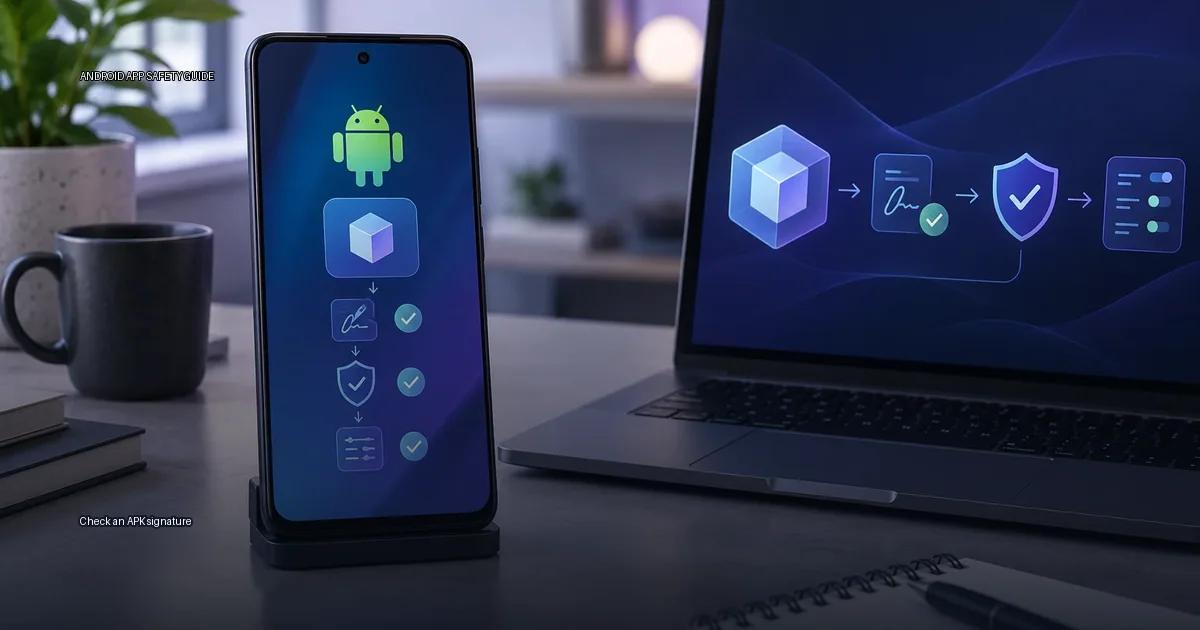
Every Android app you install is signed with a cryptographic certificate. That signature is the closest thing to a “maker’s mark” on the file. It does not tell you whether the app is good or bad; it tells you whether the file you have was signed by the same key that signed the release you already trust. The article below explains how to check that signature, what the result means, and how to combine it with source, hash, and scanning checks so you can make a safe install decision.
What an APK signature actually proves
An APK signature is a digital certificate embedded in the package. Android uses it for two things: to verify that the APK has not been modified after signing, and to enforce that an app update comes from the same key as the installed release. It does not prove that the publisher is a specific company or person. A self-signed certificate only proves that the same key signed the file you have and the file the publisher distributed. The certificate’s identity fields (e.g., “CN=Google”) can be copied, so you cannot trust the name alone. The signature proves continuity of the key, not the identity behind it.
The key question is: does the APK’s signature match the signature of the app’s known-good release from the publisher’s own channel? If it does, the file has not been re-signed by a third party. If it does not, the file has been modified or is not from the same signer. This is the core decision rule: a signature mismatch is a hard fail, regardless of how clean the file scans or how official the site looks.
What the check actually verifies
When you check an APK signature, you are checking two things:
- That the APK’s contents have not been modified since signing. Android’s signature schemes (v1, v2, v3) create a cryptographic digest of the app’s contents. If any byte changes after signing, the signature becomes invalid and the system refuses to install the file.
- That the signing certificate matches the one you expect. A self-signed certificate is not a certificate from a public CA; it is simply a key that the publisher controls. It proves the same publisher signed this APK as signed the previous release of that app, not that the publisher is a specific company or person.
The Android system itself enforces signature matching during updates. If an app is already installed and you try to install a new APK signed with a different key, the installation fails with “App not installed” or “Signatures do not match.” This is why signature checking is the most reliable single indicator that an APK is what it claims to be, provided you start from a known-good source.
Signature schemes: v1, v2, v3, and v4
Android supports several signing schemes. The scheme version matters because it determines how much of the APK is protected:
| Scheme | What it protects | Notes |
|---|---|---|
| v1 (JAR signing) | Individual files inside the APK | Legacy scheme. Does not protect the whole file; a malicious actor can modify parts of the APK and re-sign it. |
| v2 (APK Signing Scheme v2) | The entire APK file, including the ZIP entries | More secure than v1. Protects against modification of the whole file. |
| v3 (APK Signing Scheme v3) | The entire APK file, plus key rotation | Adds the ability to change signing keys over time while preserving the app’s identity. |
| v4 (APK Signature Scheme v4) | Used for streaming installation | Not relevant for most users; used with ADB incremental installs. |
In practice, modern apps on Google Play use v2 or v3. An APK that only supports v1 is a warning sign: it is either an old app or one that was signed with outdated tooling, and it is more vulnerable to tampering.
You can check the signature scheme with apksigner from the Android SDK:
apksigner verify --print-certs app.apk
This shows the certificate details and the scheme versions the APK supports. If you see Verified using v2 scheme: true or v3 scheme: true, the APK is protected at the whole-file level.
How to check an APK signature on your computer
If you have an APK file and want to verify its signature, you have a few options:
1. apksigner (Android SDK)
apksigner is part of the Android SDK build-tools. It is the official tool for both signing and verifying APKs.
# Verify the signature and show the certificate
apksigner verify --print-certs app.apk

# Verify with verbose output
apksigner verify --verbose app.apk
The output shows: - Whether the signature is valid - Which schemes are supported - The signer certificate’s SHA-256 digest - The certificate’s subject and issuer (usually the same for self-signed certs)
To compare two APKs (e.g., the release you have vs. the release from a trusted source), run the command on both and compare the certificate SHA-256 digests. If they match, the same key signed both APKs.
2. apksigner on a Mac or Linux machine
If you do not have Android Studio installed, you can install the build-tools via the command line:
# On macOS with Homebrew
brew install --cask android-sdk
# Then install the build-tools via sdkmanager
sdkmanager "build-tools;35.0.0"
apksigner is at $ANDROID_HOME/build-tools/<version>/apksigner.
3. jarsigner (Java)
jarsigner is part of the JDK and can verify v1 signatures, but it does not understand v2/v3 schemes. It will show a warning that the jar is signed but the signature may not be verified with the newer schemes. This is not a complete check; prefer apksigner when possible.
jarsigner -verify -verbose -certs app.apk
4. Checking the certificate with keytool
If you have a certificate file (.cer or .der), you can inspect it with keytool:
keytool -printcert -jarfile app.apk
This shows the certificate’s subject, issuer, validity period, and fingerprints. For a self-signed cert, subject and issuer are usually the same.
How to check an APK signature on Android
On a device, you cannot easily view the signature of an installed app without root or a special tool. However, you can use the pm command (Package Manager) via ADB:
adb shell pm path com.example.app
# This outputs the APK path, e.g., /data/app/com.example.app-xyz/base.apk
adb pull /data/app/com.example.app-xyz/base.apk
apksigner verify --print-certs base.apk
Alternatively, apps like “App Signature Verifier” or “APK Signature Scheme v2 Verifier” (from Google’s own samples) can display the signature of installed apps, but they require the app to be installed first.
Signature vs. source: what a match does and does not prove
A signature check can prove two things:
- The APK has not been tampered with since it was signed.
- The APK was signed by the same key as a reference APK.
It does not prove:
- That the publisher is a specific company. Self-signed certificates are not tied to a legal identity. Anyone can generate a certificate that says “Google Inc.” as the subject.
- That the app is safe. A legitimate publisher can sign a malicious app, or an attacker can steal a signing key (as happened with some Android malware in the past).
- That the app is the official release. If you do not have a known-good reference APK, a matching signature only proves internal consistency, not authenticity.
This is why the claimed “signature proves identity” is misleading. The signature proves key continuity, not identity. For example, if you download an APK from a publisher’s official website and it matches the signature of the release on Google Play, you can be confident it is the same publisher’s build. But if you download an APK from a random forum and it has a signature that says “Google,” that proves nothing about who actually signed it.
What to do when signatures do not match
If you are comparing two APKs and their signatures do not match, one of these is true:
- The APK is a repackaged or tampered release of the original.
- The publisher changed signing keys (this happens legitimately, but it is rare and usually announced).
- You are comparing two different apps entirely.
If the signature does not match a known-good reference, do not install the APK. This is the single most useful application of signature checking: it lets you detect repackaged apps before installation.
Signature checking for app updates
Android enforces signature continuity for updates. If an app is installed and you try to install a new release signed with a different key, the system refuses with INSTALL_FAILED_UPDATE_INCOMPATIBLE. This is a security feature, not a bug. It means that once you install an app from a publisher, only that same publisher can update it (unless the device is rooted and the user manually uninstalls/reinstalls).
This is also why “signature spoofing” attacks are dangerous: an attacker who can get you to install a malicious app signed with a key that matches an app you already have can then update that app with malicious code. The signature check protects against this, but only if you verify signatures before installation.
Common mistakes when checking signatures
- Using
jarsignerto verify v2/v3-signed APKs.jarsigneronly understands v1 signatures and will report “jar verified” even if the v2/v3 signature is invalid. Useapksignerinstead. - Comparing only the subject field of the certificate. The subject is just a text string; anyone can set it. Compare the SHA-256 fingerprint instead.
- Assuming a valid signature means the app is safe. A valid signature only means the APK has not been modified since signing. It does not mean the signer is trustworthy.
- Assuming the certificate’s validity period means anything about the app’s age. Self-signed certificates can be valid for decades or for days; the validity period is set by the publisher and does not correspond to when the app was built.
More in this guide
Read next
-
 Compare checksums
A checksum is a fixed-length string produced by running a file through a cryptographic hash function.
Compare checksums
A checksum is a fixed-length string produced by running a file through a cryptographic hash function.
-
 Scan an APK safely
Installing an APK outside the Play Store is not automatically dangerous, but the risk is entirely decided by two things: where the file came from and whether its signature matches the key…
Scan an APK safely
Installing an APK outside the Play Store is not automatically dangerous, but the risk is entirely decided by two things: where the file came from and whether its signature matches the key…
-
 Inspect permissions before installing
The single question that matters when you hold an APK file or an app page in front of you is not “is this app safe?” It is: does this app need the access it is asking for, given what it…
Inspect permissions before installing
The single question that matters when you hold an APK file or an app page in front of you is not “is this app safe?” It is: does this app need the access it is asking for, given what it…
-
 Install and update safely
Safe Android installation means getting apps from an official store, the device maker’s store, or a developer’s own release channel, then verifying the app is what it claims to be before…
Install and update safely
Safe Android installation means getting apps from an official store, the device maker’s store, or a developer’s own release channel, then verifying the app is what it claims to be before…