App rollback and downgrade risks
When an app update breaks a workflow, the obvious fix is to install the previous release.
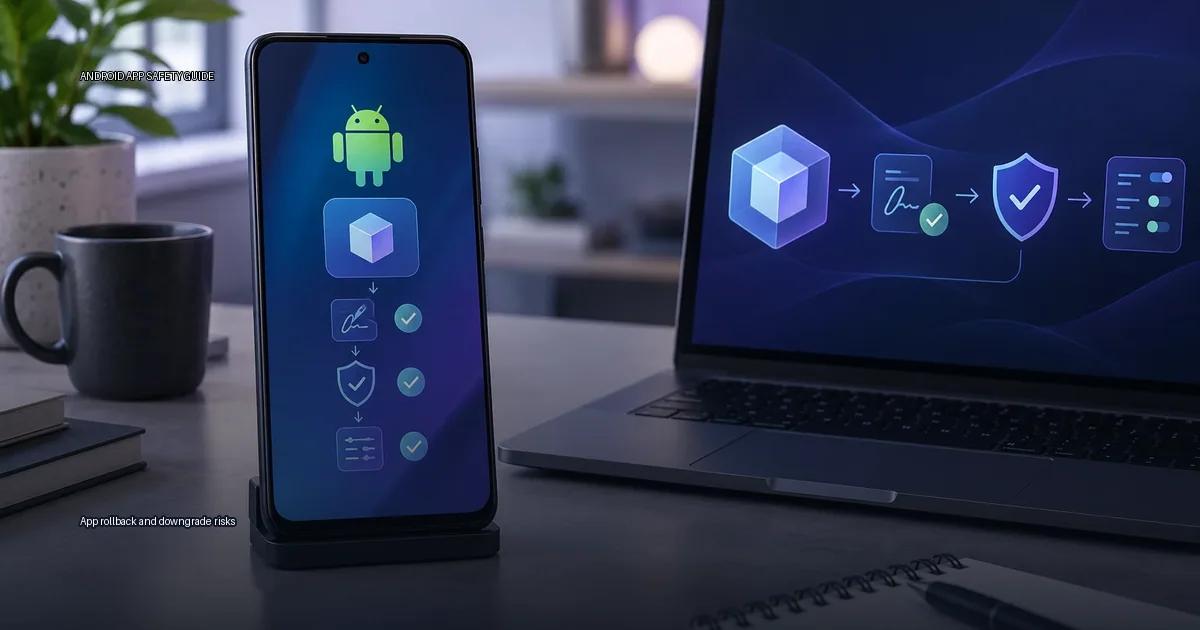
When an app update breaks a workflow, the obvious fix is to install the previous release. That instinct is reasonable, but the path back is not as simple as “find the old APK and tap install.” A downgrade can fail, or worse, it can quietly replace a working app with one that is signed by a different key, missing a security patch, or incompatible with the data your current release has already written. The core question is not whether rollback is possible, but whether the rollback you are about to perform is safe for your device, your data, and your account.
App rollback and downgrade risks: Why downgrading is riskier than updating
Android treats updates and downgrades asymmetrically. When you update an app, the system checks that the new APK or app bundle is signed with the same key as the existing copy, and it allows the data directory to be preserved. When you place an older build over a newer one, Android may refuse outright if the signature does not match, or if the version code is lower than what is already on the device. The practical risk is not the act of loading an older file; it is that the older app may read data written by the newer version. If the app’s data schema changed between releases, the older app can crash, corrupt local data, or reset your settings. This is the core reason why a rollback is not a “restore”, it is a downgrade that can leave your data in a state the old code was never designed to read.
The Android system checks the APK signature against the existing app’s signature. If the signatures do not match, the installation fails with “App not installed.” That check is not optional, and it is the same check that protects against a malicious update. A signed APK only proves that the same key signed both builds; it does not prove the developer’s identity. For a downgrade, the signature must match the existing app, and the version code of the new APK must be lower than what is already present. Android’s package installer refuses a downgrade unless the device is rooted or you use adb with special flags.
The signature barrier
Android treats an app update as a change to an existing app identity. The package manager compares the signing certificate of the app on the device and the incoming APK or app bundle. If the certificates do not match, the installation fails with a signature error. This is the main technical barrier to “downgrading” to a different build of an app: you cannot place a release signed with a different key over an existing install without first uninstalling the original app.
The practical consequence is that uninstalling to get around a signature mismatch also deletes the app’s local data. Any data stored in the app’s private directory, including offline databases, cached credentials, or files the app created, is removed. The Android Developers documentation (2024) describes this as an expected part of the uninstall flow; the OS does not keep per-app data after uninstall unless the app uses Auto Backup and you restore it.
Version-code traps
Version codes are another rollback trap. Android identifies an installed app by its package name and version code. The system will not load an APK with a lower version code over an existing one unless you uninstall the current version first. Even if you do uninstall, some apps store data in a way that is not restored when you reinstall an older build. If the app uses a cloud-synced database, the older release may read a schema it no longer understands, and the app can crash or reset local settings.
Android 10 and later enforce a rule that apps cannot silently update themselves to a lower version code; the system will reject an APK whose version code is lower than the one on the device unless the update comes from the same signing key and the user explicitly approves the downgrade via adb. This is documented in the Android Developers documentation on versioning, and the behavior exists to prevent accidental data corruption.
Data-schema loss
The most common practical risk of rollback is data-schema loss. If an app updates its local database from schema v2 to v3, the older release may not read v3 data. The result is a crash loop or a reset of app data, not a graceful rollback. The Android Developers documentation states that “downgrading an app can cause data loss or corruption” and recommends backing up app data before any manual downgrade. Google Play Help also warns that if you remove an app and reinstall an older build, the app’s data may not be compatible.
Before you downgrade: what to check
Before you downgrade, check the app’s current version and its signature. If the app was obtained from Google Play, the signature is held by the developer and verified by Play. If you obtained it from the developer’s site, the signature is the one on that site. The practical rule: the signature of the APK you want to use must match the signature of the app already on the device. If it does not, Android will refuse the install with “App not installed” or “Signatures do not match”. This is by design; the OS refuses to replace an app signed with a different key, even if the version number is lower.
Signature mismatch and data loss
The signature rule: Android will not place an APK over an existing app if the signature of the new APK does not match the signature of the app on the device. This applies whether you are downgrading or updating. If you uninstall the old app, you lose its data unless the app uses Android’s Auto Backup or you made a separate backup. For apps that hold login sessions or local database entries, uninstalling often clears that data.
Security patches and permissions
The main risks of downgrading are data loss, broken security patches, and account or permission issues.
Data-schema loss is the most common silent failure. When an app updates from version 10 to 11, it often migrates its local database to a new schema. The older build (10) may not understand the new schema. If you roll back to 10, the app may crash, reset its data, or show corrupted records. This is not a malware problem; it is a versioning problem. Android does not guarantee that an app’s data written by a newer release can be read by an older one. The app’s own release notes are the only reliable place to check whether a downgrade is supported.
Play Protect and scanning limits
Play Protect is not a guarantee. It scans apps from the Play Store and performs a one-time scan on sideloaded APKs, but it does not continuously monitor sideloaded apps the way it does Play Store apps. A clean Play Protect result is not proof that an APK is authentic; it only means no known malware signature matched. The same applies to VirusTotal: a zero-detection result is not proof of safety, especially for niche apps.
Google Play Help (2024) explains that Play Protect scans apps before and after installation, and can warn or remove harmful apps. Play Protect is not a substitute for checking the source; it is a heuristic layer that complements the signature check.
Google’s own documentation says Play Protect “may” warn about apps that are “not known to be safe” and that the feature can be turned off, but warns that “you may be exposed to harmful apps” if you disable it. The phrase “may” means Play Protect’s coverage is advisory, not a guarantee.
What the platform enforces
The Android documentation (Android Developers, 2024) states that an APK’s signature must match the signature of the app already on the device. If the signatures do not match, the installation fails with “App not installed.” This is a security measure, not a bug. When a user tries to place an older APK over a newer version, Android will refuse if the signature differs from the currently present app. The signature check happens before any data migration, so a mismatched signature protects the existing app data.
Android Developers (2024) states that all APKs must be signed, and that a certificate is used to verify the author of the app. The same signing key must be used for updates; otherwise the system treats the update as a different app. Android 14 requires apps targeting Android 14 to opt out of the legacy “sideload” permission model, but the signature requirement remains unchanged.
The Android Developers documentation on app signing states that all APKs must be signed with a certificate, and that the certificate does not need to be issued by a certificate authority; a self-signed certificate is sufficient. The same certificate must be used to sign every update of an app, and the system will refuse to place an update if the signature does not match the existing installation. This is the core mechanism that makes app rollback or downgrade risky: once a device has an app signed by key A, it will not accept an update signed by key B, and Play Protect will flag a downgrade if the version code is lower than the one present.
New constraints in Android 14 and later
Android 14 and later enforce a stricter “installer must be a store” rule: if an app targets Android 14 and was obtained by the Play Store, the Play Store remains the only installer that can update it unless the user explicitly allows other sources. Google’s documentation says apps that target Android 14 must declare the RECEIVE_BOOT_COMPLETED permission to receive the boot completed broadcast, and the system will not grant it to apps obtained from unknown sources until the user grants it manually. This matters for rollback because an older APK may target an older SDK and behave differently under the new rules.
What security standards require
OWASP Mobile Application Security Verification Standard (MASVS) v2.0.0 (2023) lists “V8.3” as the requirement that “the app must verify that the platform’s security mechanisms are intact,” which covers tamper detection and integrity checks, but it does not mandate a specific installation source.
OWASP MASVS (2023) requires that an app “verify that the runtime environment is trusted” and that it “ensure that the app is signed with the correct certificate” as part of its security requirements. For a user, this translates to: check the signature of an APK before loading it, and reject any app whose signature does not match the developer’s published key.
More in this guide
APK troubleshootingFix App not installed errorsFind apps safely.
Read next
-
 Fix App not installed errors
When Android refuses to install an app, the error message rarely tells you the real cause.
Fix App not installed errors
When Android refuses to install an app, the error message rarely tells you the real cause.
-
 Fix a package parse error
A package parse error is Android’s way of saying it cannot read the APK file you are trying to install.
Fix a package parse error
A package parse error is Android’s way of saying it cannot read the APK file you are trying to install.
-
 Resolve a signature conflict
When Android refuses to install an app with an error such as “App not installed” or “There was a problem parsing the package,” the most common cause is a signature conflict.
Resolve a signature conflict
When Android refuses to install an app with an error such as “App not installed” or “There was a problem parsing the package,” the most common cause is a signature conflict.
-
 APK basics
An APK (Android Package Kit) is the standard file format Android uses to distribute and install apps.
APK basics
An APK (Android Package Kit) is the standard file format Android uses to distribute and install apps.