Accessibility-service risk
Accessibility services are among the most powerful capabilities an Android app can request.
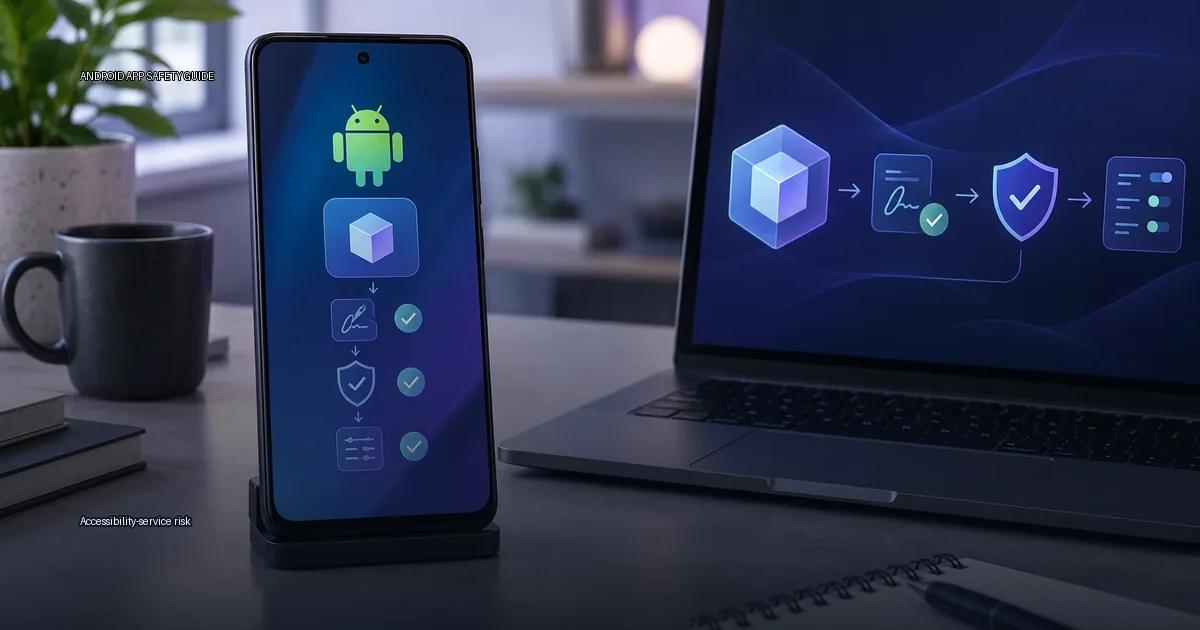
Accessibility services are among the most powerful capabilities an Android app can request. They let an app observe what is on screen, read the content of other apps, simulate taps and swipes, and act on behalf of the user. This is why Android shows a strong warning before you grant one. It is also why malicious apps target this permission more than almost any other.
The question the material below answers: what is accessibility-service risk, and how do you inspect it before and after installing an app?
Accessibility services were designed for people with disabilities: screen readers, switch access, auto-clickers for motor-impaired users. The same power, reading screen content, observing input, and performing actions in other apps, is exactly what malware wants. A malicious app with the Accessibility service enabled can read what you type, see what is on screen, click buttons on your behalf, and exfiltrate data from other apps. This is not a theoretical risk; it is the core mechanism behind many banking trojans and credential stealers documented by OWASP Mobile Application Security (OWASP, 2023) and Android security bulletins.
How do you tell the difference between a legitimate accessibility service and a dangerous one, and what concrete steps can you take to reduce the risk?
What the Accessibility Service Actually Does
The Android Accessibility Service is an API that lets an app observe user interaction and perform actions on the user’s behalf. It is designed for screen readers, switch access, and other assistive tools. Because it can read screen content, inject events, and watch notifications, it is the most powerful permission an app can request on a standard Android device. Google’s own documentation (Android Developers, 2024) describes it as a service that “retrieves window content” and “observe[s] and interact[s] with the UI”. In practice, that means an app with this permission can:
- Read the text displayed on your screen, including passwords if they are rendered in a way the service can see.
- Read notifications from other apps.
- Perform actions on your behalf, such as clicking buttons, filling fields, or granting permissions.
- Observe which app is in the foreground and for how long.
- Capture the contents of other apps’ windows in some cases.
The risk is not the permission itself; it is what the app does with it. Accessibility services are a standard Android feature, and legitimate apps use them for automation, password managers, and assistive technology. Malware abuses the same permission to read and control what you see. The decision rule is simple: an app that requests Accessibility should have a function that requires it, and that function should be visible in the app’s own interface.
What Accessibility-Service Risk Actually Means
Accessibility-service risk is the probability that an installed app abuses the AccessibilityService API to read on-screen content, inject gestures, or monitor input. The API is designed for assistive tools (screen readers, switch access, automation), but it can also capture what is displayed on other apps, read notification content, and simulate taps. The risk is not the permission itself; it is what the app does with it. Android Developers documentation (2025) describes the service as a way to “retrieve window content” and “observe actions”; that capability is exactly what a malicious app can misuse.
The concrete data you can inspect:
- Requested accessibility services: Settings > Accessibility lists every service with the “on” toggle. The label and description are written by the developer; they are not an audit.
- Target SDK: an app targeting an old API level can bypass some modern restrictions. Check
targetSdkVersionin the APK. - Permissions declared in the manifest: visible in Play Store “App info” and in
dumpsys packageon a connected device. - Signature scheme version: v1-only APKs are riskier than v2/v3 because v1 does not protect the whole file.
- Play Protect status: the app’s scan result in Play Protect settings after install.
How to Inspect an App Before You Grant the Permission
Work through these checks before toggling the service on. The order moves from quick to technical; you can stop when you have enough confidence to decide.
- Read the Play Store description with the permission in mind. Does the app explain what the service does and why it is needed? A password manager that says “we use this to auto-fill login fields” is making a specific, testable claim. An app that says “enables advanced features” without naming one is not.
- Search the developer name plus “malware” or “trojan”. Security researchers often publish IoCs (indicators of compromise) that include package names and developer accounts. A clean result does not guarantee safety, but a dirty result is a hard stop.
- Check the target SDK version. In the Play Store listing, scroll to “App info” and look at the target Android version. As of Android 13 and later, Google restricts which apps can request the Accessibility service from the Play Store unless they are published on a whitelisted account type. An app that targets an old SDK and requests this permission is a stronger signal of risk. You can also inspect
targetSdkVersionin the APK manifest with tools likeaaptor Android Studio’s APK Analyzer. - Look at the list of requested permissions. In the Play Store, tap “About this app” then “App permissions”. Look for the combination of Accessibility,
BIND_ACCESSIBILITY_SERVICE, withREAD_SMS,READ_CONTACTS,BIND_DEVICE_ADMIN, orREQUES_INSTALL_PACKAGES. No single combination is proof of malice, but the more high-risk permissions that sit alongside Accessibility, the more skeptical you should be. - Inspect the APK signature scheme. Download the APK from a trusted source (Play Store or the developer’s own site) and run
apksigner verify –verbose <apk>. An APK signed only with v1 (JAR signing) can be modified more easily than one signed with v2 or v3. This is a supply-chain check, not a behaviour check, so use it as one signal among several. - Ask the developer. Send an email or check the app’s FAQ. Ask: “What specific user-visible function requires the Accessibility service, and can I use the app without enabling it?” A legitimate developer will give a clear, technical answer. A developer that deflects, ignores the question, or gives a marketing response is a red flag.
How to Audit an App That Already Has the Permission
If you have already granted the permission and want to audit it, work through these steps.
Step 1: List Every Enabled Service
Open Settings > Accessibility > Installed apps. Write down every app that shows “On”. If you do not recognise one, or if an app you installed for one purpose (a flashlight, a wallpaper) appears here, that is an immediate investigation trigger.
Step 2: Read the Service Description
Tap each enabled service. Android shows a short description written by the developer. Ask yourself: does this description name a specific, user-visible feature? “Fills in login credentials in browsers and apps” is specific. “Helps improve your experience” is not.
Step 3: Check the App’s Behaviour Against Its Claim
For each app on your list, perform a quick functional test. Disable the service in Settings > Accessibility. Open the app and use its main features. If the app’s core function still works without the service, the service may be unnecessary. If the app nags you to re-enable it without explaining why, that is a warning sign.
Step 4: Inspect Running Services with ADB
Connect your device to a computer with ADB enabled and run:
adb shell dumpsys accessibility
This prints every registered service, its package name, and its current state. Look for services whose package name does not match the app name you expect. Also run:
adb shell dumpsys package <package-name>
and look for requestedPermissions and targetSdkVersion. Compare the permissions list with what the Play Store showed. A mismatch (permissions declared in the manifest but not disclosed in the store listing) is a strong signal of risk.
Step 5: Check Play Protect’s Verdict
Open Play Store > tap your profile icon > Play Protect. It shows the last scan result and any flagged apps. Play Protect is not a complete malware scanner, but a flag here combined with any other signal is enough to uninstall.
Step 6: Search for the Package Name
Take the package name from dumpsys accessibility or from Settings > Apps > [app name] > App info (bottom of the screen) and search it online. Security vendors (Kaspersky, ESET, Malwarebytes) publish threat reports that include package names. A search result linking the package to a named trojan family is a definitive reason to remove the app.
Legitimate Uses That Still Carry Risk
Some legitimate apps require the Accessibility service and are widely installed. They still expand your attack surface.
- Password managers: Bitwarden, 1Password, and others use the service to auto-fill in apps and browsers that do not support the native autofill API. The risk is that the password manager itself becomes a high-value target. Keep it updated and prefer the native autofill API when the app offers it.
- Automation apps: Tasker, MacroDroid, and similar tools use the service to simulate taps and read screen content. The risk is that a malicious automation script (imported from a forum or shared file) could misuse the already-granted permission. Only import scripts from sources you trust and read through the actions a script performs before running it.
- Assistive technology: Screen readers (TalkBack, Jieshuo), switch access, and voice control apps. These are the intended use case. The risk here is supply-chain: an update to a previously trustworthy assistive app could introduce malicious behaviour. Prefer apps from established developers with a long public history and keep auto-update on so you receive security fixes quickly.
- Device-finder and anti-theft apps: Some use the service to lock the screen or prevent uninstallation. The risk is that a remote command-and-control compromise could turn the protective features against you. Use only well-known brands and check that the company publishes a vulnerability disclosure programme.
When to Remove an App Immediately
Remove an app without further investigation if any of these is true:
- You did not intentionally install it (it appeared after installing another app, a system update, or a sideloaded APK).
- The app’s name or icon mimics a system app (Android System, System UI, Settings, Google Play Services) but is not from the expected publisher.
- The app requests Accessibility but has no user interface (it does not appear in your app drawer or shows only a blank screen when opened).
- The app’s Play Store page has been taken down, or the developer account no longer exists.
- A security tool you trust (Play Protect, a reputable antivirus, your organisation’s MDM policy) flags the app.
- The app requests Accessibility and also requests Device Admin or
INSTALL_PACKAGESwithout a clear, explained reason visible in the app’s own interface.
Reducing the Risk Long-Term
No single check catches everything. Combine these habits to keep your exposure low.
- Review the Accessibility settings page monthly. Set a recurring calendar reminder. The list is short, and a five-second scan catches most surprises.
- Prefer apps that use the native Autofill API over Accessibility for password filling. Android’s autofill framework (Android 8.0 and later) does not require the Accessibility service. In your password manager’s settings, look for “Use accessibility” versus “Use autofill service” and choose autofill when available.
- Keep Play Protect enabled. It scans apps both on and off the Play Store. It is not perfect, but it raises the cost for attackers.
- Sideload only when you must, and only from the developer’s own domain. Avoid APK aggregator sites. When you do sideload, verify the APK signature against a checksum the developer publishes on their site or a public code repository.
- Update your device monthly. Android security patches sometimes restrict which apps can request the Accessibility service or how they interact with other apps. An unpatched device leaves known bypasses open.
Accessibility-service risk is not about the permission being evil. It is about the gap between what the app claims to do and what the permission lets it do. Close that gap with inspection, and you turn a dangerous permission into a manageable one.
More in this guide
Permissions and privacyAndroid permissions explainedAmazon Appstore.
Read next
-
 Android permissions explained
Android permissions are access tokens an app requests for data and device functions: contacts, precise position, camera, microphone, storage, and more.
Android permissions explained
Android permissions are access tokens an app requests for data and device functions: contacts, precise position, camera, microphone, storage, and more.
-
 Background data and battery use
The question is simple: which apps are quietly using data and battery in the background, and what can you do about it without breaking the notifications you actually need?
Background data and battery use
The question is simple: which apps are quietly using data and battery in the background, and what can you do about it without breaking the notifications you actually need?
-
 Use Android privacy controls
Android gives you a permission system that is more granular than most people use. You can see what an app has accessed, revoke individual rights, and limit sensor access.
Use Android privacy controls
Android gives you a permission system that is more granular than most people use. You can see what an app has accessed, revoke individual rights, and limit sensor access.
-
 APK troubleshooting
 is the process of diagnosing why an Android app will not install, update, or run correctly, and deciding whether the problem is a bad file, a certificate mismatch, an…
APK troubleshooting
APK troubleshooting is the process of diagnosing why an Android app will not install, update, or run correctly, and deciding whether the problem is a bad file, a certificate mismatch, an…