Use Android privacy controls
Android gives you a permission system that is more granular than most people use. You can see what an app has accessed, revoke individual rights, and limit sensor access.
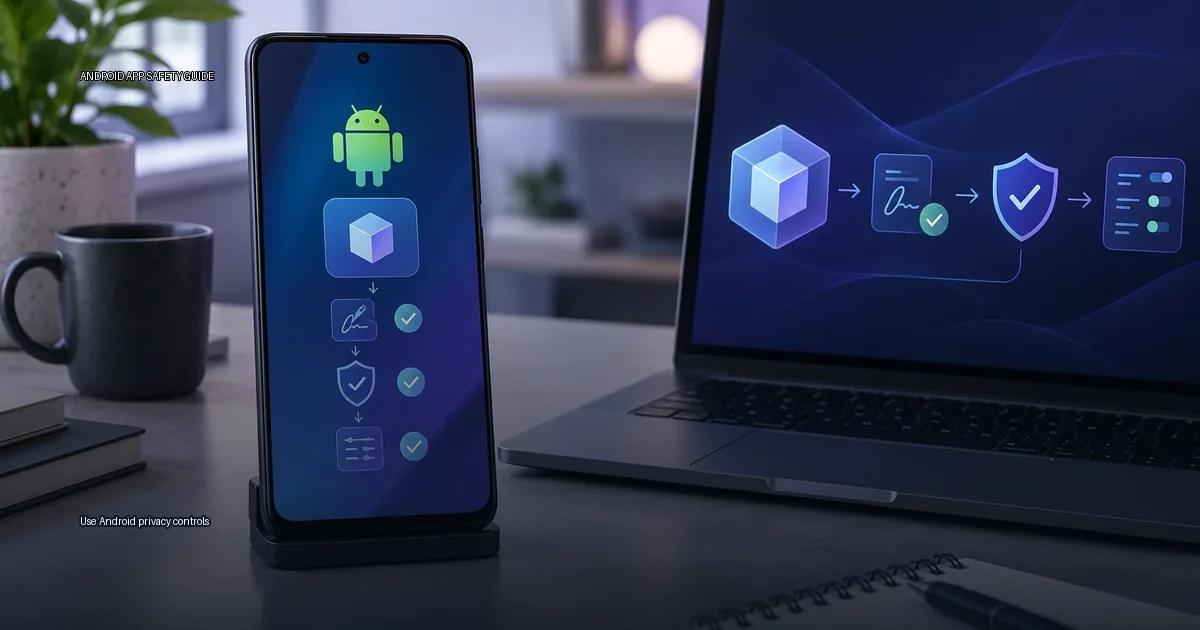
Android gives you a permission system that is more granular than most people use. You can see what an app has accessed, revoke individual rights, and limit sensor access. The core idea: a permission is not a setting, it is a data flow. When you grant “Location,” you are granting access to a precise history of where the device has been. When you grant “Camera,” you are granting the ability to capture images and video at any moment the app is running. Reviewing permissions means asking what data each one exposes, then deciding whether that data is necessary for the app’s stated function. Use Android privacy controls to govern those data flows directly, not just to dismiss a pop-up.
Use Android privacy controls: What you are actually controlling
Android groups permissions into two categories that behave differently:
- Install-time permissions (normal and dangerous) are granted when you install or first open an app. Normal permissions (e.g., INTERNET, ACCESS_NETWORK_STATE) are granted automatically. Dangerous permissions (e.g., camera, microphone, location, contacts) require explicit user consent.
- Runtime permissions apply to Android 6.0 (API 23) and later. You can grant or deny them while the app is running, and you can revoke them later from Settings.
The practical consequence: you can review and change most permissions after install without uninstalling the app. The exact menu path differs by device-maker, but the underlying Android setting is the same. On a stock Android device: Settings > Apps > [app] > Permissions. On Samsung, Xiaomi, or other devices, the path may be Settings > Apps > [app] > Permissions or inside the app’s “App info” screen. If a permission is missing from the list, the app does not use it.
Decision rules for a single app
Open Settings > Apps > [App name] > Permissions on a stock Android device. You will see two lists: “Allowed” and “Not allowed.” For each allowed permission, ask: does this permission map to something the app demonstrably needs for its core function? Write down the permission names and the app’s stated purpose, then compare them.
- For a single permission: if the permission is not needed for the app’s core function, deny it. If the app breaks, you can re-enable it later. Denying a permission rarely uninstalls the app; it usually makes a feature degrade.
- For the whole app: if an app requests more than two permission categories that are unrelated to its core function, treat it as a red flag regardless of the store it came from. A calculator does not need your contacts. A flashlight app does not need location.
Permission-to-data translation table
Use this table to convert a permission name into what it actually exposes. The wording is based on Android’s own permission groups as documented by Android Developers (2024).
| Permission | What it lets the app do | Data or action you should inspect |
|---|---|---|
| Location | Access precise or approximate device location | GPS coordinates, Wi-Fi/BSSID, cell tower info; check if it is “while in use” or “all the time” |
| Microphone | Record audio | Audio clips, ambient sound, call audio if granted during calls |
| Camera | Capture photos or video | Images, video, or a live camera feed; can also read barcodes or QR codes |
| Contacts | Read or modify the contact list | Names, numbers, email addresses, linked accounts |
| SMS | Read, send, or receive SMS | Message content, verification codes, two-factor codes |
| Phone | Read phone state, make calls | Phone number, call log, device identifiers, ability to initiate calls |
| Storage | Read or write shared files | Photos, downloads, documents, cached files from other apps |
| Calendar | Read or write calendar events | Event titles, times, attendee emails, and meeting notes |
| Body sensors | Read health and motion data from sensors | Heart rate, step count, and similar sensor-derived data |
What the table leaves out
Android’s permission groups expose precise data flows, not abstract capabilities. A compromised app with microphone access can record without visible UI. An app with camera access can capture images when it is in the foreground or, with background permission on some Android versions, in the background. Location access reveals GPS, Wi-Fi, and cell-tower data that can reveal home, work, and travel patterns. Treat every grant as a decision about the data itself.
The table also does not cover indirect data collection. An app with internet access can upload anything it has already obtained, including data pulled from other apps via shared storage or the clipboard. Permissions control direct access to a sensor or dataset; they do not control what an app does with data after it has been lawfully read, nor do they cover tracking through advertising IDs or third-party libraries that operate inside the app’s own process. A matching hash proves file identity and a matching signing certificate supports publisher continuity; neither proves an app is harmless.
How to audit an app’s access
Review current grants
- Open the Settings app.
- Go to Apps, then All apps, or the equivalent on your device.
- Pick the app you want to inspect.
- Tap Permissions to see what the app can access.
- Tap “Allowed in background” or “While using the app” to see when access happens.
- Tap “See all recent activity” or “Last accessed” if the screen offers it.
- For each grant, ask: does this app need this data to do its stated job?
- If not, revoke it; Android will keep the app installed.
Check the Play Store safety section
- On the app info screen, use “App details” or “App info” to open the Play Store listing and check the “Data safety” section.
- Compare what the developer declares there with the permissions you see in system settings. A mismatch does not automatically indicate a problem, but it is worth investigating.
- Keep Play Protect enabled. Run an immediate scan from Google Play > Profile > Play Protect. If Play Protect flags an app as harmful, do not override the warning.
Control installation sources
- For a fresh install, set “Install unknown apps” to “Ask” for every browser and file manager.
- Review the “Install unknown apps” list regularly. Remove the privilege from any app that no longer needs it.
Monitor permission use over time
- Check the “App permissions” screen in Settings to see which apps hold sensitive privileges.
- Review “Recent access” under a specific permission to see which apps actually used it.
- After a major Android update, re-check “special app access” because updates can reset or add entries.
Granting “Location” hands over a precise history of where the device has been, and every grant should be treated as a decision about the data itself.
More in this guide
Permissions and privacyAndroid permissions explainedApp rollback and downgrade risks.
Read next
-
 Android permissions explained
Android permissions are access tokens an app requests for data and device functions: contacts, precise position, camera, microphone, storage, and more.
Android permissions explained
Android permissions are access tokens an app requests for data and device functions: contacts, precise position, camera, microphone, storage, and more.
-
 Accessibility-service risk
Accessibility services are among the most powerful capabilities an Android app can request.
Accessibility-service risk
Accessibility services are among the most powerful capabilities an Android app can request.
-
 Background data and battery use
The question is simple: which apps are quietly using data and battery in the background, and what can you do about it without breaking the notifications you actually need?
Background data and battery use
The question is simple: which apps are quietly using data and battery in the background, and what can you do about it without breaking the notifications you actually need?
-
 APK troubleshooting
 is the process of diagnosing why an Android app will not install, update, or run correctly, and deciding whether the problem is a bad file, a certificate mismatch, an…
APK troubleshooting
APK troubleshooting is the process of diagnosing why an Android app will not install, update, or run correctly, and deciding whether the problem is a bad file, a certificate mismatch, an…