Compare checksums
A checksum is a fixed-length string produced by running a file through a cryptographic hash function.
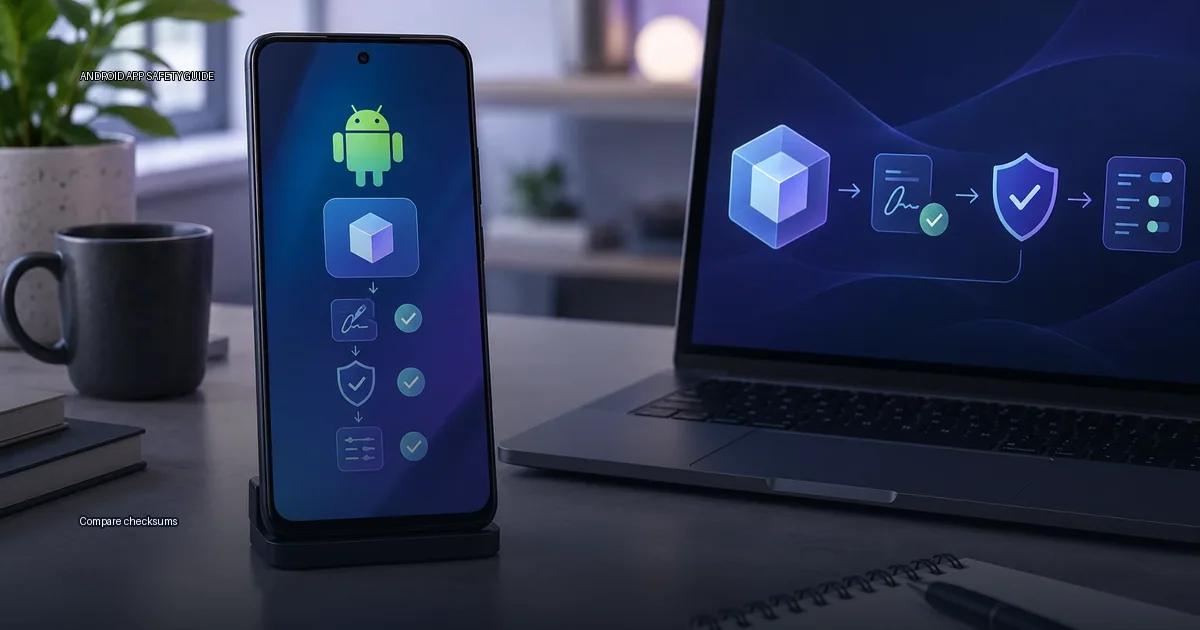
A checksum is a fixed-length string produced by running a file through a cryptographic hash function. When you compare the hash of a downloaded APK or app bundle against the value the developer released, you are checking one thing only: whether the file you received is byte-for-byte identical to the file the developer shipped. It does not tell you whether the app is safe, whether the developer is trustworthy, or whether the file is malware. It tells you that the file you have is the file you intended to get.
Below is a method to generate and compare a hash on Android, plus a decision rule that keeps the result in perspective.
What a hash actually verifies
A hash is a fixed-length string computed from the file’s bytes. If the file changes by even one bit, the hash changes completely. You compare the hash of the file you downloaded against a hash the developer or store released. If they match, the file you have is byte-for-byte identical to the file the publisher hashed. That is all a hash proves.
It does not prove:
- That the publisher is who they claim to be
- That the app is free of malware
- That the signing key is legitimate
- That the app will behave as described after installation
The Android security model uses signatures, not hashes, as the primary integrity check. A hash only confirms the file you have is the same file that was hashed. If an attacker can replace both the APK and the released hash on a compromised site, the hash is meaningless. Always start verification from an authenticated channel, the official site, the Play Store listing, or the device maker’s store, before you compare any hash.
What a hash can and cannot do
SHA-256 is the most common choice for Android APKs; it produces a 64-character hexadecimal string. Two files that produce the same SHA-256 value are, for practical purposes, byte-identical.
What a hash can do:
- Confirm that the file you downloaded is bit-for-bit identical to the file the publisher released, provided the publisher released the value on a channel you trust.
- Detect corruption from an interrupted or faulty download.
- Let you compare two copies of the same file across different machines or mirrors.
What a hash cannot do:
- Prove that the file is safe. A malicious APK can have a valid hash if it was released by the attacker.
- Prove the identity of the signer. A hash only verifies the file’s content, not who created it.
- Detect malware that was already present in the original file from a compromised build.
A hash is therefore one layer, not a verdict. Use it together with the publisher’s authenticated channel, the app’s signature, and a scanner such as Play Protect or VirusTotal. The order matters: first confirm the file came from the official release channel, then check the signature, then compare the hash, then scan before installing.
The layered verification method
Use the four layers in order. Each layer answers a different question, and no layer replaces the others.
-
Source. Where did the file come from? The safest sources are the Google Play Store, the device maker’s store (Samsung Galaxy Store, Xiaomi GetApps, Huawei AppGallery), or the official release channel. An official site, GitHub releases page, or verified account is acceptable; a random forum link is not. This is the layer where most real risk lives.
-
Signature. Is the file signed by the developer’s key? Android requires every APK to be signed. When you install an update over an existing app, the new version must be signed with the same key as the installed version. A mismatch produces an “App not installed” error. For sideloaded apps, the signature is the strongest evidence that the file came from the same developer who signed earlier versions.
-
Hash. Is the file exactly the bytes the developer released? A hash tells you the file you downloaded is identical to the file the developer shipped. It does not tell you whether the developer is trustworthy or whether the file is malware.
-
Scanning. Do you run Play Protect or a second-opinion scanner? Scanning adds a layer on top of the source, signature, and hash. It does not replace them.
Why the order matters
A hash confirms the file arrived intact, but it cannot confirm that the developer is who they claim to be. A signature confirms the same key signed the file, but a self-signed key does not prove the developer’s identity. Play Protect adds a scanning layer after installation, not a pre-install guarantee. The Android Developers documentation states that apps are signed with a certificate the developer holds, and that the system will refuse to install an update if the signature does not match the existing app’s signature (Android Developers, 2024). That signature check is the closest thing to a chain of custody Android gives you.
The limit of a matching hash
A matching hash tells you nothing about whether the developer is trustworthy, whether the file was signed by the developer, or whether the code is malicious. A hash only proves that the file you have is byte-for-byte identical to the file the publisher released. If the publisher’s site is compromised, or if the file you downloaded from a third-party mirror was built from tampered source, a matching value only confirms that you received the tampered file unchanged. This is why the verification method always starts from the publisher’s authenticated channel and treats the hash as one layer, not a verdict.
What you need before you start
You need four things:
- The original file you downloaded (APK or app bundle).
- The hash value the developer released, if they release one.
- A tool that can compute SHA-256.
- A clean way to compare the two values.
The most common mistake is comparing a hash from the same page you downloaded the file from. If an attacker can replace the file, they can replace the hash next to it. The hash only helps if you get the expected value from a channel you already trust: the developer’s site over HTTPS, a signed release announcement, or a package manager’s metadata.
How to verify a file on Android
Pick a trusted source first
Start from an authenticated channel. Use the Google Play Store, the device maker’s store, or the developer’s own official release page. If you must enable “Unknown Sources” to sideload, understand the risk: you are bypassing the store’s pre-install scanning. The safer alternative is always to use the device maker’s store or the developer’s own site, and to disable the setting again afterwards.
Generate the hash on the device
Use a file manager or terminal tool that computes SHA-256. Open the tool, navigate to the downloaded file, and run the hash function. The tool will display a 64-character hexadecimal string.
Compare the values
Place the generated string next to the value the developer released. Read both character by character, or use a comparison tool that highlights differences. A single mismatched character means the file is not the one the developer shipped. Do not install it.
Check the signature
Before installing, verify the APK signature. Android handles this automatically when you update an existing app: a signature mismatch blocks the install. For a first-time sideload, use a signature-checking tool to confirm the certificate fingerprint matches what the developer publishes on their authenticated channel.
Scan before you install
Run Play Protect manually on the file, or upload it to a second-opinion scanner. Remember that scanning is a detection layer, not a guarantee. A clean scan result does not mean the app is safe; it means no known signature was found at that moment.
The one-sentence rule
A matching hash proves only that the file you downloaded is byte-for-byte identical to the file the developer released; every other safety question must be answered by the source, the signature, and a scanner, in that order.
More in this guide
Read next
-
 Check an APK signature
Every Android app you install is signed with a cryptographic certificate. That signature is the closest thing to a “maker’s mark” on the file.
Check an APK signature
Every Android app you install is signed with a cryptographic certificate. That signature is the closest thing to a “maker’s mark” on the file.
-
 Scan an APK safely
Installing an APK outside the Play Store is not automatically dangerous, but the risk is entirely decided by two things: where the file came from and whether its signature matches the key…
Scan an APK safely
Installing an APK outside the Play Store is not automatically dangerous, but the risk is entirely decided by two things: where the file came from and whether its signature matches the key…
-
 Inspect permissions before installing
The single question that matters when you hold an APK file or an app page in front of you is not “is this app safe?” It is: does this app need the access it is asking for, given what it…
Inspect permissions before installing
The single question that matters when you hold an APK file or an app page in front of you is not “is this app safe?” It is: does this app need the access it is asking for, given what it…
-
 Install and update safely
Safe Android installation means getting apps from an official store, the device maker’s store, or a developer’s own release channel, then verifying the app is what it claims to be before…
Install and update safely
Safe Android installation means getting apps from an official store, the device maker’s store, or a developer’s own release channel, then verifying the app is what it claims to be before…